Customer
- Available on
- Trial
- Pro
- Enterprise
- Who can do this
- Open a customer's pageRoles: Administrator, Employee
Permission: customer:read - Change it, archive or restore it, and add, change or remove its addressesRoles: Administrator
Permission: customer:write - Delete itRoles: Administrator
Permission: customer:delete - See its production ordersRoles: Administrator, Employee
Permission: order:read
- Open a customer's pageRoles: Administrator, Employee
A customer is a company you sell to. Its status says whether werkplan offers it when you make a quote, a sales order or add a customer to a price list: an Active customer is offered, an Inactive one isn’t.
You open a customer from the Customers screen, or from the customer list of a price list’s page.
What its page shows
Section titled “What its page shows”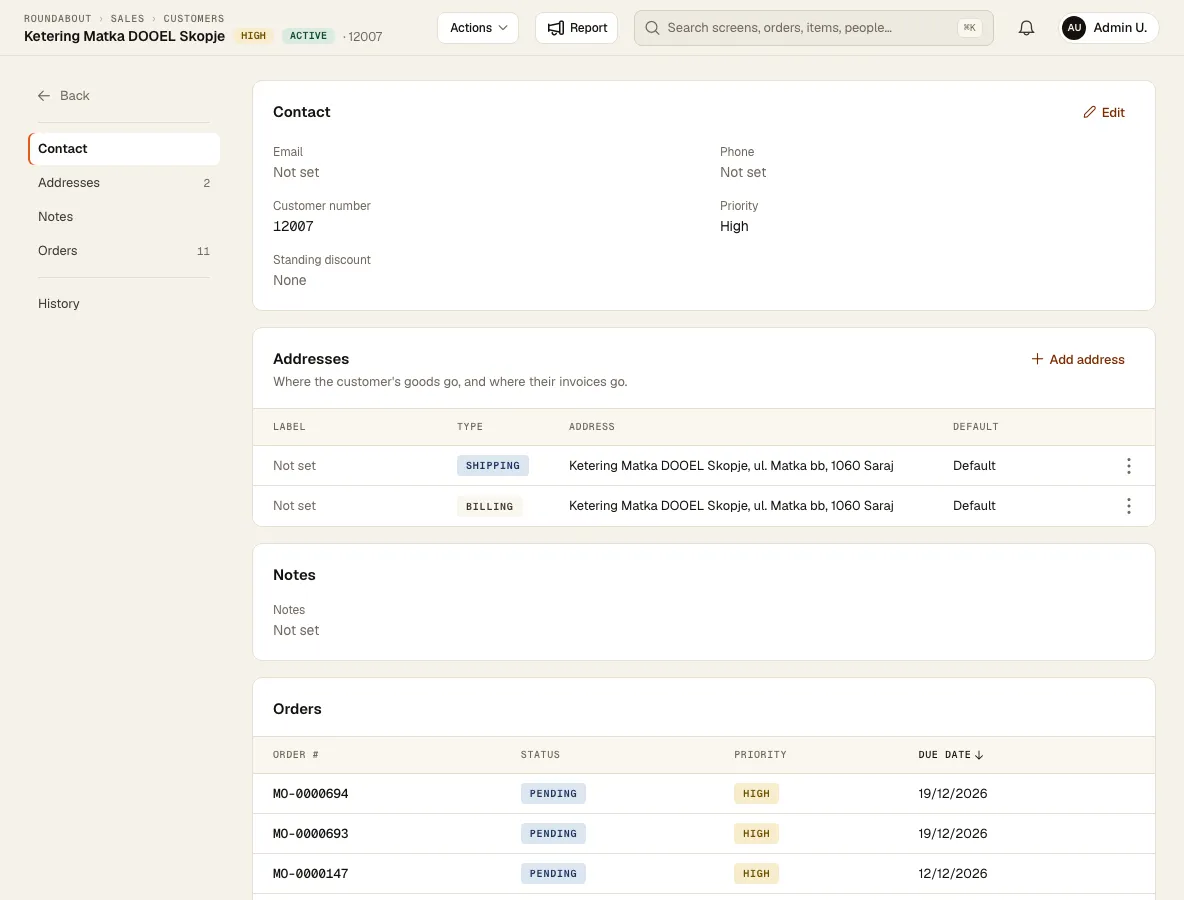
Its title is the customer’s name, with its customer number, its priority and its status.
- Contact: its Email, Phone, Customer number, Priority and Standing discount. Edit changes them, and its Status.
- Addresses: where its goods go (Shipping) and where its invoices go (Billing), each with a Label, the Address as it is printed and whether it is the Default of its type. See Addresses.
- Notes: notes for your team.
- Orders: the production orders made for the customer, the 10 due latest first, each with its Order #, Status, Priority and Due date; Show all opens them on the Production orders screen. You see it with the permission
order:read. - History: who created the customer and who changed it last, and when.
Actions holds Archive or Restore, and Delete.
Addresses
Section titled “Addresses”Add address saves an address: its Type, Shipping or Billing, a short Label to tell addresses apart, the Address as it should be printed, and Default address. A customer has one default of each type; making an address the default takes the mark off the one before. A customer’s only address of a type reads Default (only one).
When you confirm a sales order that has no ship-to address of its own, werkplan copies the customer’s default shipping address onto it, or its only shipping address, and prints it on the delivery note. Changing or removing an address later changes no sales order that already has it.
Statuses
Section titled “Statuses”A customer is Active when you add it. Archive makes it Inactive and Restore makes it Active again, from its page or its row on the Customers screen; the Status field in Edit customer does the same.
stateDiagram-v2
  accTitle: Customer statuses
  accDescr: A customer is created Active. Archive, or Edit customer, makes it Inactive; Restore, or Edit customer, makes it Active again.
  [*] --> Active: Create customer
  Active --> Inactive: Archive, or Edit customer
  Inactive --> Active: Restore, or Edit customer
| Status | How a customer gets it | How it leaves it | What it changes |
|---|---|---|---|
| Active | Added, or restored | Archived | Offered on quotes, sales orders and price lists |
| Inactive | Archived | Restored | Not offered anew; its quotes and sales orders go on as they are |
Changing a status needs the permission customer:write. The list shows Active customers under Active and Inactive ones under Archived.
Active
Section titled “Active”You sell to the customer. The customer pickers of a quote, a sales order and a price list offer it.
Inactive
Section titled “Inactive”The customer is archived: kept on record with its quotes, sales orders and production orders, but no longer offered by the customer pickers of a quote, a sales order or a price list. Its open sales orders go on as they are: they are still planned, packed and delivered. A source system that sends a sales order with the customer’s number still adds it to this customer. Restore the customer to sell to it again from werkplan’s screens.
Delete a customer
Section titled “Delete a customer”In Actions, click Delete and confirm. Deleting can’t be undone: the customer goes with its addresses and its place on price lists. werkplan doesn’t delete a customer that a quote, a sales order or a production order names, and says which. For an active customer it offers Archive instead.
Still stuck? Write to support@example.com.