Transfers
- Available on
- Trial
- Pro
- Enterprise
- Who can do this
- Open this screenRoles: Administrator, Employee
Permission: inventory:read - Open a transfer's page, and print its transfer noteRoles: Administrator, Employee
Permission: inventory:read - Raise a transfer, change it, ship it, receive it or cancel itRoles: Administrator
Permission: inventory:write
- Open this screenRoles: Administrator, Employee
The Transfers screen lists the transfers that move stock between two of your own locations, such as from a rented warehouse to the plant. A transfer is for stock that spends time on the road; to move stock within a site at once, use Transfer stock on the Stock screen.
The list
Section titled “The list”The list shows each transfer’s Transfer #, From and To, its Status, when it Shipped, its Expected arrival, when it was Received, how many Lines it has and when it was Created, newest first. Show it as Cards or as a Table, search it, sort it, and filter it by Transfer #, Status, Expected arrival and Created.
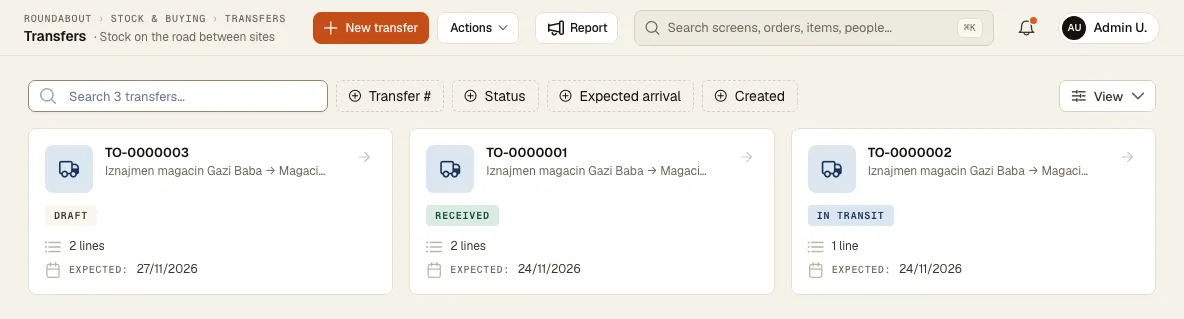
Status is one of Draft, In transit, Received and Cancelled. The transfers in transit are your stock on the road: the Stock screen counts it as expected, and no location counts it as on hand.
Click a transfer to open its page: see Transfer.
Raise a transfer
Section titled “Raise a transfer”Click New transfer, pick From and To, and click Create draft; then add its lines, and click Ship when the goods leave. See Move stock to another site.
Still stuck? Write to support@example.com.