Equipment
- Available on
- Trialup to 25 machines
- Proup to 150 machines
- Enterprise
- Who can do this
- Open this screenRoles: Administrator, Employee
Permission: equipment:read - Add or change a machine or an equipment type, or import themRoles: Administrator
Permission: equipment:write - Delete a machine or an equipment typeRoles: Administrator
Permission: equipment:delete
- Open this screenRoles: Administrator, Employee
The Equipment screen lists your machines and the equipment types they belong to. Each routing step runs on an equipment type, and werkplan plans each of its operations on one machine of that type that has a capacity for the item.
An equipment type is a kind of machine, such as an oven or a CNC mill. A machine is one of them, such as Oven 2, with its capacities, its changeovers, the training it takes to run it and the times it is out of use. The screen has two tabs: Machines, which opens first, and Types.
Your subscription tier caps how many machines you can have: up to 25 on Trial and 150 on Pro, and as many as you like on Enterprise. Every machine counts, decommissioned ones too; equipment types and tools don’t. At the cap, werkplan refuses New machine and Duplicate, and offers Upgrade. An import of machines isn’t held to the cap.
Machines
Section titled “Machines”The Machines tab lists every machine with its Name, Unit #, Status, Type and Created date. Show it as Cards or as a Table, search it by name or unit number, and filter it by Name, Unit #, Status, Created and Type.
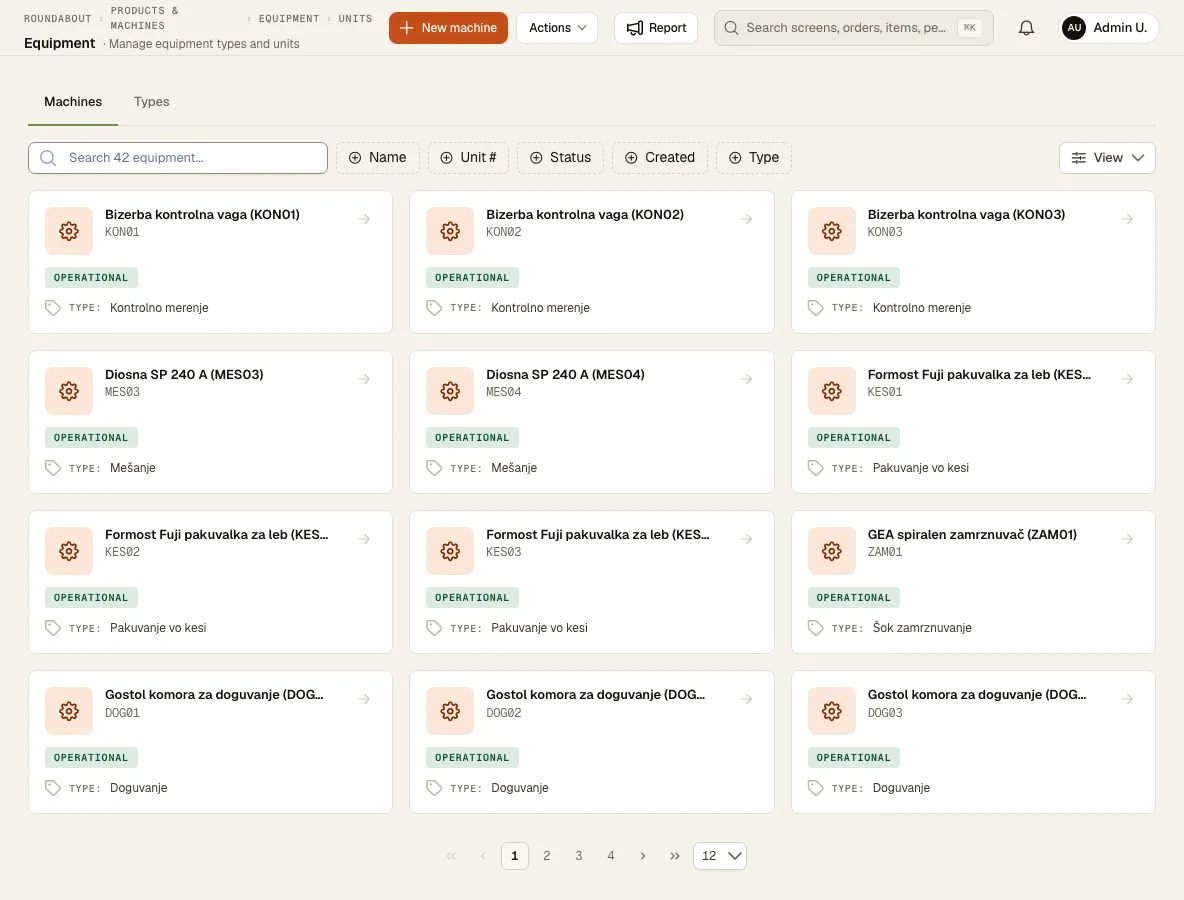
The Status filter offers Operational and Decommissioned, the two statuses a machine is saved with. A machine that is out of use for a while shows Out of Service, but the filter finds it under Operational.
Click a machine to open its page: see Machine.
Actions exports the list as a CSV file, and imports from CSV files you check first: Import machines…, Import machine times…, Import training requirements… and Import machine changeovers…. A row whose unit number matches a machine updates it.
Add a machine
Section titled “Add a machine”On the Machines tab, click New machine, fill in its Name, Unit number, Equipment type and Status, and click Create machine. A machine needs a capacity before work is planned on it: the whole path is in Add a machine.
The Types tab lists every equipment type with its Name, Description, how many Units it has, decommissioned ones included, and when it was Created. Search it by name or description, and filter it by Name and Created. Actions exports it, and Import machine types… imports types from a CSV file.
Add an equipment type
Section titled “Add an equipment type”- On the Types tab, click New type.
- Enter a Name that no other type has, such as Oven. Routing steps and machines pick the type by this name.
- If you like, enter a Description for your team. Planning doesn’t read it.
- Click Create.
You can also add a type on the spot, with the + beside an Equipment type field.
An equipment type’s page
Section titled “An equipment type’s page”Click a type to open its page. General shows its Name and Description, and Edit changes them: its machines and the routing steps that need it stay linked, so nothing is planned differently. Units lists its machines with their Unit # and Status, and Add machine adds one of this type. Actions holds Duplicate, which copies its name and description but no machines, and Delete.
werkplan doesn’t delete an equipment type that a routing step or a variant’s step change needs, and its message doesn’t say which: take the type out of those steps first.
Delete a machine
Section titled “Delete a machine”On the machine’s page, open Actions and click Delete. Deleting can’t be undone: the machine goes with its capacities, changeovers, training requirements and unavailable time. werkplan doesn’t delete a machine that a production schedule holds operations on, the master plan’s or an earlier one’s: decommission it instead, to take it out of planning.
Still stuck? Write to support@example.com.