Re-plan
- Available on
- Trial
- Pro
- Enterprise
- Who can do this
- Open the re-plan and read what it does, with schedule:readRoles: Administrator
Permission: planning:execute - Add fixes, move and pin operations, switch to the full re-plan, and promote itRoles: Administrator
Permission: planning:execute
- Open the re-plan and read what it does, with schedule:readRoles: Administrator
The re-plan is the one open scenario on today’s data that takes in every open exception. It moves as little work as it can around them, a full re-plan is solved beside it, and nothing changes on the shop floor until a planner promotes it.
Only planners, everyone with planning:execute, see the re-plan. Anyone else who opens it reads The re-plan is for those who plan.
How it is made and solved
Section titled “How it is made and solved”Your organisation has one open re-plan at most, which every planner shares:
- The first exception creates it: an exception reported while none is open makes the re-plan and solves it. It is named after when it was made, such as Re-plan · Tue 3 Nov 15:20.
- Each exception solves it again: an exception reported, withdrawn or reported back solves it again on a fresh snapshot of today’s data, keeping its fixes and pins. Nothing else solves it by itself.
- Opening it: Open re-plan on the Master plan screen’s band opens it, and Re-plan makes it while none is open; the New scenario menu and the card of changes offer Re-plan too. Opened while unsolved, failed or out of date, it is solved again on today’s data first.
- Promote ends it: promoting it puts its plan in force, and the next exception creates another.
A solve takes a few seconds. While it solves, its fixes and pins are locked.
What its page shows
Section titled “What its page shows”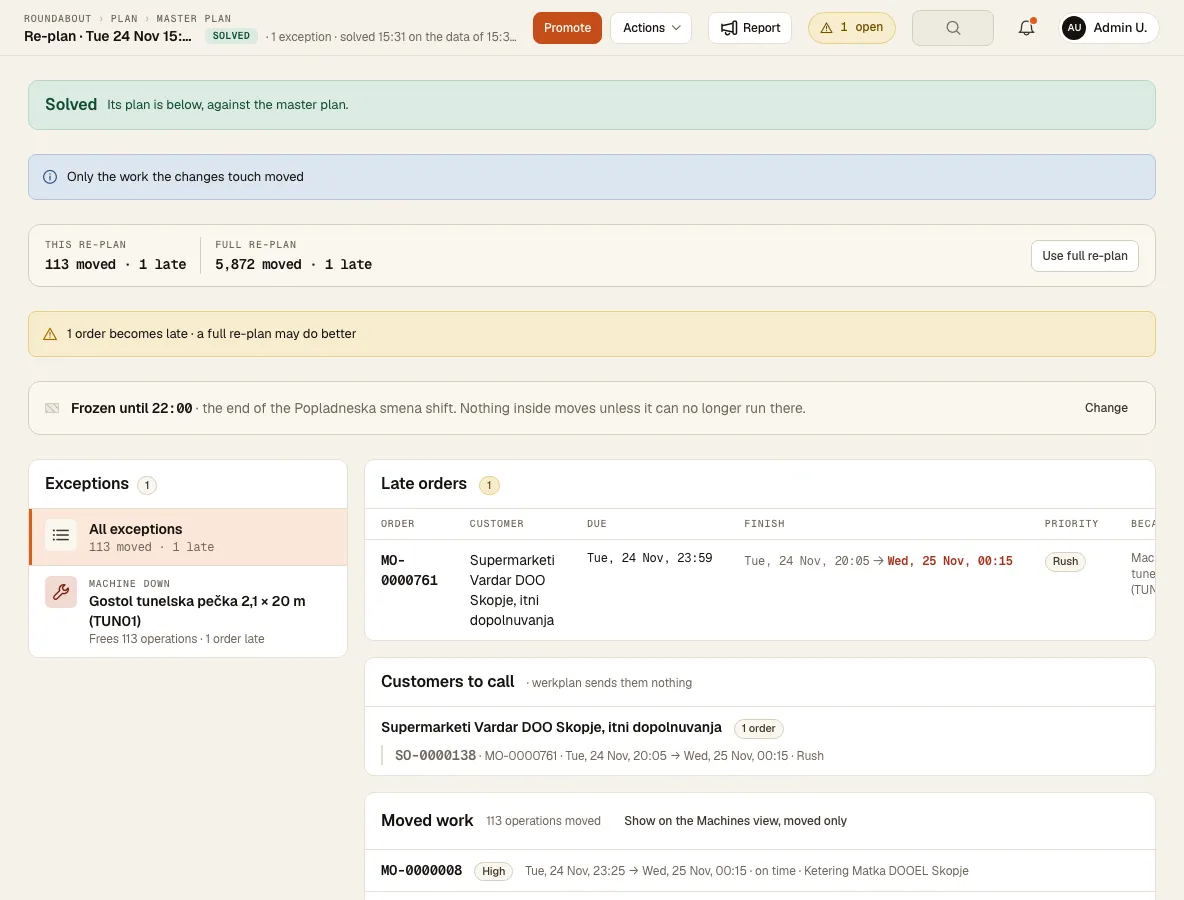
From the top:
- The head: how many exceptions it holds and when it was solved, on the data of when, such as 1 exception · solved 07:12 on the data of 07:11. Promote is its main button.
- Why it was solved again: A new exception arrived: re-solved, An exception was withdrawn: re-solved or Reported back: re-solved, with when and the exception, or Re-solved on today’s data once opening it solved it.
- How it was solved:
- Only the work the changes touch moved: a local re-plan. It lists the machines whose time the changes freed, such as 4 h free on Press 2: a full re-plan could use it.
- Widened to a full re-plan, with the reason, such as an order that found no room: the local re-plan couldn’t place the freed work, and solved the whole plan, keeping your pins.
- Full re-plan: … needs it: a change the local re-plan can’t work around, such as a routing changed, and the re-plan solved the whole plan.
- This re-plan and the full re-plan: their operations moved and orders late, side by side: see Full re-plan.
- The frozen horizon: Frozen until …, the end of the shift running when its data was read. Nothing inside moves unless it can no longer run there. Change sets it, as on any scenario.
- The exceptions beside what they do: All exceptions with the totals, then each open exception with what it alone does, such as Frees 6 operations · 1 order late, Adds 26 operations · on time, Frees time · nothing moves, or Needs a decision for scrap. Pick one to see only its share of:
- Late orders: each order that becomes late, with its customer, its due date, its finish before and after, its priority and the exceptions it is late because of;
- Customers to call · werkplan sends them nothing;
- Moved work: how many operations move, the rush and high-priority orders that move but stay on time, and Show on the Machines view, moved only;
- the work the frozen horizon let go, the staffing bottlenecks, and how many people and customers to tell after promote.
- Fixes: what you try in the re-plan to answer the exceptions, and the operations you moved: see Fixes.
- Its figures against the master plan, its other changes and its plan, by Orders or Machines, as on any scenario: see Scenario.
Fixes lists what you try in the re-plan, saved only when you promote. Add fix offers:
| Fix | What it tries | How-to |
|---|---|---|
| Extra shift | Call someone in on a day they don’t work | Call someone in for an extra shift |
| Longer shift | Keep someone on after their shift ends | Keep someone on after their shift |
| Order priority | Give an order a higher or lower priority | Change an order’s priority in the re-plan |
| Order on hold | Leave an order out of the plan for a while | Hold an order in the re-plan |
A scrap the re-plan took in is listed first, with Make again and Deliver short: see Decide what happens to scrap. An operation you moved is listed as Pinned, with Re-plan around my changes and Unpin: see Move and pin an operation. A master plan’s pin you let go is listed as unpinned, with Keep pinned: see Unpin an operation.
Each fix is solved with the re-plan: it keeps the re-plan local, freeing only the work it is for. Promote asks the permission to save each fix as real data: schedule:write for a shift, overtime:authorise for one with Authorise ticked, and order:write for an order’s priority or hold and a scrap decision. Without one of these, a line under the head says which, and Promote is off. An extra shift placed with the emergency override also needs workforce:admin, and a shift that needs an overtime authorisation needs Authorise ticked: werkplan refuses the promote without them.
Full re-plan
Section titled “Full re-plan”Beside every re-plan that stays local, werkplan solves the same data again in full, in the background, and keeps both results: this re-plan moves as little as it can, and the full re-plan may keep more orders on time by moving more. A re-plan that widened, or was full from the start, has no full re-plan beside it.
The strip under the head sets them side by side, This re-plan with its … moved · … late beside Full re-plan. While this re-plan is shown and makes orders late, a warning says a full re-plan may do better.
stateDiagram-v2
  accTitle: Full re-plan statuses
  accDescr: A full re-plan is computed beside each local one. It ends solved, and can then be shown, or failed. Solving the re-plan again, or promoting it, drops it.
  [*] --> Computing: A local result is recorded
  Computing --> Solved: The full solve ends
  Computing --> Failed: It gives no plan
| Status | How it gets it | How it leaves it | What you can do |
|---|---|---|---|
| Computing | The re-plan’s local result is recorded | The full solve ends or fails | Wait; promote puts this re-plan in force |
| Solved | The full solve ends | The re-plan solves again, or is promoted | Use full re-plan, Back to this re-plan |
| Failed | The full solve gives no plan | The re-plan solves again, or is promoted | Keep this re-plan |
Switching needs planning:execute. Solving the re-plan again drops the full re-plan and computes another, and promote drops the one it doesn’t put in force.
Computing
Section titled “Computing”The strip reads Computing the full re-plan… in its place, and has no button. The re-plan answers with its local result at once; it never waits for the full one. Promoting it meanwhile puts this re-plan in force, and the promote dialog says the full re-plan still being computed is dropped.
Solved
Section titled “Solved”The full re-plan’s operations moved and orders late stand beside this re-plan’s, with Use full re-plan. Once you use it, the strip reads Showing the full re-plan, the page shows its plan and figures, and Promote puts the full re-plan in force. Back to this re-plan shows the local one again.
Failed
Section titled “Failed”The strip reads The full re-plan failed, with why. This re-plan stays, and promote puts it in force. One that runs far longer than a solve may reads failed too: solve the re-plan again to compare.
Still stuck? Write to support@example.com.