On the shop floor
- Available on
- Trial
- Pro
- Enterprise
- Who can do this
- Add operators and give them a PINRoles: Administrator
Permission: operator:write - Set up a terminal's account and the machines it servesRoles: Administrator
Permission: user:write - Sign an operator in at a terminalRoles: Administrator, Shop floor terminal, Warehouse terminal
Permission: shopfloor:operate - Start, pause, resume, give a part done and finish a job, beside shopfloor:operateRoles: Administrator, Shop floor terminal
Permission: shopfloor:jobs - Report a machine down, a machine back or a QA rejection at a terminalRoles: Administrator, Shop floor terminal
Permission: shopfloor:report - Receive a delivery at a terminalRoles: Administrator, Warehouse terminal
Permission: shopfloor:receive - Pick an order at a terminalRoles: Administrator, Warehouse terminal
Permission: shopfloor:pick
- Add operators and give them a PINRoles: Administrator
On the shop floor, operators sign in at a terminal with their name and PIN, start and finish the work of the master plan, give their counts and scrap, and report a problem the moment it happens. The warehouse receives deliveries and picks orders at its own terminal. This page is for the shift supervisor who sets up the terminals and trains the people who use them.
Who and when
Section titled “Who and when”- The shift supervisor trains the operators and hangs the terminal cards beside each terminal, and adds the operators on the Operators screen. That screen needs
operator:readandoperator:write, which only the Administrator role holds by default: give a supervisor who adds operators a role with them, or ask an administrator. - An administrator sets up each terminal’s account, once per device: see Set up a shop-floor terminal.
- Operators work at a terminal holding the Shop floor terminal role, on Jobs, every shift.
- Warehouse clerks work at a terminal holding the Warehouse terminal role, on Receive when a delivery arrives and on Pick when orders are due out.
Nobody at a terminal holds a permission of their own: the terminal’s account does, and the operator’s PIN says who is standing at it.
How to work
Section titled “How to work”- One operator per person, each with their own PIN. Never share a PIN or sign in for someone else: every job, count, scrap and receipt records who did it.
- Sign in when you come to the terminal, and sign out when you leave it. The terminal signs you out after 30 minutes without recording anything, but the next person shouldn’t work under your name until then.
- Tap Start when the work starts, and Finish when the batch is done. The planner and the office read the floor from these taps: a job started late or finished hours after the work is a plan built on the wrong picture.
- Pause at the end of a shift or a break that stops the machine, so work isn’t left running overnight. When a batch runs into the next shift, give Part done with the count so far and leave it running for the next person.
- Count only good units, and give scrap with its reason at Finish. The planner decides whether scrap is made again; units left out of both the count and the scrap stay planned, as still to make.
- Report a problem at the terminal the moment it happens: a machine down, a machine back, units failing inspection. It is saved at once, the terminal switches Start and Resume off on the jobs of a machine that is down, and the planner’s re-plan takes it in. Don’t wait for the office, and don’t write it down anywhere else.
- Read the lines on a job card before you tap. Machine down · wait for the new plan means just that; Changed means the last promote moved it, so tap OK once you have read it; Absent means the supervisor assigns it.
- Receive each delivery when it arrives, against its purchase order, scanning the items and writing the receipt’s number on the delivery note. Pick the orders due first: the list is sorted so.
- Supervisors: keep the terminal cards beside each terminal, and print them again when this guide changes them.
Before you start
Section titled “Before you start”- A master plan is in force: the terminal lists only its work. See Make the first master plan.
- Each terminal has its account, its role and its machines: see Set up a shop-floor terminal.
- The operators are added, each with their own PIN, and linked to the employee they are where the plant does that: see Operators.
- For the warehouse: purchase orders are placed with their suppliers, and sales orders are confirmed.
flowchart TB
  accTitle: On the shop floor
  accDescr: The supervisor adds the operators. An operator signs in at the terminal, starts a job, pauses or gives a part done, and finishes it with any scrap, reporting a problem when something goes wrong. At the warehouse terminal, a clerk receives deliveries and picks orders. The office follows the floor in Tasks and on each production order.
  add[Add operators] --> signin[Sign in with the PIN]
  signin --> start[Start a job]
  start --> part[Pause or part done]
  part --> start
  start --> finish[Finish, with any scrap]
  start -.-> problem[Report a problem]
  signin --> receive[Receive a delivery]
  signin --> pick[Pick an order]
  finish --> office[The office follows it]
| Step | Screen | What you do | What changes |
|---|---|---|---|
| 1 | Operators | New operator, with a PIN | The operator is Active, on every terminal’s sign-in list |
| 2 | Any terminal screen | Tap your name, type your PIN | Your work is recorded under your name |
| 3 | Jobs | Start; Pause and Resume; Part done | The task and its production order are In Progress; Paused while paused; a part done records the count so far |
| 4 | Jobs | Finish, with any scrap | The task is Completed; the step’s progress counts the good units; scrap is an exception |
| 5 | Any terminal screen | Report a problem | The machine’s downtime, or the QA rejection, is saved; an exception opens when it touches the plan |
| 6 | Receive | Confirm the lines, then Receive 3 lines or as many as confirmed | The goods are in stock; the purchase order counts them |
| 7 | Pick | Start picking, confirm the lines, Finish | The goods leave stock as a delivery of the sales order |
| 8 | Tasks, the production order | Read what the floor did | Nothing |
1. Add the operators
Section titled “1. Add the operators”On Operators, click New operator for each person: their name, a badge code if they carry one, and a PIN of 4 digits, which you tell them at once. Link them to the employee they are where the plant does that: they then see the work the plan names them on.
2. Sign in at the terminal
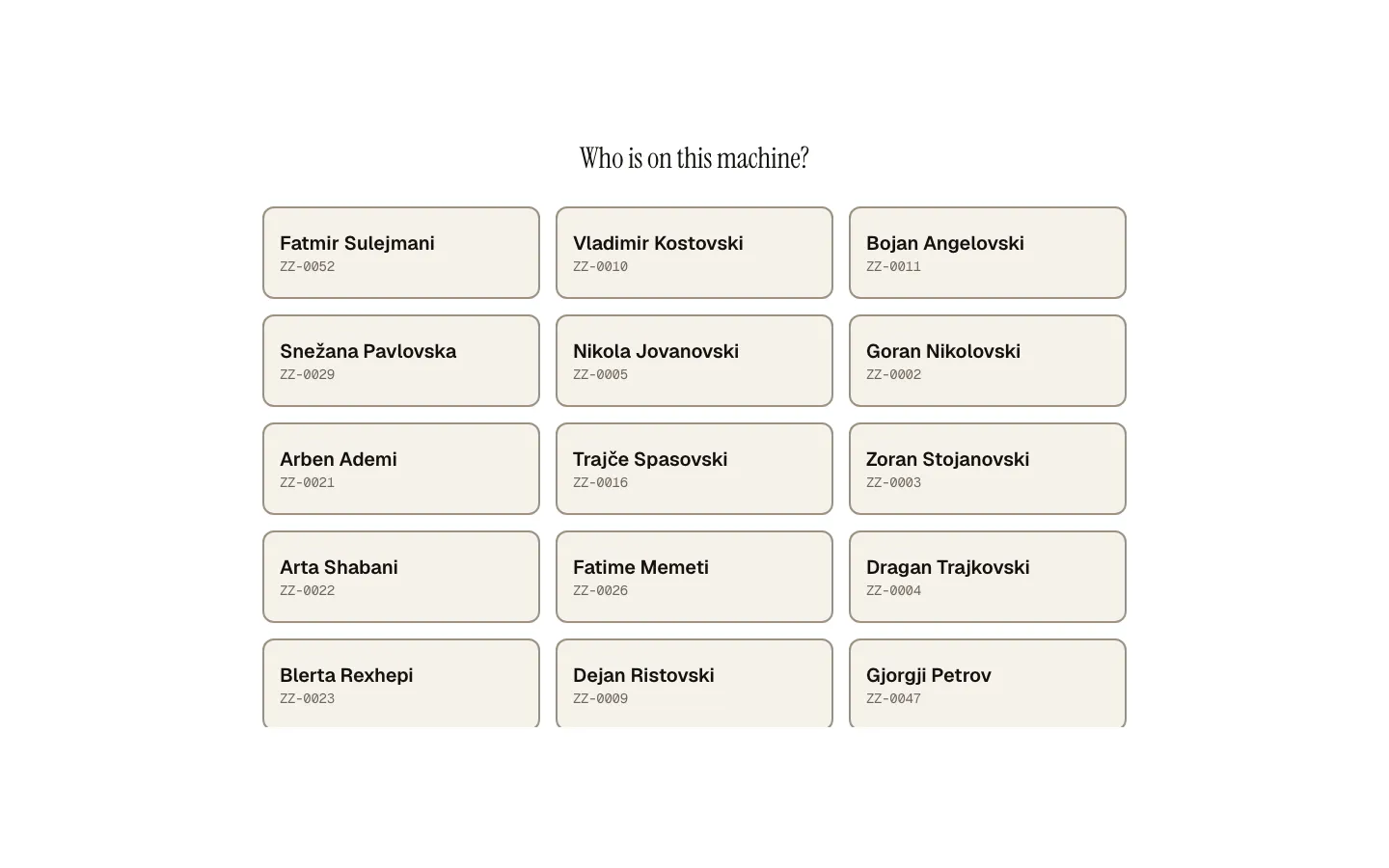
Section titled “2. Sign in at the terminal”The terminal asks Who is on this machine? while nobody is signed in. The operator taps their name and types their PIN; the keypad goes on at the fourth digit. Teach them to tap their name and Sign out when they leave.
3. Work the jobs
Section titled “3. Work the jobs”Jobs lists the work ready at this terminal: running and paused work, and work planned to start within the next 24 hours once the step before it is finished. The operator taps Start when the work starts, Pause and Resume around a stop, and Part done to hand a running batch to the next shift. See the card Report progress at the terminal.
4. Finish, with any scrap
Section titled “4. Finish, with any scrap”Finish asks how many good units were made. When fewer came out than expected, it asks how many were scrapped and why. The planner is told of the scrap, and the re-plan decides whether the units are made again or the order is delivered short. See the card Report scrap at the terminal.
5. Report a problem
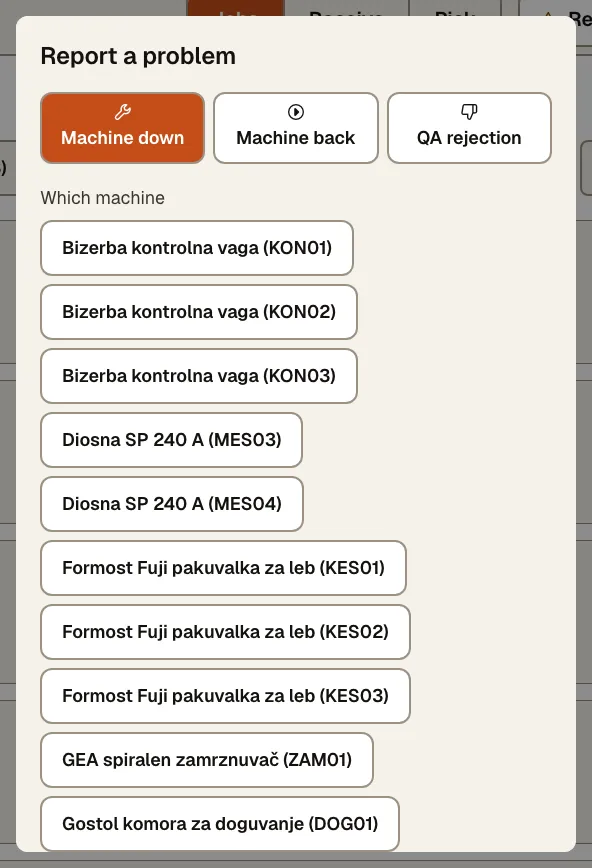
Section titled “5. Report a problem”Report a problem, in the terminal’s header, saves a machine down, a machine back or a QA rejection on the machines the terminal serves, with the operator as the one who reported it. Job cards on a machine reported down read Machine down · wait for the new plan, and Start is off on them. See Jobs and When something happens.
6. Receive deliveries
Section titled “6. Receive deliveries”On Receive, the clerk taps the purchase order the delivery is for, gives each line that arrived its quantity, and its lot where the item has one, confirms it, picks the location and taps the button that counts the lines, such as Receive 3 lines. See the card Receive goods at the terminal.
7. Pick orders
Section titled “7. Pick orders”On Pick, the clerk taps Start picking on the order due first, takes what each line says from the shelf it names, confirms it, and taps Finish twice. See the card Pick an order at the terminal.
8. Follow the floor from the office
Section titled “8. Follow the floor from the office”In the office, Tasks and each production order’s page show what the floor has started, finished and scrapped, and who ran it where that differs from the plan. The next re-plan plans only what is left, around the work running.
If something goes wrong
Section titled “If something goes wrong”- That PIN was not recognised. Try again.: the PIN is wrong, or the operator is inactive or locked out. Five wrong PINs in a row lock them out for 15 minutes, and each wrong PIN after that again; Reset PIN on Operators gives them another and ends the lockout.
- A job isn’t on the list: the step before it isn’t finished, it starts more than 24 hours ahead, it runs on a machine this terminal doesn’t serve, its order is on hold, or the plan that holds it isn’t promoted yet.
- Start is refused: its machine is down, decommissioned or running other work, or the plan names someone else on it and the operator lacks a training it needs. The message says which.
- The PIN pad comes back mid-entry: the session ended. Sign in again: what was typed is still there.
- A count or scrap was wrong: a finished job can’t be opened again at the terminal. Tell the office.
- A receipt was booked wrong: the office voids it, and the order returns to the due-in list.
- Picking finishes with lines short: the order stays on the list, owing the rest, for another pick.
What comes next
Section titled “What comes next”- Scrap and QA rejections go to the planner’s re-plan: When something happens.
- When every step of a production order is finished, the order completes and its output goes into stock: see Task.
- Picking delivers the sales order from stock.
Still stuck? Write to support@example.com.