Set up werkplan
- Available on
- Trialup to 25 employees, 25 machines, 50 products and 100 production orders
- Proup to 150 employees, 150 machines, 500 products and 1,000 production orders
- Enterprise
- Who can do this
- Set the organisation's time zone and currency, edit the labour rules, and schedule the company shift policyRoles: Administrator
Permission: organization:write - Give the organisation its holiday calendars on the Organization screen, which needs employee:write as wellRoles: Administrator
Permission: organization:write - Add holiday calendars and employees, and give employees their trainingsRoles: Administrator
Permission: employee:write - Add shift types and shift groupsRoles: Administrator
Permission: shift:write - Add equipment types, machines and tools, and say which training running a machine takesRoles: Administrator
Permission: equipment:write - Add units, packagings, materials and products, with their variants, bills of materials and routingsRoles: Administrator
Permission: product:write - Add trainingsRoles: Administrator
Permission: training:write
- Set the organisation's time zone and currency, edit the labour rules, and schedule the company shift policyRoles: Administrator
You set up werkplan once, before your first plan: your organisation, holiday calendars, shifts, machines and tools, products with their routings, then trainings and employees. This page is the routine for it, step by step, in the order Get started explains.
Who and when
Section titled “Who and when”An administrator does it when your organisation starts with werkplan, and again in part whenever your plant changes. The person who signed your organisation up holds the Administrator role, the one default role with the permissions every step needs (Who can do this above). Others can help with a step: give them access on the Access screen first.
Start at least a day before you want your first plan. A company shift policy holds from tomorrow at the earliest, and werkplan makes no plan before one is in force.
How to work
Section titled “How to work”- Follow the order. Each step uses what the steps before set up. A step done too early is refused, or its import shows rows to fix.
- Schedule the company shift policy on your first day. It holds from tomorrow at the earliest, so schedule it as soon as your shifts are in, even before the rest is ready.
- Enter one of each by hand first. Add one machine, one product with its routing and one employee on their screens before you bring in the rest. You see what each field does, and what your import files must hold.
- Use the names your people use. The printed dispatch list heads each machine’s work with its name and names each step as its routing does.
- Check with a scenario as you go. A scenario changes nothing until you promote it. Once a few production orders are in, create one and solve it: Unplannable orders lists each order it left out, with the reason. Delete the scenario when you have read it.
- Keep your setup current. When the plant changes, change werkplan the same day: a machine bought or sold, a shift moved, a certificate renewed. The master plan never changes by itself: a scenario or the re-plan made after the change plans with it, and promoting it puts the change in force.
- Retire records, don’t delete them. Decommission a machine you no longer use, and deactivate an employee who leaves. werkplan keeps their history, and refuses to delete a machine a plan holds work on or an employee whose shifts are on record.
Before you start
Section titled “Before you start”- You can sign in to your organisation as an administrator.
- You have at hand your shift times and public holidays, your machines and how fast they run, your products with what they are made from and the steps they are made in, and who works which shifts with which trainings.
- If another system holds some of this, such as your ERP or HR system, you can bring it in by CSV import instead of typing it: Bring in your data says which records each import brings in.
| Step | Screen | What you do | What changes |
|---|---|---|---|
| 1 | Organization | Check the time zone; enter the currency | werkplan plans in your time zone |
| 2 | Holiday calendars, then Organization | Add calendars and their dates; give them to the organisation, closed or worked | No shift starts on a closed day |
| 3 | Company shift policy, Shift types, Shift groups | Check the labour rules; add shift types and a shift group; schedule a company shift policy | From its date, production is planned in its shift types’ times |
| 4 | Equipment, Tools | Add equipment types and machines, each with a default capacity; add tools | Machines are Operational, tool units Available |
| 5 | Packaging, Materials, Products | Add units, packagings and materials; add products with a variant, a bill of materials and a routing | A routing goes from Draft to Active, and its product’s orders are planned along it |
| 6 | Training, Employees | Add trainings; say which machines and routings ask for them; add employees with their trainings | Employees are Active at once, and planned from their hire date |
1. Your organisation
Section titled “1. Your organisation”On the Organization screen:
- Under Identity, check the Timezone: where your plant is, as a zone name such as Europe/Amsterdam. werkplan took your browser’s when your organisation was signed up. Click Save identity.
- Under Documents, enter the Currency, such as EUR, and what your printed documents carry. Click Save documents.
werkplan plans in this time zone: when today starts, and when each shift starts. Screens show times in your browser’s time zone, and say so when the two differ.
2. Holiday calendars
Section titled “2. Holiday calendars”- On the Holiday calendars screen, click New holiday calendar, enter its Calendar name, and click Create calendar.
- Click the calendar, and click Add date for each of its holidays. Keep the holidays your plant works in a calendar of their own.
- On the Organization screen, choose the calendars under Assigned Calendars, set each to Closed or Worked, and click Save beside them.
On a date of a closed calendar, no shift starts, so no work is planned in its shifts; a night shift from the evening before still runs into it. A worked one is planned as any day, except that a shift type set not to run on public holidays has no shift on it.
3. Shifts
Section titled “3. Shifts”- On the Company shift policy screen, click Edit labour rules, check the values, and click Save. Every organisation starts with the same defaults, not your country’s: see Working-time rules.
- On the Shift types screen, click New shift type for each shift you work, enter its days, its start and end and its break, and click Create shift type.
- On the Shift groups screen, click New shift group, enter a Name, choose the shift types the plant works, and click Create.
- Back on the Company shift policy screen, click New company shift policy. Choose the Shift group and the date it is Effective from, tomorrow or later, and click Schedule.
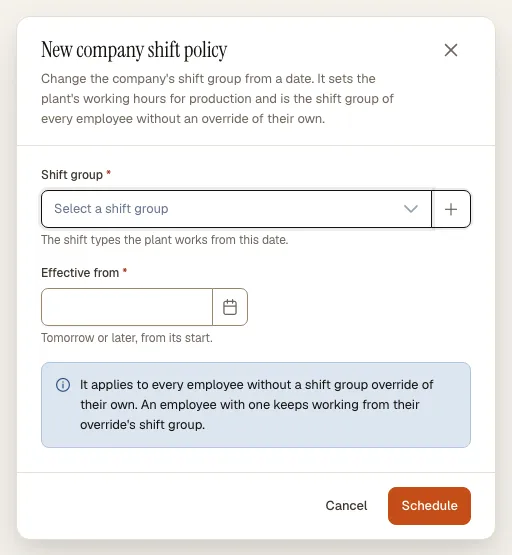
From the policy’s date, production plans work in its shift types’ times, less their breaks, and every employee without a shift group of their own works its group. If you plan people in werkplan too, Set up your shifts adds how many people each shift needs.
4. Machines and tools
Section titled “4. Machines and tools”- On the Equipment screen, on the Types tab, click New type for each kind of machine, such as Oven, and click Create.
- On the Machines tab, click New machine for each machine. Enter its Name and Unit number, choose its Equipment type, and click Create machine.
- On each machine’s page, click Set default capacity, enter how fast it runs, and click Save. Add a machine explains each figure.
- If your work needs tools, add them on the Tools screen: each tool type on its Types tab, then each tool unit on its Units tab.
A machine is saved Operational, and werkplan plans work on it once it has a capacity. A tool unit is saved Available.
5. Products and their routings
Section titled “5. Products and their routings”-
On the Packaging screen, add the units you count in on the Units tab, then on the Packagings tab a packaging for your products, such as pieces in a crate of 10.
-
On the Materials screen, click New material for each material you buy, choose its Unit and Type, and click Create material.
-
On the Products screen, click New product, enter its Name and SKU, and click Create product. Then, on its page:
- under Variants, click Create variant, enter its Name and SKU, and choose its Packaging;
- under Materials, click Add material for each line of its bill of materials: see Set up a bill of materials;
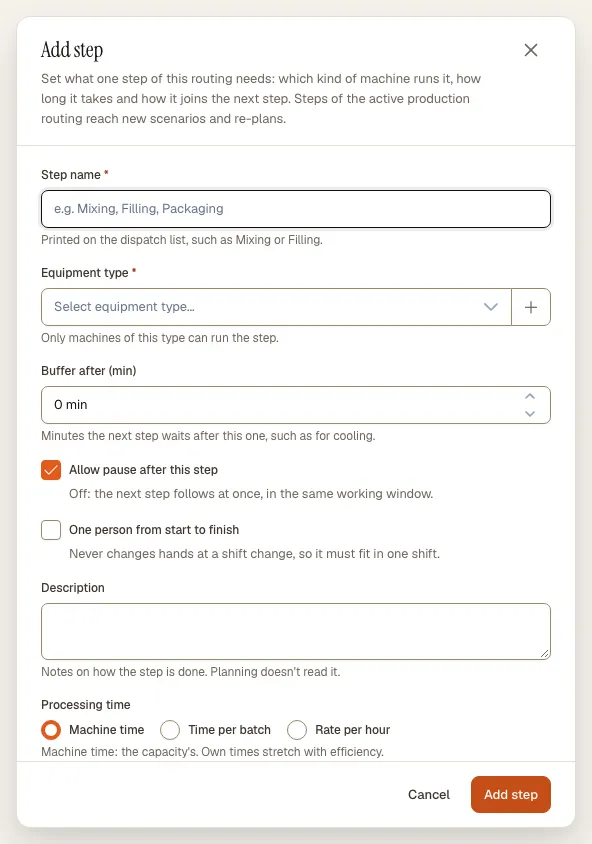
- under Process, click Add routing, add its steps, each on an equipment type, and make it Active: see Give a product its routing.
-
Once the routing is Active, check the product’s Equipment panel. It lists the machines of the equipment types its steps run on, with the figures werkplan plans each one with. A machine whose figures are empty has no capacity yet, so werkplan plans none of the product’s work on it.
A product is saved Active, and a variant is active at once. A routing starts as Draft, and werkplan plans the product’s orders along it only once you make it Active: see Routing statuses.
6. Trainings and employees
Section titled “6. Trainings and employees”- On the Training screen, click New training for each training or certificate, enter its Name and Code, and click Create.
- On each machine’s page, under Training, click Add requirement: the training running it takes, and how many employees with it each operation needs.
- Where a routing’s steps need more people, such as a supervisor, click Add employee under Additional employees on the product’s page.
- On the Employees screen, click New employee for each person. Enter their Employee number and Hire date among the rest, and click Create.
- On each employee’s page, in the Trainings panel, click Assign training, choose the training and its Validity, and click Assign.
An employee is Active at once, is planned only from their hire date, and works the company shift policy’s shift group until you give them one of their own. werkplan plans with a training up to the last day it is valid.
If something goes wrong
Section titled “If something goes wrong”- Creating a scenario is refused with No company shift policy. No policy is in force today. A policy holds from tomorrow at the earliest: create the scenario from its date.
- Creating a scenario is refused with No machine types or No machine in service. Add an equipment type and a machine, or set a machine back to Operational.
- Creating a scenario is refused with No orders to plan. Submit a production order, or bring your orders in.
- Orders are left out of the plan. The scenario’s Unplannable orders gives each one’s reason, which points at a step:
| Reason | What to do |
|---|---|
| No active routing | Step 5: add the routing’s steps, and make it Active |
| No machine can run it | Step 4: give a machine of the step’s equipment type a default capacity, or a capacity for the product |
| Not enough tools | Step 4: add tool units of the type |
| Not enough trained employees | Step 6: give more employees the training, or put more of them on one shift |
| Longer than any working window | Step 3: lengthen the shift, or make the batch smaller |
- werkplan says the limit is reached. Your subscription tier caps how many employees, machines, products and production orders you have. Upgrade opens your subscription.
- An import marks a row to fix, because a name in it matches nothing. The record it names comes from an earlier step: add it first, then choose the file again.
What comes next
Section titled “What comes next”- Bring in the rest of your data, such as your customers, your orders and your opening stock: Bring in your data.
- Make your first master plan: Make the first master plan.
- Give your team access on the Access screen, each with the role their job needs: Run your account.
Still stuck? Write to support@example.com.