Stock
- Available on
- Trial
- Pro
- Enterprise
- Who can do this
- Open this screenRoles: Administrator, Employee
Permission: inventory:read - Open an item's stock page and its movementsRoles: Administrator, Employee
Permission: inventory:read - Receive, issue, adjust or transfer stock, move it between bins, and set default binsRoles: Administrator
Permission: inventory:write - Import opening stock, or recalculate ABCRoles: Administrator
Permission: inventory:write - Print labelsRoles: Administrator, Employee
Permission: inventory:read
- Open this screenRoles: Administrator, Employee
The Stock screen shows, for each item you keep, what you have, what is spoken for and what is on its way, and the figure those add up to. It is also where you move stock by hand: receive it, issue it, correct it and move it within a site.
The screen lists an item once it has stock, an open order or requirement, or a reorder level or safety stock. Every figure is worked out from the stock movements, orders and requirements behind it, in the item’s stock unit, so it is never out of step.
The four actions
Section titled “The four actions”Four cards above the list each open a dialog:
- Receive stock: book materials that arrived without a purchase order into a location, with their lot or serial numbers. To receive against a purchase order, receive it on the order instead: see Receive a delivery against a purchase order.
- Issue stock: take materials out of stock by hand when they are used outside a production order. Only free stock can be taken, never stock reserved for an order. An item not tracked by lot leaves your default location.
- Adjust stock: correct stock on hand after a count, damage or loss. See Correct stock on hand.
- Transfer stock: move one item’s stock to another location at once. See Move stock within a site.
Each posts a stock movement the moment you save it, which the Transactions screen lists, and the list reloads.
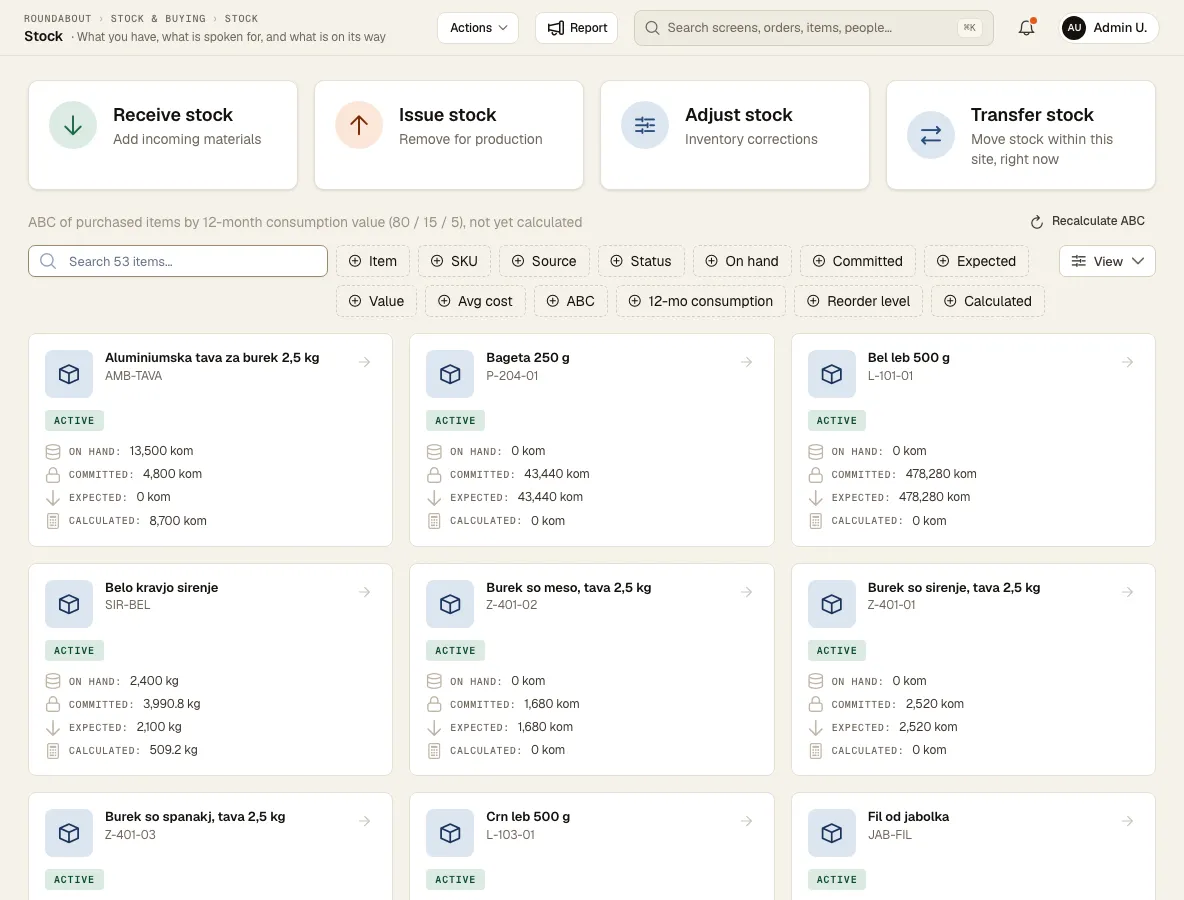
The figures
Section titled “The figures”| Figure | What it counts |
|---|---|
| On hand | Stock you can use: in your own active locations, in a lot that can be used, less units numbered by serial number that are quarantined. Stock at a contractor’s, in an inactive location or on the road is left out |
| Committed | What is owed out of stock: what remains of the material requirements of production orders past their draft, less what their sub-assembly orders make, and what confirmed sales orders still have to deliver |
| Expected | What is on its way: what is outstanding on placed purchase orders with an expected day, the whole quantity of open production orders that aren’t sub-assembly orders until their output is received, and stock on the road between your sites |
| Calculated | On hand less Committed plus Expected less Safety stock. Shown in the warning colour when it is below zero |
| Value and Avg cost | On hand valued at each location’s running average cost, and the average it gives. — when nothing is costed; a value that covers only part of the stock says how much isn’t costed |
| ABC and 12-mo consumption | Purchased items classed A, B or C by what was issued of them in the last 12 months, valued: the items that make up the first 80 % of the value are A, the next 15 % B, the rest C. Unclassified when some of it has no known cost; — for an item not classed |
Reserving stock for a production order changes none of these: Committed counts an order’s demand whether or not it is reserved. Where an item’s stock sits, and how much of it is reserved, is on its page and on Balances.
The line above the list says when the ABC classes were last worked out and how many items are in each. werkplan works them out each night; Recalculate ABC does it at once.
The list
Section titled “The list”The list shows each item’s Item, SKU, Source (bought or made), Status, the figures above, its Reorder level and Safety stock. Show it as Cards or as a Table, search it, sort it and filter it by most of its columns. On a row, Movements opens the Transactions screen narrowed to that item.
Actions holds:
- Print labels: an A4 sheet of 24 barcode labels for the items you pick, each with the item’s name, its barcode or SKU and, if you give one, a lot. Stock doesn’t change.
- Import opening stock…: the stock you have when you start with werkplan, from a CSV file. See Opening stock.
- An export of the list as a CSV file.
An item’s stock
Section titled “An item’s stock”Click an item to open its stock page: where it sits, and what its figures are made of.
- The strip: its On hand, Committed, Expected and Calculated.
- Position: the figures again, On hand linked to the item’s movements, Expected with how much of it is in transit, its Safety stock and Reorder level, and when it Runs out, with, once a run-out is projected, when to Order by and the Suggested order, from the same projection as What runs out next.
- By location and lot: each of its balances, with what is Available, on hand and reserved, its lot and bin. Stock that can’t be used reads not usable. A row with a lot opens the lot.
- Default bins: for each location, the bin a delivery of this item is put away in unless the receipt says otherwise. Pick one to change it.
- Projected stock: how its stock moves day by day with what is committed and expected.
Actions holds Bin transfer, which moves its stock from one bin to another in one location: see Move stock within a site.
What the figures change
Section titled “What the figures change”- Replenishment lists an item as short when On hand less Committed plus Expected falls below its reorder level.
- What runs out next walks the same supply and demand day by day.
- Planning reads the free stock in your own active locations: see What materials change in planning.
Still stuck? Write to support@example.com.