Bring in your data
- Available on
- Trial
- Pro
- Enterprise
- Who can do this
- Import records by CSV fileRoles: Administrator
Permission: customer:write or purchasing:write or product:write or equipment:write or employee:write or training:write or order:write or inventory:write - Import earlier shifts, which needs schedule:write as wellRoles: Administrator
Permission: workforce:admin - Upload staffing requirementsRoles: Administrator, Shift supervisor
Permission: schedule:write - Make or revoke an API keyRoles: Administrator
Permission: organization:write
- Import records by CSV fileRoles: Administrator
Bring your data into werkplan by CSV import from your ERP, webshop, HR system or spreadsheets, through the sales-order intake API from a system that sends orders, or on werkplan’s screens. Import in the order below, because each import names records the earlier ones bring in.
Who and when
Section titled “Who and when”An administrator, or whoever looks after your other systems, does this once before the first plan, and again whenever those systems change. Each import needs a write permission, such as customer:write for customers; Who can do this above lists them.
Before you start
Section titled “Before you start”- Know which system holds each kind of data, and export it as CSV, one file for each import. Each import’s page under CSV imports lists the columns it reads; Download template in each import dialog gives you a file headed by them.
- Give every record the number it has in your other system: customer, supplier and employee numbers, SKUs, machines’ unit numbers and training codes. werkplan matches a row to a record by this import key, so an import of the same records later updates them rather than adding them twice. Where werkplan’s data comes from explains it.
How werkplan works with your data
Section titled “How werkplan works with your data”werkplan doesn’t read your other systems by itself, and never writes back to them. Data reaches it in three ways:
| Way in | For | Where |
|---|---|---|
| CSV import | Customers, suppliers, materials, products and their variants, bills of materials, routings and their additional employees, machine types, machines and their times, training requirements and changeovers, trainings, employees, skills, absences, earlier shifts, production orders, opening stock | Actions on each record’s screen, and a button on Schedule for earlier shifts: How a CSV import works |
| Staffing requirements upload | How many employees each shift type needs on a date | The Demand screen: Staffing requirements |
| Sales-order intake API | Sales orders from a webshop or an EDI bridge | Your system, with a key from the API keys screen: Sales-order intake API |
| On the screens | Everything else, such as units, packaging, stock locations, shift types, shift groups, the company shift policy, holiday calendars and tools | Each record’s screen |
Every import opens the same dialog. You choose the file, werkplan checks every row and marks it OK or Fix, you correct what needs fixing in the dialog, and the import button writes the rows marked OK. How a CSV import works explains the dialog.
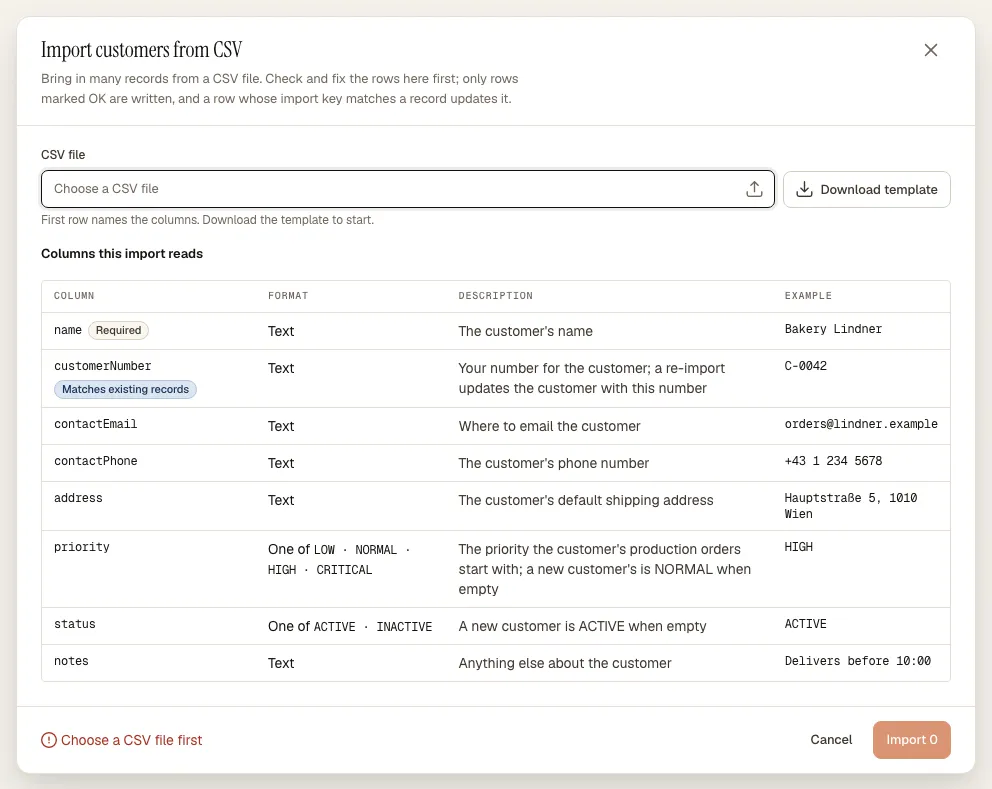
- Enter what has no import. On the Packaging screen, add your units and packaging; on Locations, your stock locations; on Shift types, Shift groups, Company shift policy and Holiday calendars, your shifts and calendars; on Tools, your tools. Imports name units, packaging, stock locations, shift types, shift groups and holiday calendars by their code or name.
- Trainings and people. On the Training screen, import trainings. On Employees, import employees with their trainings, shift group and holiday calendars, then skills with their expiry and absences. Each adds or updates the records it names; an absence takes away the saved shifts it touches.
- Suppliers and materials. On Suppliers, import suppliers. On Materials, import materials, each with its default supplier and lead time.
- Products. On Products, import products, then their variants and their BOM lines.
- Machines and routings. On Equipment, import machine types on its Types tab, then machines on its Machines tab. On Products, import routings and their additional employees. Back on Equipment, import the machines’ times, training requirements and changeovers.
- Customers and their orders. On Customers, import customers. If your ERP makes your production orders, import them on Production orders: each arrives Pending. Otherwise enter your sales orders on Sales orders, or have your webshop send them through the sales-order intake API with a key from API keys; confirming a sales order raises the production orders it needs.
- Opening stock. On Stock, import opening stock, last: it names items and locations. Each row goes through the stock ledger.
- Earlier shifts and staffing requirements, if you plan people. On Schedule, import earlier shifts, the shifts worked before you started, so the working-time rules count them. On Demand, upload staffing requirements if another system says how many people you need.
No import changes the master plan. Scenarios and re-plans made after an import plan with what it brought in.
How to work
Section titled “How to work”- Import in this order, once, before the first plan. Each import names records the earlier ones bring in: an employee names their trainings, a routing its machine types. An import refuses a row whose names match nothing, so a step done too early shows as rows to fix, not as wrong data.
- One system owns your production orders. Either your ERP makes them and you import them, or werkplan raises them from the sales orders you confirm, never both for the same goods: two orders for one demand make the goods twice.
- Keep the numbers the same in both systems. A row matches its record by its number, SKU or code. Change a number on the record’s page in werkplan when it changes in your other system, before the next import.
- Import again to keep up. When your other systems change, export the records again and import them on a fixed day, such as every Monday before you plan the week. Rows that match update their records, and rows that changed nothing write nothing.
- Look at the outcome before you import. A row marked New where you expected Update matches no record: its number has a typo, or the record has no number yet.
- Delete and clear on the record’s page. An empty cell never clears a value, and an import never deletes a record of its kind, so archive or delete what has gone from your other system on its page.
- Look at the re-plan after an import of orders or absences. An import that adds a rush production order or makes one rush, changes or adds a line of an order the master plan holds, or takes an employee away from planned work, reports an exception to the open re-plan, and werkplan tells the people who plan.
- One API key for each system that sends orders. Revoke a key as soon as it leaks or its system is retired.
If something goes wrong
Section titled “If something goes wrong”- Rows marked Fix. The reason is beside each row. Correct the value in the dialog, or in your file and choose it again.
- Missing required columns. The file lacks columns the import needs; compare it with Download template.
- A record added twice. A customer, supplier or employee without a number is added by every import. Delete the extra one on its page and give the record its number.
- “appears earlier in the file”. Two rows have the same key: keep one.
- The connection dropped while importing. Click the import button again: werkplan doesn’t write a row of the same file twice.
- Opening stock “has moved”. Stock that has moved after it was brought in is counted in a stocktake, not imported again.
- A production order “started: not updated”. Change an order that has started on its page.
- An absence refused for a working-time limit. The shifts left would break a limit: change the shifts on the Schedule screen first.
- A source system’s request is refused. Its answer names the problem; the errors of the intake API say what each means.
What comes next
Section titled “What comes next”Set up the rest of werkplan on its screens, such as your organisation’s working hours and the people who use werkplan. Set up werkplan takes you through the setup screens. Then make your first master plan: a scenario solved on the data you brought in, checked and promoted.
Still stuck? Write to support@example.com.