Tasks
- Available on
- Trial
- Pro
- Enterprise
- Who can do this
- Open this screenRoles: Administrator, Shift supervisor, Employee
Permission: schedule:read - Start, pause, resume, mark delayed or complete a task, and record a QA rejectionRoles: Administrator, Shift supervisor
Permission: schedule:write - Add, change or delete an ad-hoc taskRoles: Administrator, Shift supervisor
Permission: schedule:write
- Open this screenRoles: Administrator, Shift supervisor, Employee
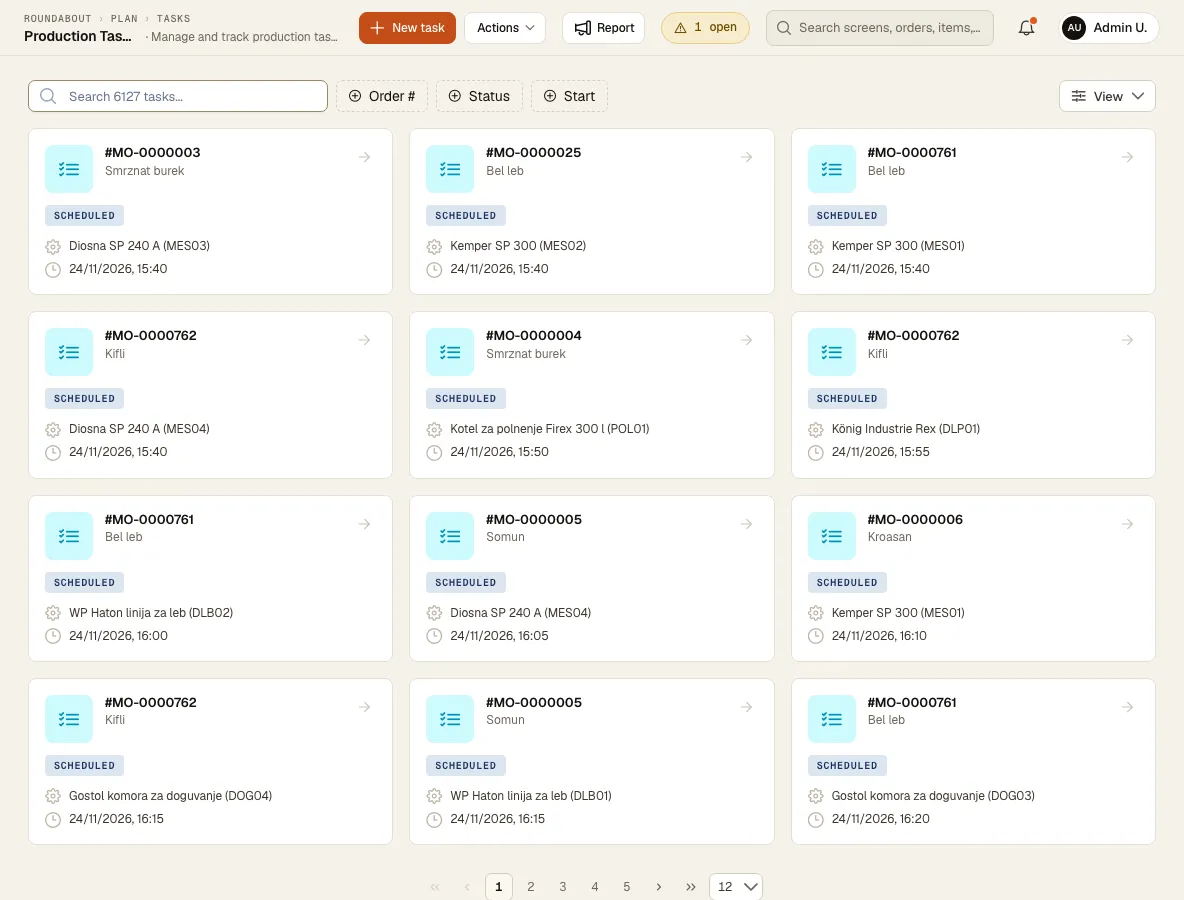
The Tasks screen lists the operations of the master plan in force: each routing step of each batch, on its machine, at its planned time. They are the shop floor’s tasks, and you can work them from the office too. Below them, Ad-hoc tasks holds the one-off jobs you write down yourself.
The screen’s title reads Production Tasks. Until a master plan is in force, it has no tasks and says so, with Open Master Plan: promote a scenario first.
The tasks
Section titled “The tasks”The list shows the master plan’s operations, the soonest first, as Cards or as a Table. A task shows its Order #, Product, Step, Status, Equipment, Start and End, and Deviation when someone other than the person named on it runs it. Search it by order number or machine, and filter it by Order #, Status and Start.
Each task’s menu offers View, Start Task for a scheduled or delayed task, and Complete Task for one in progress, which records the quantity reported so far, or what the step expected to make when none was reported. Complete it from its page to record a different quantity or scrap.
Click a task to open its page: see Task, which says what each status means and what starting, pausing and completing change.
Actions › Open master plan opens the Master plan screen these tasks come from.
Ad-hoc tasks
Section titled “Ad-hoc tasks”An ad-hoc task is a to-do that doesn’t come from the plan, such as inspecting a kiln. Plans and shifts don’t read it, and nobody is told about it.
The Ad-hoc tasks card lists them with their Title, Priority, Status and Due date. Click one to read it; the pencil edits it and the bin deletes it, after you confirm.
Add an ad-hoc task
Section titled “Add an ad-hoc task”- Click New task.
- Give it a Title, such as Inspect kiln A, and, if you like, a Description.
- Choose its Priority: Low, Normal, High or Urgent. It starts at Normal.
- If you like, give it a Due date, who it is Assigned to (they aren’t told), a Related production order and Notes.
- Click Create task.
It is Open, and stays so: the screen has no field to change its status. See Task.
Who may do what
Section titled “Who may do what”Anyone with schedule:read sees the tasks. Working them, recording a QA rejection, and adding, changing or deleting an ad-hoc task need schedule:write. The buttons show to everyone who can open the screen, and werkplan refuses the action without the permission.
Still stuck? Write to support@example.com.