Customers
- Available on
- Trial
- Pro
- Enterprise
- Who can do this
- Open this screenRoles: Administrator, Employee
Permission: customer:read - Add or change a customer, archive or restore it, change its addresses, and import customersRoles: Administrator
Permission: customer:write - Delete a customerRoles: Administrator
Permission: customer:delete - See a customer's production orders on its pageRoles: Administrator, Employee
Permission: order:read
- Open this screenRoles: Administrator, Employee
The Customers screen lists the companies you sell to. Here you add a customer, set its priority and standing discount, and archive one you no longer sell to.
A customer’s priority goes onto the production orders werkplan raises for its sales orders, and its standing discount onto its quote and sales order lines that no price list prices. Every quote and sales order names one customer.
The list
Section titled “The list”The list shows each customer’s Name, Customer #, Priority, Status, Email, Phone and Created date. Show it as Cards or as a Table, search it, and filter it by Name, Priority and Created. Customers you sell to are under Active; customers you archived are under Archived.
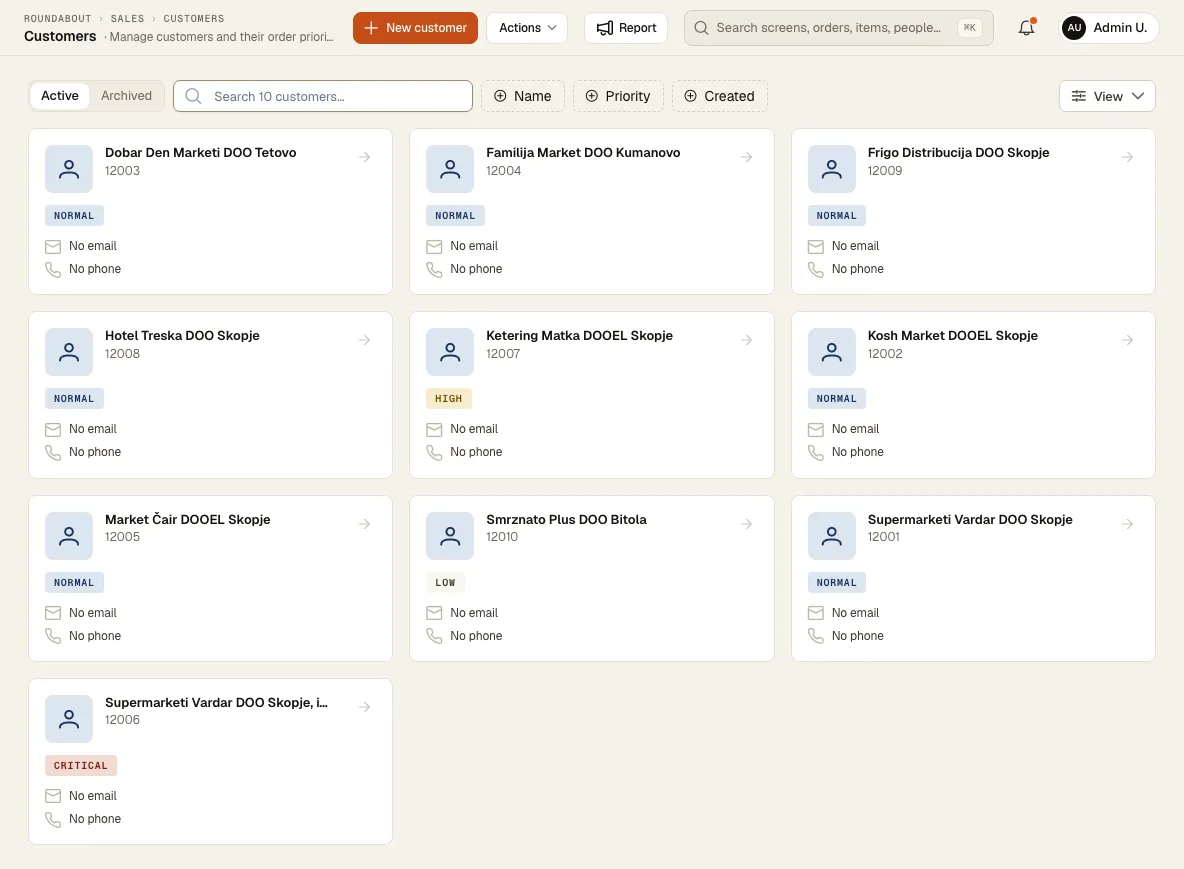
Click a customer to open its page: see Customer.
Add a customer
Section titled “Add a customer”- Click New customer.
- Enter its Name, as it is printed on delivery notes.
- If you like, enter its Customer number: the number it has in your other systems. Import customers… matches customers by it, and no two customers can have the same one.
- If you like, enter a Contact email and a Contact phone.
- Choose its Priority: Low, Normal, High or Critical. Normal is the default.
- If you like, enter a Standing discount %.
- If you like, add Notes for your team. They aren’t printed.
- Click Create customer.
The customer is Active at once, so its quotes and sales orders can name it. Then open its page and add its addresses: a confirmed sales order with no address of its own ships to the customer’s default shipping address.
You can also add a customer while you make a quote or a sales order, with the + beside the customer picker. A source system that sends a sales order for a customer number werkplan doesn’t know adds that customer too: see Sales-order intake API.
To bring many customers in at once, open Actions and click Import customers…: see Import customers.
What a customer changes elsewhere
Section titled “What a customer changes elsewhere”- Priority: each production order werkplan raises for the customer’s sales orders starts at the customer’s priority, and a Critical customer’s at High. Making an order rush is the planner’s call, order by order. Changing a customer’s priority changes no production order it already has.
- Standing discount %: a quote or sales order line you add for the customer takes this discount, unless one of the customer’s price lists prices the item. Lines already entered keep theirs.
- On a price list: a customer on a price list pays the list’s price for the items it prices. See the Price lists screen.
Archive a customer
Section titled “Archive a customer”Archive a customer you no longer sell to: open its row’s actions and click Archive, or Archive under Actions on its page. It moves to Archived and keeps its quotes, sales orders and production orders. Restore makes it Active again. See Customer for what an archived customer can still do.
Still stuck? Write to support@example.com.