Purchase order
- Available on
- Trial
- Pro
- Enterprise
- Who can do this
- Open a purchase order's page, print it and see what was emailedRoles: Administrator, Employee
Permission: purchasing:read - Add, change or remove its lines, change it, place it, close it short or cancel itRoles: Administrator
Permission: purchasing:write - Send it by email, on the Pro and Enterprise tiersRoles: Administrator
Permission: purchasing:write - Receive a delivery against it, or send components to a contractorRoles: Administrator
Permission: inventory:write - Add a material on the spot from Add lineRoles: Administrator
Permission: product:write
- Open a purchase order's page, print it and see what was emailedRoles: Administrator, Employee
A purchase order is one order to one supplier, with a line for each material you buy from them. Its status says where it stands: a Draft is a shopping list, an Ordered one is on its way, a Received one has arrived, and a Cancelled one is abandoned.
You open a purchase order from the Purchase orders screen, or from its number under Waiting for material on the Master plan screen.
What its page shows
Section titled “What its page shows”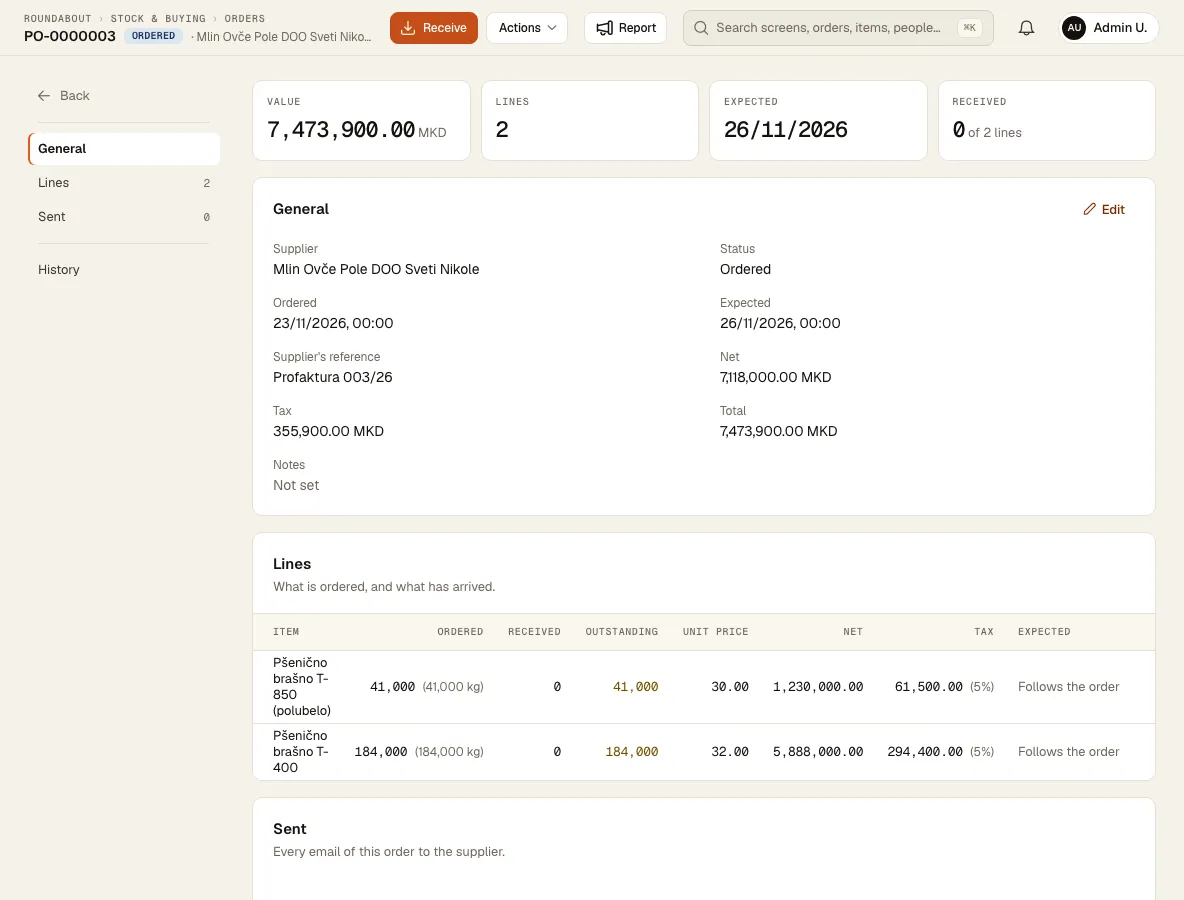
- The top bar: its number, its supplier and its status, and its next step: Place order on a draft, Receive while something is still to come.
- A notice when lines carry no price, which are left out of its value, and one when it was closed short.
- The strip: its Value, its number of Lines, the day it is Expected, and how many lines are Received in full.
- General: its Supplier, Status, the day it was Ordered (Not placed for a draft), the day it is Expected, the Supplier’s reference, Net, Tax, Total and Notes.
- Lines: each material with what is Ordered, in your stock unit and, when the supplier sells in another unit, in theirs; what is Received and Outstanding; its Unit price, Net and Tax, or Not priced; and the day it is Expected.
- Sent: every email of this order to the supplier, with When, To, Subject and Status.
- History: who created it and who changed it last, and when.
A line’s Expected shows its own day, or Follows the order when it takes the order’s day. On a placed order where neither has one, it reads No date, Not counted as coming until it has one: give the line or the order a day.
Actions holds Send components on outsourced work still to come, for people with inventory:write, Close short while something is still to come, Send by email and Print unless the order is cancelled, and Cancel order while nothing has been received.
Add lines to a draft
Section titled “Add lines to a draft”- On Lines, click Add line. The page adds lines only to a draft.
- Pick the Material. Only materials you buy are listed. To add a material on the spot, click the + beside it.
- Enter the Quantity in the unit beside it: the supplier’s unit for the material, else your stock unit. This supplier’s code and price shows their terms for it.
- Leave Unit price empty to take the supplier’s price for that unit, if they have one. A line without a price is unpriced, not free.
- Click Add line.
A material’s terms with each supplier, their code, price, unit, lead time and minimum order, are kept on the material’s page. A line keeps the unit, price and code it was added with, so a later change to the supplier’s terms doesn’t change it.
Change it
Section titled “Change it”Until the order is Received or Cancelled:
- Edit on General changes the day it is Expected, the Supplier’s reference (such as their confirmation number) and the Notes, which print on the order. Lines without a day of their own follow the order’s day. The Supplier changes only on a goods draft with no lines, because each line carries that supplier’s terms; the contractor of outsourced work never changes.
- A line’s Edit line changes its Quantity, in the line’s unit and never below what has arrived; its Unit price, which values what is received from then on; the day it is Expected, where empty follows the order’s day; and its Notes, which are for your team and aren’t printed.
- A line’s Remove line takes it off while nothing has been received on it. werkplan also refuses a line whose receipts were all voided, and a placed order keeps at least one line: cancel the order instead.
The lines of outsourced work aren’t edited. If someone else saved the order after you opened it, werkplan refuses your save: open the order again. A later expected day can make production orders wait longer: see What a purchase order changes in planning.
Place it
Section titled “Place it”On a draft, click Place order. werkplan refuses an order without lines, and refuses while your organisation has no currency: set it on the Organization screen. The order is Ordered, dated today and in your organisation’s currency, and its lines with an expected day count as on their way.
Send it to the supplier
Section titled “Send it to the supplier”- Print opens the purchase order as a PDF, with each line in the supplier’s unit, its prices and the totals. A draft prints as a draft, not yet placed.
- Send by email sends that PDF to the supplier’s contact email, and to no other address. The Subject and Message are filled in, a draft as a request for quotation and a placed order as the purchase order, and you can change them. The button names the address it sends to, and replies come to your own email address.
werkplan sends no email while the supplier has no contact email or while outgoing email isn’t set up for werkplan, and not on the Trial tier: emailing purchase orders is on the Pro and Enterprise tiers. Your organisation can make up to 200 attempts in any 24 hours, failed ones included. Each attempt is listed under Sent, and sending never changes the order’s status.
Receive a delivery
Section titled “Receive a delivery”While the order is Ordered or Partially received, click Receive and record what came: see Receive a delivery against a purchase order. What you receive is on hand at once, and the status follows what has arrived.
Close it short
Section titled “Close it short”When the supplier tells you the rest isn’t coming, open Actions, click Close short and confirm. The order is Received: what was outstanding no longer counts as on its way, its notes say it was closed short, and its page says so at the top. Only an order that is Ordered or Partially received can be closed short.
Cancel it
Section titled “Cancel it”To abandon an order nothing has been received against, open Actions, click Cancel order and confirm. Only a Draft or an Ordered order can be cancelled. Once something has arrived, close it short instead. A purchase order is never deleted.
Outsourced work
Section titled “Outsourced work”A purchase order for Outsourced work buys the making of a product from a contractor, from components you send them. You choose it under What are you ordering? when you raise the order, and the supplier is called the Contractor.
- Add line asks for the Product, which must have a bill of materials: werkplan copies it onto the line as the components to send. Enter the Quantity of finished units and, if you like, the Charge per unit.
- werkplan keeps a location for the contractor’s premises, added the first time you draft outsourced work to them. The components you send sit there: still yours, but your own production can’t use them.
- Send components, in Actions, records what goes to the contractor, from your own locations. Lines shows, for each component, what is At contractor and what is Still to send.
- Receiving the finished product uses up its components at the contractor’s location.
- werkplan doesn’t cancel the order while components are still at the contractor. Closing it short is allowed, and its notes record what is still there.
Outsourced work isn’t counted as on its way, for planning or on the stock screens.
Statuses
Section titled “Statuses”You place, close short and cancel an order; the rest follows what has arrived. werkplan works out Partially received and Received from the deliveries recorded against the order, and works them out again when a receipt is voided and when its lines change.
stateDiagram-v2
  accTitle: Purchase order statuses
  accDescr: A purchase order starts as a Draft. Place order makes it Ordered, and Cancel order cancels a Draft or an Ordered one. A delivery makes it Partially received or Received, Close short makes it Received, and voiding receipts takes it back.
  state "Partially received" as Partial
  [*] --> Draft: Raised
  Draft --> Ordered: Place order
  Draft --> Cancelled: Cancel order
  Ordered --> Cancelled: Cancel order
  Ordered --> Partial: Some received
  Ordered --> Received: All received, or Close short
  Partial --> Received: The rest received, a line cut to what arrived, or Close short
  Partial --> Ordered: Its receipts voided
  Received --> Partial: A receipt voided
  Received --> Ordered: Every receipt voided
| Status | How an order gets it | How it leaves it | Counted as on its way |
|---|---|---|---|
| Draft | Raised with New purchase order, or by the Replenishment screen | Place order, or Cancel order | Nothing |
| Ordered | Place order, or every receipt against it voided | A delivery, Close short or Cancel order | What is outstanding, on each line with an expected day |
| Partially received | A delivery that leaves a line short | The rest delivered, its open lines cut to what arrived or removed, or Close short; voiding its receipts takes it back to Ordered | What is outstanding, on each line with an expected day |
| Received | Every line delivered in full, or Close short | A receipt voided, unless it was closed short | Nothing |
| Cancelled | Cancel order, while nothing has been received | It stays cancelled | Nothing |
Placing, closing short and cancelling need the permission purchasing:write. Receiving needs inventory:write, and voiding a receipt, on the Transactions screen, inventory:void.
The order is a shopping list. It commits nothing: nothing of it counts as on its way, planning doesn’t wait for it, and nothing can be received against it. You add and remove its lines freely, and change its supplier while it has none. Print marks it as a draft, and Send by email sends it as a request for quotation.
Place order makes it Ordered; Cancel order abandons it.
Ordered
Section titled “Ordered”The order is placed with the supplier: it is dated, and its currency is set. What is outstanding on each line with an expected day, its own or the order’s, counts as on its way: on the Stock screen as Expected, on What runs out next and Replenishment, and in the material-ready time of the production orders that need it.
Lines can be changed but no longer added on its page, and its supplier is fixed. A delivery makes it Partially received or Received; Close short makes it Received; Cancel order cancels it.
Partially received
Section titled “Partially received”Some of it has arrived, but at least one line is still short. What arrived is on hand; what is outstanding still counts as on its way. It can’t be cancelled any more: receive the rest, or close it short when the rest isn’t coming.
Received
Section titled “Received”Every line has arrived in full, more than ordered included, or the order was closed short. Nothing of it counts as on its way, it takes no more deliveries, and it can’t be changed. Voiding one of its receipts takes it back to Partially received, or Ordered when no receipt is left, unless what is left still covers every line. An order closed short stays Received.
Cancelled
Section titled “Cancelled”The order is abandoned. Nothing of it counts, nothing can be received, and it can’t be changed or placed again. It has no document, so Print and Send by email are gone.
Email statuses
Section titled “Email statuses”Each email of the order, listed under Sent, has its own status. It says whether the message left; it never changes the order’s status.
stateDiagram-v2
  accTitle: Purchase order email statuses
  accDescr: An email is Sending from the moment you send it, then Sent when the mail server takes it, or Failed when it can't be sent.
  [*] --> Sending: Send to the supplier
  Sending --> Sent: The mail server takes it
  Sending --> Failed: It can't be sent
| Status | What it means | What you do |
|---|---|---|
| Sending | werkplan has recorded the attempt and is handing the message to the mail server | Wait |
| Sent | The mail server took the message | Nothing |
| Failed | The message didn’t leave; the reason shows under the status | Send again in the dialog, or fix what the reason says |
Sending
Section titled “Sending”The attempt is recorded before the message goes, and counts toward your organisation’s 200 in 24 hours.
The message left werkplan for the supplier’s contact email, with the purchase order attached.
Failed
Section titled “Failed”The message didn’t leave: the mail server refused it, or werkplan couldn’t make it. Sent shows the reason under the status. When the mail server refused it, the send dialog shows the reason with Send again. A second attempt is a row of its own.
What a purchase order changes in planning
Section titled “What a purchase order changes in planning”werkplan doesn’t start the work of a production order not yet started before its purchased material is there: its material-ready time. Each time a scenario or a re-plan is made, werkplan works it out from the stock on hand and from the open purchases: the outstanding quantity of each line of a placed order, with an expected day of its own or the order’s. A purchase is there from the start of the day after it is expected; one whose day has passed counts as expected today.
A draft, a cancelled order, an order closed short, outsourced work and a line with no day count as nothing. The master plan never changes by itself:
| You | What it changes |
|---|---|
| Move an expected day later | With a master plan in force, each production order whose planned work starts before its material is there is named in one Late material exception: the planners are told, and the open re-plan takes it in |
| Move an expected day earlier, place an order, cancel it or close it short | Show changes on the Master plan screen lists each production order whose material-ready time moves, as Material ready; the next re-plan or scenario plans with it |
| Receive a delivery on the day it was expected | Nothing |
| Receive it earlier or later than expected | Show changes lists the move, as Material ready |
Still stuck? Write to support@example.com.