Schedule
- Available on
- Trial
- Pro
- Enterprise
- Who can do this
- Open this screenRoles: Administrator, Shift supervisor, Employee
Permission: schedule:read - Print or export the scheduleRoles: Administrator, Shift supervisor, Employee
Permission: schedule:read - Plan a period, change a day, fill or cancel a coverage gap, and ask for a swapRoles: Administrator, Shift supervisor
Permission: schedule:write - With schedule:write, add an absence, or change a day that holds oneRoles: Administrator
Permission: employee:write - Publish the scheduleRoles: Administrator
Permission: schedule:publish - With schedule:write, import earlier shifts, and pass a working-time limit by the emergency overrideRoles: Administrator
Permission: workforce:admin
- Open this screenRoles: Administrator, Shift supervisor, Employee
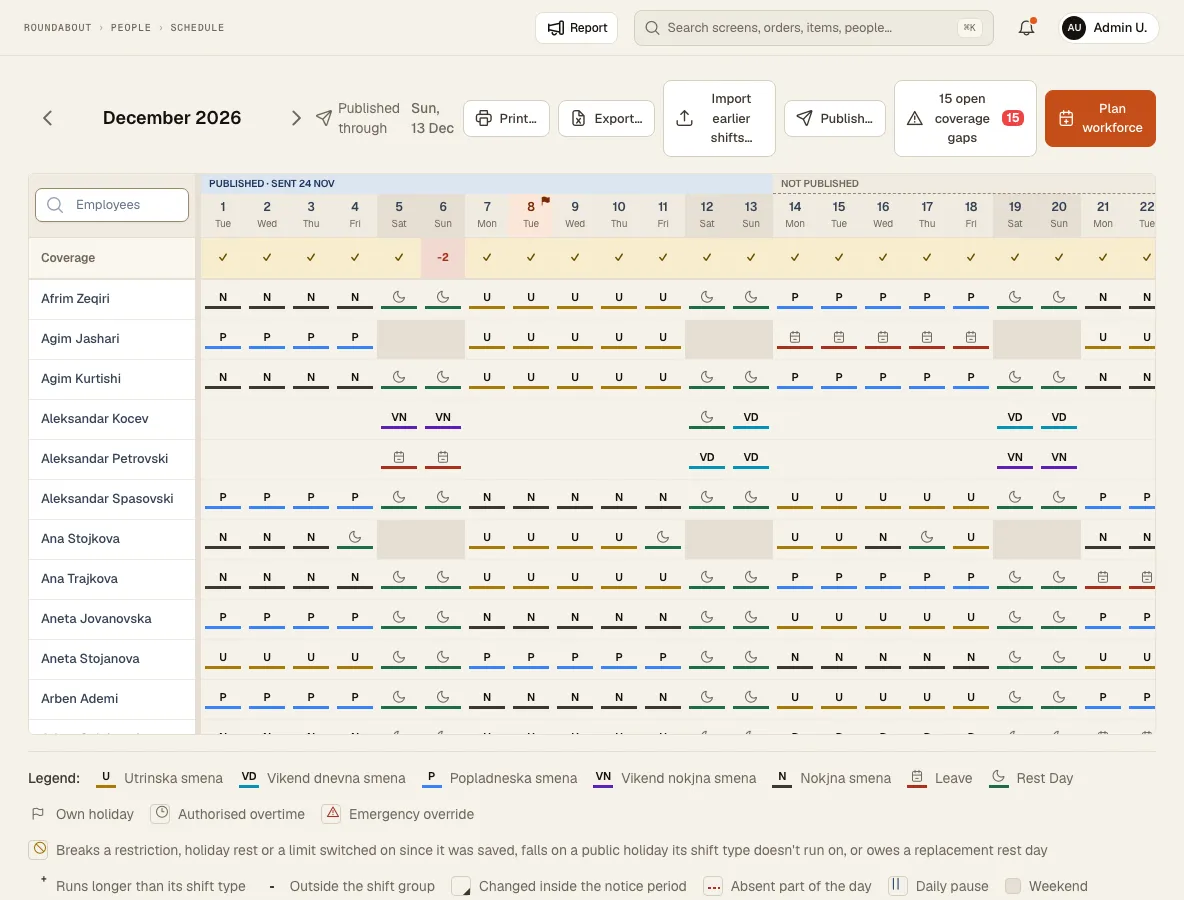
The Schedule screen shows the workforce schedule a month at a time: which employee works which shift on which day. You plan a period here, change days by hand, fill coverage gaps and publish the schedule. Production plans with the shifts you publish.
The month
Section titled “The month”The toolbar holds, from the left:
- the month, with arrows to the month before and after;
- Published through and the last day employees have been told, or Not published yet;
- Print… and Export…: see Print and export;
- Import earlier shifts…, for someone with both
schedule:writeandworkforce:admin: see Earlier shifts; - Publish…: see Publish the workforce schedule;
- a button with the number of open coverage gaps, such as 3 open coverage gaps, while any is open: see Fill a coverage gap;
- a button such as 2 Short Weeks, while the month holds a full-timer’s week with fewer working days than your labour rules ask for. Nothing is refused for it; choose a week in its list to go to it;
- Plan workforce: see Plan the workforce schedule.
Under it, the names on the left and the days on the right. Search the names in Employees. Each cell is one employee’s day:
- a shift: the shift type’s code over a line in its colour;
- leave: a calendar over a red line;
- a rest day: a moon over a green line;
- no shift: empty.
A weekend day that holds nothing is grey. A day your plant closes on is striped and can’t be clicked. A public holiday the plant works has a flag in its day heading, and an employee’s own holiday a flag in their cell when it holds no shift or leave. Small marks in a cell’s corners show what else holds for the shift, such as overtime past a limit or a change inside the notice period; the legend under the grid names each one.
Beside a name you may see a redistribution balance, such as 12 h to go, a flag when a labour inspection must be told about overtime in the month, or Inactive for an employee who no longer works for you: their days can’t be changed.
The coverage row and the band
Section titled “The coverage row and the band”The row under the day headings shows each day’s coverage: how many seats the day’s shifts are short, such as -2, a check mark when none is short, or — on a day without coverage goals. Its colour says whether the day is Match, Underbooked or Overbooked. Click a day to open Coverage Details: each shift type’s Headcount and each training it needs, seated against the goal, and its extra and rest counts.
Once the schedule is published, a band over the day headings shows which days each Publish added, and when, and which days are not published yet.
Change a day
Section titled “Change a day”Click a cell, or press Enter on it, to see the day and what you may do:
- Set shift: choose a shift type of the employee’s shift group that runs that day, and click Save. werkplan checks it against the working-time rules as you choose and warns of each limit it breaks.
- Add absence: the employee is away the whole day, with a Reason. Their shift that day, and a night shift from the day before running into it, are taken away. It needs
employee:writetoo. - Set rest day makes the day a rest day at once.
- Remove shift takes a shift away without a rest day, on a day the employee has no shift group.
- Swap shift asks for a swap of the shift with someone who works another shift that day. Someone with both
schedule:writeandswap:approvedecides it on Swap requests: see Swap two employees’ shifts.
A shift is refused on a day the plant closes, outside the employee’s shift group or employment, or when it overlaps another of their shifts. When an absence touches it, someone with employee:write may click Free this shift and assign, which splits the absence around the shift; anyone else can’t save it. When it breaks a working-time limit an authoriser can permit, werkplan offers to send them an overtime request. When it breaks one nobody can authorise, it offers someone with workforce:admin the emergency override. A change to a published day inside the notice period asks for a reason. See Working-time rules.
Taking a shift away, by any of these, records a coverage gap where it leaves the shift short of its coverage goals. Placing one cancels the gaps it fills.
What production reads from it
Section titled “What production reads from it”Production plans against the published schedule. Up to Published through, a production solve counts only the employees on a published shift, and names who does each operation. After that day, it names nobody and counts the trained people of each shift group evenly over the shifts the group runs. See People and the published workforce schedule.
So publishing more days is a change the master plan doesn’t hold yet, and so is a published shift added, taken away or changed to another shift type from today on. Shifts you plan but don’t publish change nothing in production.
Print and export
Section titled “Print and export”Print… makes a PDF for the notice board, and Export… a spreadsheet: each employee’s shifts and days off by shift group, for up to 31 days from From to To. Leave and own holidays show as Off, with no reason. Nothing changes.
Still stuck? Write to support@example.com.