Jobs
- Available on
- Trial
- Pro
- Enterprise
- Who can do this
- Open this screenRoles: Administrator, Shop floor terminal
Permission: shopfloor:jobs - Open any terminal screen, beside the screen's own permission, and sign an operator inRoles: Administrator, Shop floor terminal, Warehouse terminal
Permission: shopfloor:operate - Start, pause, resume, report a part done or finish a job, beside shopfloor:operateRoles: Administrator, Shop floor terminal
Permission: shopfloor:jobs - Report a problem, a machine down, a machine back or a QA rejection, with an operator signed inRoles: Administrator, Shop floor terminal
Permission: shopfloor:report
- Open this screenRoles: Administrator, Shop floor terminal
Jobs is the screen of a shop-floor terminal, the shared tablet or screen beside the machines. It lists the work of the master plan that is ready to start at that terminal. An operator signs in with their PIN, starts the work, reports how many are done, finishes it with any scrap, and reports a problem when something goes wrong.
Each job is a task of the master plan in force, and working it here records the production order’s progress, as Start and Complete on the task’s page do in the office.
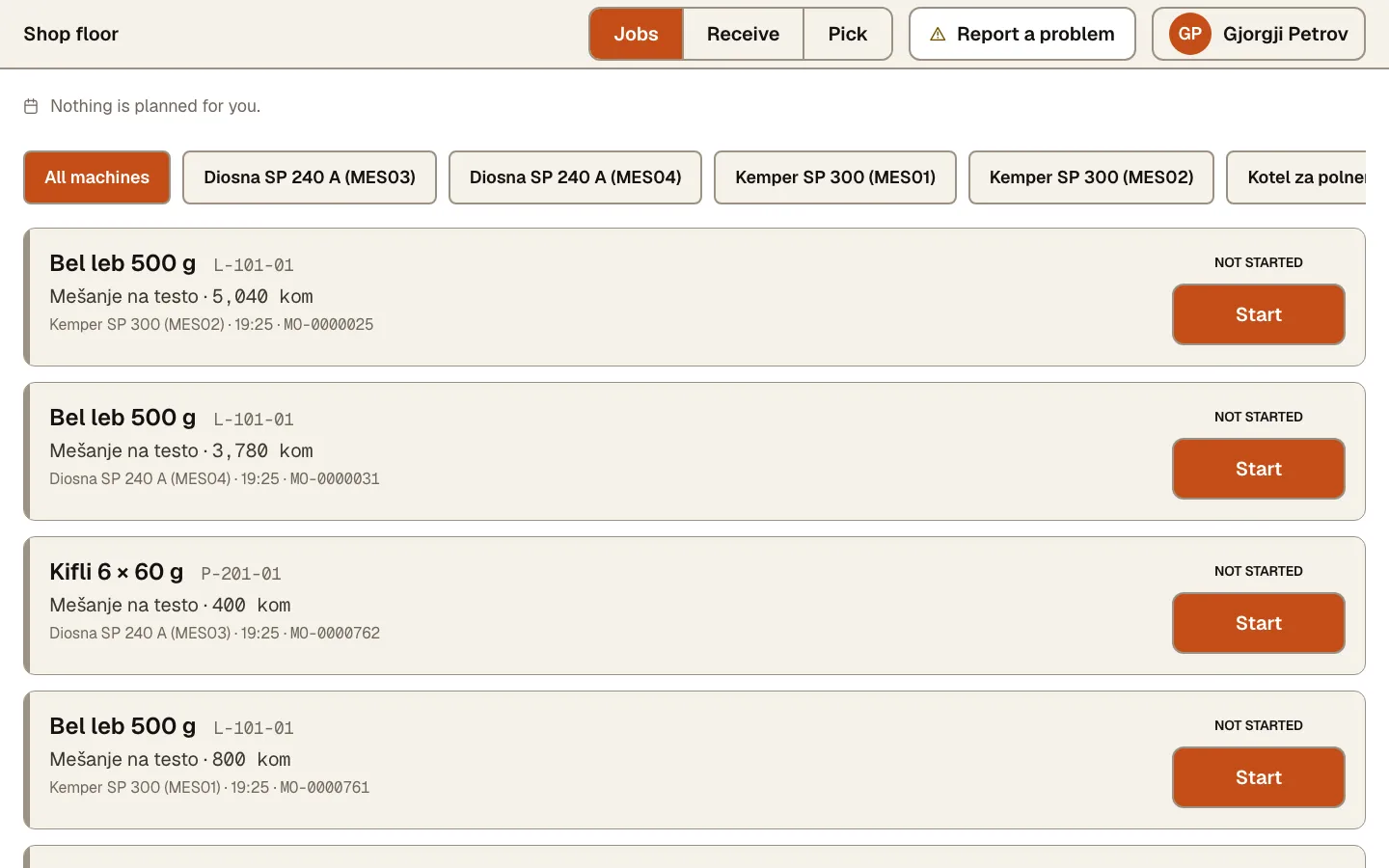
The terminal
Section titled “The terminal”The terminal is werkplan without its menu: a device signed in with an account of its own, which holds the Shop floor terminal role, opens your werkplan address ending in /shop-floor. See Set up a shop-floor terminal.
Its header shows:
- Shop floor, and beside it, on a device that offers more than one screen, a switch of its screens: Jobs, Receive and Pick;
- Report a problem, while an operator is signed in: see Report a problem;
- the signed-in operator’s name. Tap it, then Sign out, when you leave the terminal.
Sign in
Section titled “Sign in”While nobody is signed in, the terminal asks Who is on this machine? over the screen, with a tile for every active operator: their name and badge code.
- Tap your name.
- Enter your PIN on the keypad. It goes on at the fourth digit. Back takes a digit off; Not me goes back to the names.
A wrong PIN reads That PIN was not recognised. Try again. Five wrong PINs in a row lock you out for 15 minutes, and each wrong PIN after that locks you out again until you type the right one: ask for Reset PIN on the Operators screen. You stay signed in until you sign out, until 30 minutes pass without you recording anything, and for 12 hours at most; then the PIN pad comes back, within half a minute, and whatever you had typed is still there.
What the list shows
Section titled “What the list shows”The list holds the master plan’s work on the machines this terminal serves:
- work running or paused, whenever it was planned;
- work not started that is planned to start within the next 24 hours, late work included, once the step before it in its batch is finished or cancelled.
The work of a production order on hold or cancelled is left out. The soonest planned start comes first. A terminal serves the machines it is bound to on its user page, or every machine when it is bound to none. With more than one machine, chips above the list filter it: All machines, or one machine.
The list is read again every 30 seconds while an operator is signed in, after every action, and when the screen comes back into view, so a promoted plan replaces the jobs on it. Nothing to start with Work appears here when the step before it is finished. means there is no work ready; Could not load the jobs means the terminal couldn’t reach werkplan: tap Try again.
Your work
Section titled “Your work”An operator linked to an employee sees the work the plan names them on above the list:
- Your work: the work naming them that starts before the current shift ends, late work included, and work they run;
- Planned, may change: their later work, by day, up to the last day of the published workforce schedule. Tap a row to open it.
Work this terminal offers has its buttons; other work says where it runs, such as At ROT03. Below them, Other work ready here lists the rest. A linked operator with nothing planned reads Nothing is planned for you. An operator who isn’t linked sees the list alone.
A job card
Section titled “A job card”Each card shows the product variant and its code, the step and the quantity in the order line’s unit, the machine, the planned time and the production order’s number, and how long the work has been running. A pill says Rework, Replacement or Made again on extra work for a QA rejection or for scrap made again. The chip on the right says NOT STARTED, RUNNING, PAUSED or DELAYED.
Lines under the name say what werkplan knows that the plan doesn’t yet:
- Machine down · wait for the new plan: its machine is reported down. Start and Resume are off, and the line under them says why.
- Absent · the supervisor assigns it: someone the plan names on it is absent. Start still works, for whoever starts it.
- Changed · was ROT03 09:20: the last promote moved it to another time or machine. Tap it, or OK, once you have read it; it goes for everyone at this terminal.
Work a job
Section titled “Work a job”| The job is | Buttons |
|---|---|
| Not started | Start |
| Running | Pause, Finish, Part done |
| Paused | Resume |
| Delayed | Start, or Resume once it has run |
- Start starts the work: the task is In Progress, and so is its production order.
- Pause stops it part-way, such as at the end of a shift; Resume carries on.
- Part done asks How many so far?: the count of good units on the bench, not what was added after the last count. Save and keep going records it and leaves the job running; nothing reaches stock until it is finished.
- Finish asks How many did you make?, starting at what the batch is expected to make or the last count reported. Give the good units, and click Finish. A count more than twice the plan asks you to check it, and the button reads Finish anyway.
When the good units come out short, the sheet asks How many were scrapped?, starting at the shortfall, and Why?: Material, Machine, Operator, Setup or Other, which asks What was it? Units still to make are left out of the scrap and stay planned. Scrap can’t be withdrawn. It is an exception: every planner is told, and the re-plan decides whether the units are made again or the order is delivered short. See Decide what happens to scrap.
Finishing the order line’s last step credits the order with the good units. When every step of the order is done, the order completes and its output goes into stock: see Task.
What werkplan refuses
Section titled “What werkplan refuses”A refused action says why at the top of the screen, and the list is read again:
- starting or resuming work on a machine that is down, decommissioned, or running other work: finish or pause that work first;
- starting work the plan names someone else on, for a linked operator without a training it needs, such as You need Welding to work on this step.;
- work of a production order on hold or cancelled, and work of a master plan a later promote replaced.
Report a problem
Section titled “Report a problem”Report a problem opens a sheet over any terminal screen, for a terminal holding shopfloor:report with an operator signed in. It offers the machines this terminal serves:
- Machine down: Which machine, Since (Now, or Change for an earlier time, up to a day back), Until (End of this shift, End of tomorrow, 3 days or A date) and Why (Breakdown, Maintenance, No power or Other). The sheet says when the plan assumes the machine runs again. Tap Report machine down.
- Machine back: Which machine runs again, of those down, then Report machine back. It can’t be withdrawn: if the machine stops again, report it down.
- QA rejection: Which work failed inspection, of the work running here or finished here in the last day, How many were rejected?, Rework (Redo them from this step) or Replace (Make new ones from step 1), and What failed? if you want. Tap Record rejection.
Each is saved at once, as the same report on the Report page is, with the operator as the one who reported it. The sheet says whether the planner was told, and the job cards on a machine reported down show it at the list’s next read. See When something happens.
Still stuck? Write to support@example.com.