Variant
- Available on
- Trial
- Pro
- Enterprise
- Who can do this
- Open a variant's pageRoles: Administrator, Employee
Permission: product:read - Add a variant, change it, its bill of materials changes, step changes and attribute values, and archive or restore itRoles: Administrator
Permission: product:write - Delete it, or remove one of its changesRoles: Administrator
Permission: product:delete - See the machines that can run itRoles: Administrator, Employee
Permission: equipment:read
- Open a variant's pageRoles: Administrator, Employee
A variant is a version of a product that you sell, stock and order under its own SKU, such as Rye bread 500 g of the product Rye bread. Its status says whether it can go on order lines: an Active variant can, an Inactive or Discontinued one can’t.
A variant runs its product’s routing and uses its product’s bill of materials, unless you change them for it on its page. You open a variant from the Variants panel of its product’s page. Variants don’t count toward your subscription tier’s cap.
Add a variant
Section titled “Add a variant”- On the product’s page, under Variants, click Create variant. The product must be active.
- Enter a Name, such as Widget - 24 Pack. The dispatch list prints it with its SKU.
- Enter a SKU that no other item has, materials included. An import of variants updates the variant with the same SKU.
- Choose its Packaging: it sets the base unit the variant’s stock and orders count in. To add one on the spot, click the + beside it.
- If you like, enter a Description, and under Replenishment its Replenishment policy, Reorder level and Safety stock.
- Click Create variant.
The variant is active at once, so it can go on order lines, and its page opens.
What its page shows
Section titled “What its page shows”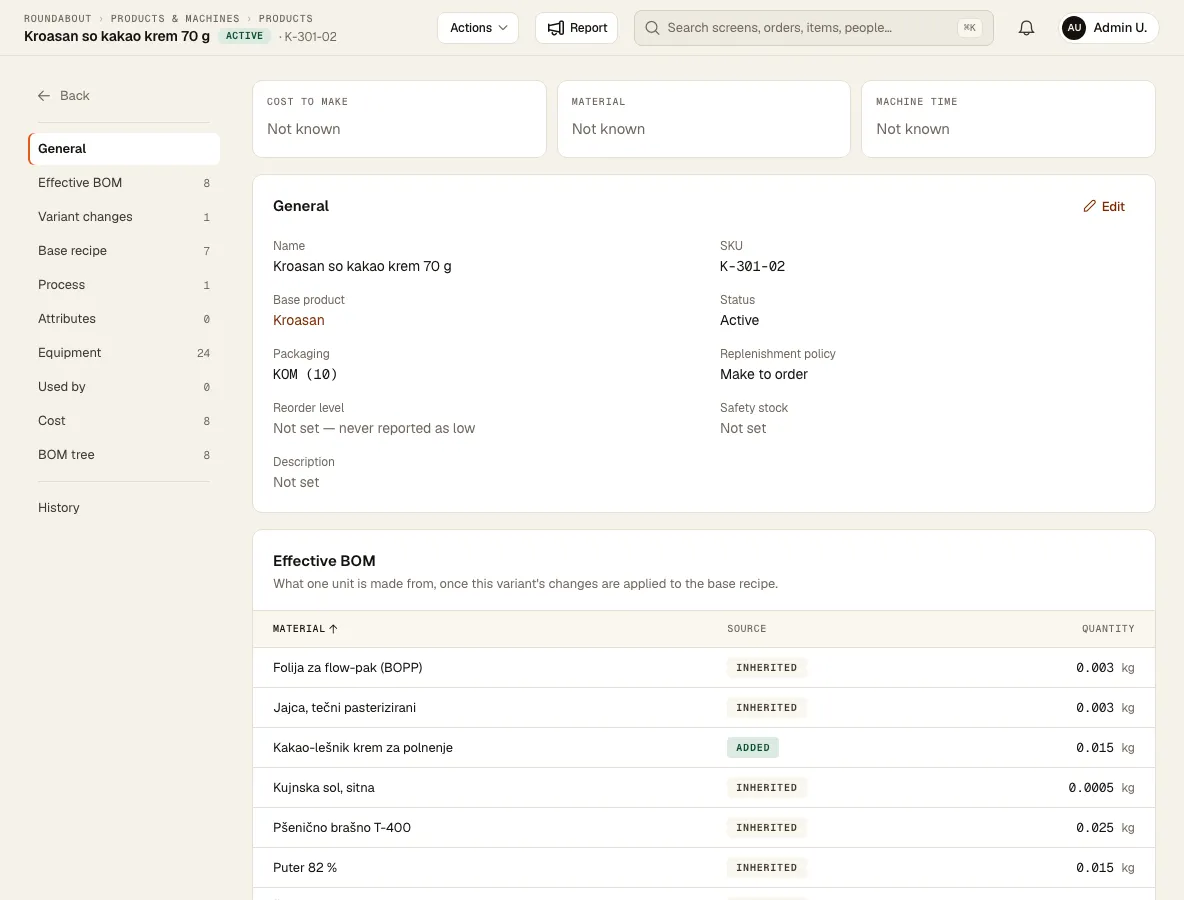
- The strip at the top: its Cost to make, of which Material and Machine time, per unit, or Not known.
- General: its Name, SKU, Base product, Status, Packaging, Replenishment policy, Reorder level, Safety stock and Description. Edit changes them. The packaging locks once stock or documents hold the variant.
- Effective BOM: what one unit is made from, the product’s bill of materials with this variant’s changes applied. Each line says whether it is Inherited, Overridden or Added.
- Variant changes: the lines this variant adds to its product’s bill of materials, overrides in it or removes from it. See Change its bill of materials.
- Base recipe: its product’s bill of materials, which you change on the product’s page.
- Process: the product’s active routings as this variant runs them, with the steps it adds or replaces marked Added or Overridden. See Change its steps.
- Attributes: its value for each of its product’s attributes, such as 200 for a 200 g bag.
- Equipment: the machines that can run its steps, and the capacity figures werkplan plans with. You see it with the permission
equipment:read. - Used by: the products whose bill of materials takes this variant.
- Cost: what each step adds to the cost to make one, and what the cost leaves out, such as labour.
- History: who created the variant and who changed it last, and when.
Actions holds Archive or Restore, and Delete.
Replenishment policy is Make to order or Make to stock. Both work the same: a production order short of the variant raises a child production order for it. The Replenishment screen shows which it is. Reorder level and Safety stock decide when that screen lists the variant as low, and when as critical.
Change its bill of materials
Section titled “Change its bill of materials”Under Variant changes, Add change offers three kinds:
- Add: a material the product’s bill of materials doesn’t have, with its Quantity per unit of this variant.
- Override: a line of the product’s bill of materials, with the New quantity this variant uses.
- Remove: a line of the product’s bill of materials this variant leaves out.
Production orders of the variant made after a change record the result. Those not started yet follow it at the next promote; started ones keep what they recorded.
Change its steps
Section titled “Change its steps”Under Process, Add first step and Add last step give the variant a step of its own before or after its product’s steps, and Replace on a product’s step gives it its own version of that step. Each has the fields of a routing step: see Give a product its routing. The variant’s order lines are then planned and run on its own steps, and a change to the product’s routing reaches them too.
The product’s production routing must be active. Work stays on the step it was recorded on, so werkplan refuses the variant’s first step change to a routing, or taking back its last one, while its open orders have work recorded on that routing’s steps. It also refuses a change that takes out a step open orders have work recorded on. Make a separate variant for the changed routing instead.
Statuses
Section titled “Statuses”A variant is Active when you add it. Archive makes it Inactive and Restore makes it Active again. Only Edit variant, with its Status field, which offers all three, and Import variants… make a variant Discontinued.
stateDiagram-v2
  accTitle: Variant statuses
  accDescr: A variant is added Active. Archive makes it Inactive and Restore makes it Active. Edit variant moves it between any two statuses, and is the only way to Discontinued.
  [*] --> Active: Create variant
  Active --> Inactive: Archive, or Edit variant
  Inactive --> Active: Restore, or Edit variant
  Active --> Discontinued: Edit variant
  Inactive --> Discontinued: Edit variant
  Discontinued --> Active: Restore, or Edit variant
  Discontinued --> Inactive: Edit variant
| Status | How a variant gets it | How it leaves it | What it changes |
|---|---|---|---|
| Active | Added, restored, or saved with it in Edit variant | Archived, or saved with another status | Goes on order lines; listed when it runs low |
| Inactive | Archived, or saved with it in Edit variant | Restored, or saved with another status | Refused on quotes and sales orders; open orders still planned |
| Discontinued | Saved with it in Edit variant | Restored, or saved with another status | The same as Inactive |
Changing a status needs the permission product:write, and the product must be active to save Edit variant.
Active
Section titled “Active”The variant is in use. The order line pickers of production orders, quotes and sales orders offer it, orders sent in from another system can name it, and the Replenishment screen lists it when it runs low.
Inactive
Section titled “Inactive”The variant is archived: kept on record, with its stock and its orders. The order line pickers don’t offer it, and werkplan refuses it on a quote or a sales order line, and in an order sent in from another system, with the message that it is discontinued. The Replenishment screen leaves it out.
Its open production orders are still planned, but werkplan refuses to receive stock of it, a production order’s finished units included. Archive a variant once its production orders are complete.
Discontinued
Section titled “Discontinued”The variant is out of your range for good. werkplan treats it exactly as Inactive; the status only says so to your team. Archive leaves a discontinued variant as it is.
Delete a variant
Section titled “Delete a variant”In Actions, click Delete and confirm. werkplan deletes a variant only if nothing uses it or ever used it: no bill of materials, price list, quote, sales, purchase or production order, transfer, stocktake or stock record. When something does, werkplan says what uses it, and for an active variant offers Archive instead.
Still stuck? Write to support@example.com.