Purchase orders
- Available on
- Trial
- Pro
- Enterprise
- Who can do this
- Open this screenRoles: Administrator, Employee
Permission: purchasing:read - Raise, change, place, cancel or close short a purchase order, and send it by emailRoles: Administrator
Permission: purchasing:write - Receive a delivery against a purchase orderRoles: Administrator
Permission: inventory:write
- Open this screenRoles: Administrator, Employee
The Purchase orders screen lists what you order from your suppliers: what is still to come, and what has arrived. You raise a purchase order here, and open one to place it, send it to the supplier and receive what they deliver.
The screen’s heading reads Purchase Orders. A purchase order is one order to one supplier, with a line for each material. Once it is placed, what is still to come of each line with an expected day counts as on its way: werkplan plans production orders around it, and the stock screens count it. See Purchase order for its page and its statuses.
The list
Section titled “The list”The list shows every purchase order, the most recently created first, with its Order #, Supplier, Status, number of Lines, the day it was Ordered, the day it is Expected and when it was Created. Show it as Cards or as a Table, search it by order number or supplier name, and filter it by Order #, Supplier, Status, Ordered, Expected and Created. Actions exports the list as a CSV file.
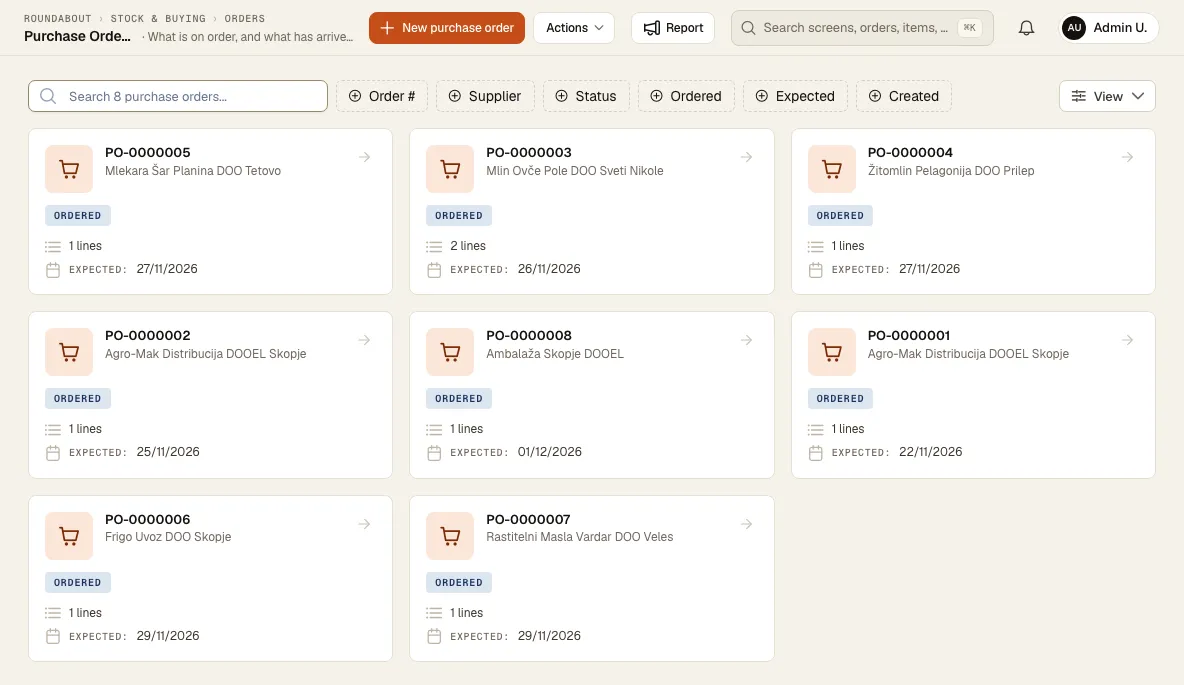
Status is one of Draft, Ordered, Partially received, Received and Cancelled. A card without an expected day says No expected date.
Click an order to open its page: see Purchase order.
Raise a purchase order
Section titled “Raise a purchase order”- Click New purchase order.
- Under What are you ordering?, leave Goods for materials you buy. Choose Outsourced work when you send a contractor components and they make a product for you: see Outsourced work.
- Pick the Supplier. Only active suppliers are listed. To add a supplier on the spot, click the + beside it.
- If you know it, pick the day it is Expected. Lines without a day of their own follow it.
- If you like, enter Notes. They print on the purchase order.
- Click Create draft.
werkplan opens the draft, numbered as the next PO number, such as PO-0000042. A draft commits nothing: add its lines, then place it. Order material from a supplier walks through every step.
The Replenishment screen raises drafts too: it puts what runs low on its default supplier’s draft.
What purchase orders change
Section titled “What purchase orders change”- Planning: werkplan doesn’t start the work of a production order not yet started before its purchased material is there. A placed order’s outstanding quantity, on each line with an expected day, is material on its way, there from the start of the day after it is expected. See What a purchase order changes in planning.
- Stock: what is still to come counts in Expected on the Stock screen, and What runs out next and Replenishment count it as on its way. What you receive is on hand at once.
A draft, a cancelled order and outsourced work count as nothing on its way.
Send by email on a purchase order’s page is on the Pro and Enterprise tiers. Everything else on this screen is on every tier, and purchase orders don’t count toward any cap.
Still stuck? Write to support@example.com.