Stocktakes
- Available on
- Trial
- Pro
- Enterprise
- Who can do this
- Open this screenRoles: Administrator, Employee
Permission: inventory:read - Open a stocktake's page, and print its count sheetRoles: Administrator, Employee
Permission: inventory:read - Plan a stocktake, and count it through to the endRoles: Administrator
Permission: inventory:write
- Open this screenRoles: Administrator, Employee
The Stocktakes screen lists your stock counts: a full count of every location, a count of one location, or a cycle count of a few items. A stocktake compares the shelves with the books, and completing it posts the differences as one adjustment.
The list
Section titled “The list”The list shows each stocktake’s Count #, Name (its scope when it has no name), Scope, Location (Every location for a full or cycle count), Status, how many lines are Counted, the Variances it found, the day it is Scheduled and when it was Created, newest first. Show it as Cards or as a Table, search it, and filter it by most of its columns.
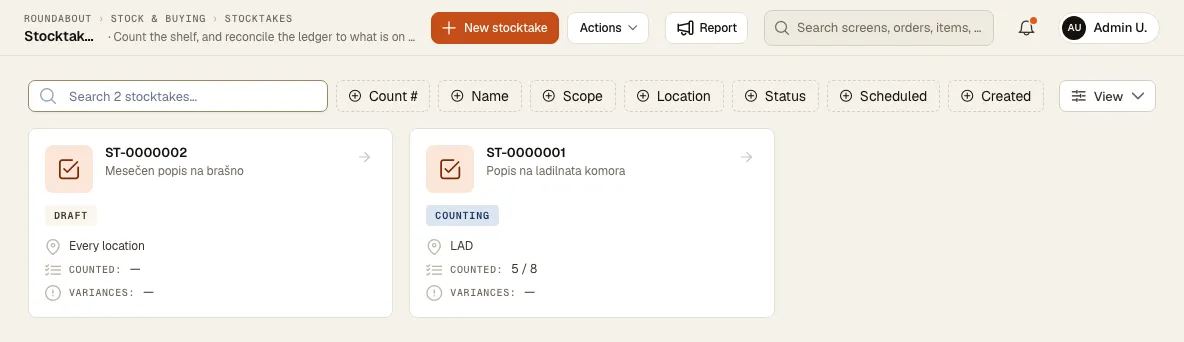
- Status is one of Draft, Counting, Awaiting review, Completed and Cancelled.
- Counted counts skipped lines as done, as Finish counting does.
- Variances shows how many lines differ from the books once counting is finished, or Agreed when none do. While counting goes on, it reads —.
Click a stocktake to open its page: see Stocktake.
Plan a stocktake
Section titled “Plan a stocktake”- Click New stocktake.
- Pick the Scope: Full count, One location or Cycle count. For one location, pick the Location.
- If you like, give it a Name, a day it is Scheduled and Notes. The day is for your planning only: counting starts when you start it.
- Click Create draft. Its page opens.
werkplan refuses a full or one-location count that another open count already covers, naming that count. Then count it: see Count your stock.
Still stuck? Write to support@example.com.