Scenario
- Available on
- Trial
- Pro
- Enterprise
- Who can do this
- Open a scenarioRoles: Administrator, Shift supervisor, Employee
Permission: schedule:read - Create, change, solve, rename, delete or promote a scenarioRoles: Administrator
Permission: planning:execute - Try a draft order in a scenario, and close the tryRoles: Administrator
Permission: order:write
- Open a scenarioRoles: Administrator, Shift supervisor, Employee
A scenario is a copy of the plan to try a change on before you decide. Its status says whether it is solved and whether it became the master plan; until you promote it, it changes nothing real.
You open a scenario from the Scenarios panel of the Master plan screen. Every planner sees every scenario.
What its page shows
Section titled “What its page shows”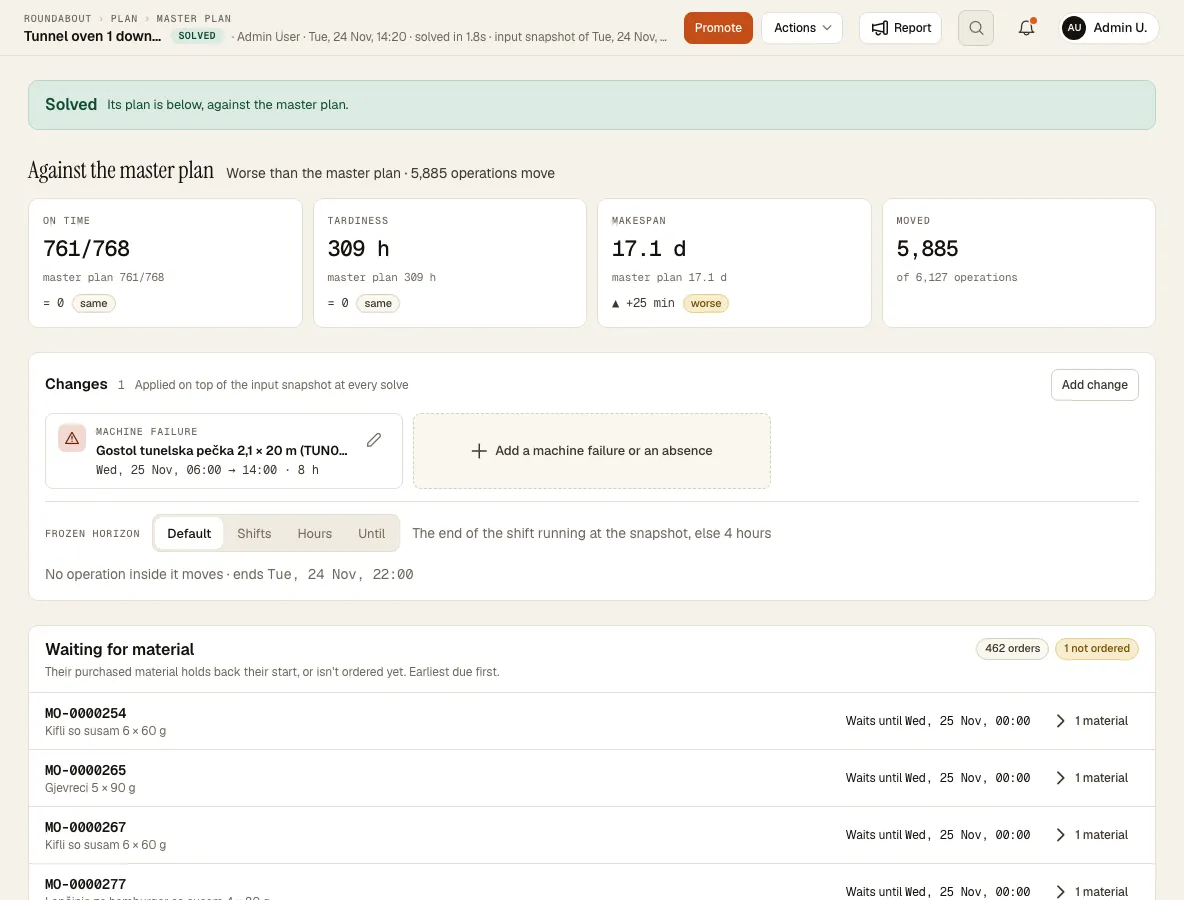
-
Changes: what the scenario tries, applied on top of its input snapshot at every solve. Add change adds a Machine failure (a machine can’t run for a while) or an Employee absence (someone is away for a while), each with a From and an Until.
-
Frozen horizon: the stretch from the snapshot’s moment in which no operation of the master plan moves. Default is the end of the shift running at the snapshot, else 4 hours; Shifts, Hours and Until set another. A first plan has none.
-
Against the master plan: once solved, its figures. The first three stand beside the master plan’s, each marked better, worse or same:
- ON TIME: the orders it plans on time, of those it places; an order without a due date counts as on time;
- TARDINESS: the hours its late orders are late, together;
- MAKESPAN: from the snapshot’s moment until its last order ends;
- MOVED: the operations that start at another time or on another machine than in the master plan, or that the master plan doesn’t hold, of all its operations.
A line above them says Better than the master plan, Worse than the master plan or Ranks the same as the master plan, ranked by the orders left out, then lateness on rush orders, then weighted lateness, then when the plan ends, and how many orders become late and operations move. On a first plan, with no master plan to compare, the section is Figures.
-
The plan, by Orders or Machines, like the master plan’s. The filters add Changed and Now late, and Moved only shows only what moved.
-
Unplannable orders and Waiting for material, as on the master plan.
The top bar holds Solve or Promote, and Actions holds Solve again, Rename and Delete.
Statuses
Section titled “Statuses”stateDiagram-v2 accTitle: Scenario statuses accDescr: A scenario is created as a draft. Solving it makes it solving, and the solve ends solved or failed. A solved scenario can be solved again or promoted; a failed one solved again. A promoted scenario stays as it is. [*] --> Draft: Create scenario Draft --> Solving: Solve Solving --> Solved: The solve ends Solving --> Failed: The solve fails Solved --> Solving: Solve again Failed --> Solving: Try again Solved --> Promoted: Promote
| Status | How a scenario gets it | How it leaves it | What you can do |
|---|---|---|---|
| Draft | Create scenario | Solve | Add changes, set the frozen horizon, rename, delete |
| Solving | Solve, Solve again or Try again | The solve ends or fails | Nothing: wait, or leave the page |
| Solved | The solve ends | Solve again, or Promote | Read it, change it and solve it again, rename, delete, promote |
| Failed | The solve fails | Try again | Read why, change it, rename, delete |
| Promoted | Promote | Never | Read it from its master plan |
Every move but a try’s needs the permission planning:execute.
The scenario holds its input snapshot and its changes, and isn’t solved yet: Not solved yet. Add changes, then click Solve.
Solving
Section titled “Solving”werkplan’s planner is planning it. A solve takes a few seconds; you can leave the page, and the solve carries on and saves its result. Nothing about the scenario can change while it solves, and it can’t be deleted.
Solved
Section titled “Solved”Its plan is ready, against the master plan. Solve again plans its changes again from the same input snapshot, not from today’s data. Changing it after the solve keeps Promote from working until you solve it again. Promote makes its plan the master plan.
Failed
Section titled “Failed”The solve didn’t finish. The scenario says why, with Show details; Try again solves it again. A solve that still hasn’t ended long after it should reads The solve stopped before it finished.
Promoted
Section titled “Promoted”The scenario became the master plan and stays as the record behind it, with Open that master plan. It leaves the Scenarios panel and can’t be changed, solved or deleted. Promoting it:
- makes its plan the master plan, and moves the one it replaces to the history as Superseded;
- makes the production orders it plans Scheduled, and the scheduled orders it has no work for Pending;
- saves its changes as real data: a machine failure as the machine’s unavailable time, which needs
equipment:write, and an absence as the employee’s, which needsemployee:write; - tells everyone who may read shifts that a master plan is in force, and opens Who to tell.
The other scenarios stay, and read Out of date.
Out of date
Section titled “Out of date”A scenario is out of date once its input snapshot no longer matches: A newer master plan was promoted, Its frozen horizon ended, work it planned should have started, or planning data changed since it was made. Solving it again doesn’t bring it up to date, because it solves the same snapshot. Promote does: werkplan first plans its changes again on today’s data, shows the result beside the one you solved, and Promote rebased result puts it in force. If promoting it is refused, the dialog offers Rebase again, or Edit changes when the rebase itself is refused.
Rename or delete a scenario
Section titled “Rename or delete a scenario”Actions › Rename gives it another name. Actions › Delete removes a scenario that isn’t solving or promoted, with a few seconds to Undo. werkplan never deletes a scenario by itself, except a try nobody has touched for a day, which it removes overnight.
A try is a scenario that plans one draft production order as if it were submitted. It is made from the order’s page, it isn’t listed under Scenarios, it can’t be changed or promoted, and Close removes it. See Try a draft order before you promise a date.
Still stuck? Write to support@example.com.