Receive
- Available on
- Trial
- Pro
- Enterprise
- Who can do this
- Open this screenRoles: Administrator, Warehouse terminal
Permission: shopfloor:receive - Open any terminal screen, beside the screen's own permission, and sign an operator inRoles: Administrator, Shop floor terminal, Warehouse terminal
Permission: shopfloor:operate - Receive a delivery, with an operator signed inRoles: Administrator, Warehouse terminal
Permission: shopfloor:receive
- Open this screenRoles: Administrator, Warehouse terminal
Receive is the shop-floor terminal’s screen for deliveries from suppliers. When a delivery arrives, the warehouse picks the purchase order it is for, confirms each line that arrived with its quantity, and books it into stock at a location. It is the same receipt as the office’s, recorded with the operator’s name.
A terminal offers it when its account holds shopfloor:receive, as the Warehouse terminal role does. On a warehouse terminal, which offers Pick too, the header reads Shop floor and Receive is a tab beside it. On a terminal whose role offers receiving alone, a role of your own, it is the only screen: there are no tabs, and its header reads Goods in. Sign in with your PIN as on every terminal screen: see Jobs.
Due in
Section titled “Due in”The screen opens on what is due in: one card for every purchase order placed with a supplier that still has lines to receive, whether nothing or part of it has arrived. Each shows the supplier, the order number, how many lines are to receive, and when it is expected: Expected today, the day, or No date given. OVERDUE marks an order past its expected date, and SUBCONTRACT an order for work a subcontractor does. The soonest comes first.
Nothing is due in means no placed order waits for goods. Tap a card to receive its delivery.
Receive a delivery
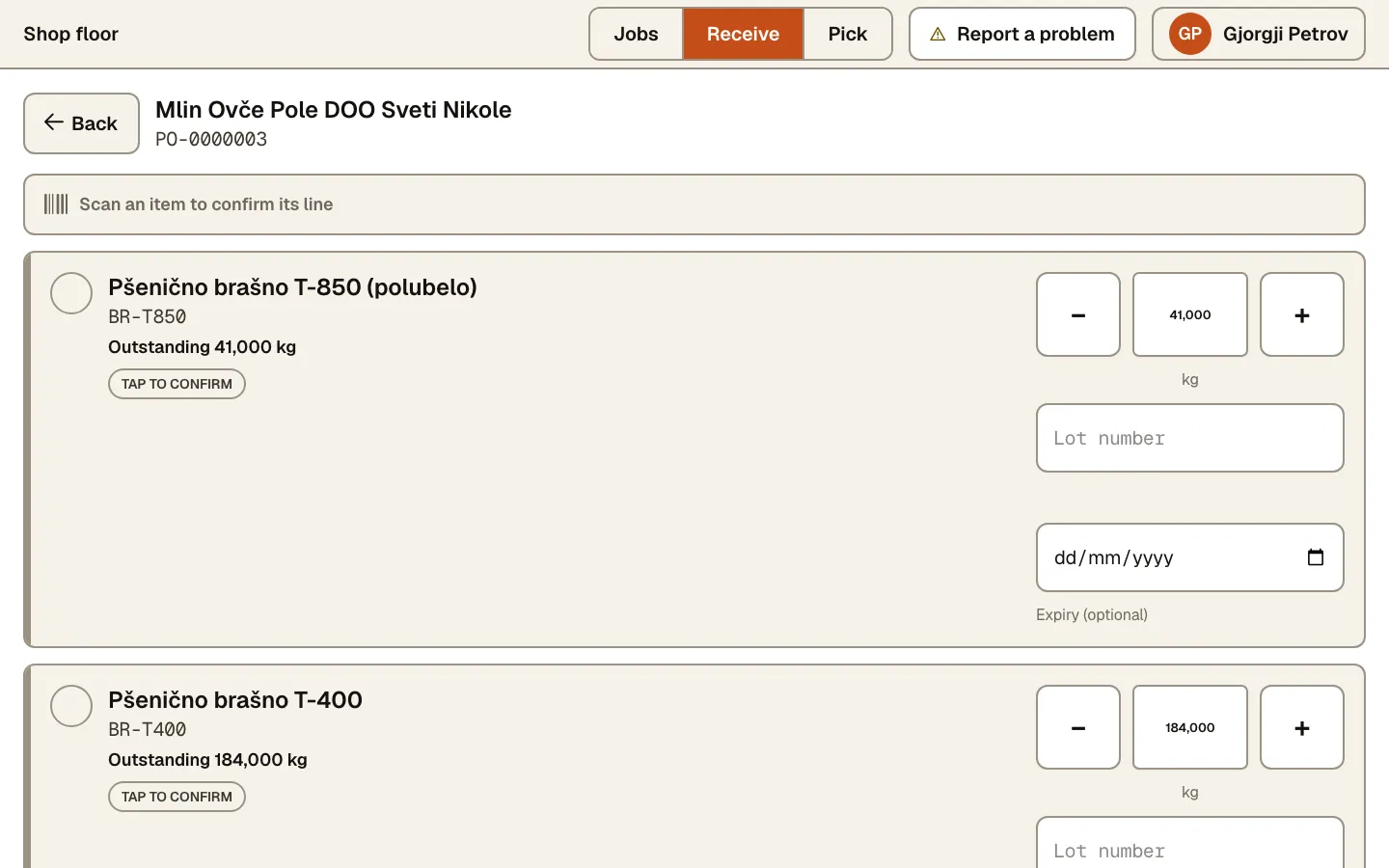
Section titled “Receive a delivery”The order shows one card for each line still to receive: the item, its code and the supplier’s code, Outstanding with the quantity still owed, and the quantity in the purchase unit when it differs.
- For each line that arrived, set the quantity that arrived with − and +, or type it. It starts at the quantity outstanding. More than outstanding is taken, with a warning.
- For an item kept by lot, give the Lot number, and its Expiry (optional). Scanning while the lot field has the focus fills it.
- Confirm the line: tap it, or scan its item. Its chip turns from TAP TO CONFIRM to CONFIRMED.
- Pick the bin under Put away into, when the location has bins, or No bin.
- Under Into which location?, pick where the delivery goes. The default location is picked for you, and your choice stays for the next delivery.
- Give the Supplier’s delivery note if you want.
- Tap Receive 1 line or Receive 3 lines: only confirmed lines are booked.
The bar at the foot counts the lines confirmed and says what holds the button back, such as Tap a line to confirm what arrived. A line can’t be confirmed without a quantity above zero, without its lot number when the item is kept by lot, or for an item whose serial numbers have to be read off the units: Receive it from the office. An item whose serial numbers werkplan makes says Serial numbers are generated when this is received.
Delivery recorded shows the receipt’s number, large enough to copy onto the delivery note, how many lines went into which location, and whether the order is fully or partly received. Tap Back to due in, or wait eight seconds.
What a receipt changes
Section titled “What a receipt changes”- Stock: the quantities go into stock at the location and bin you chose, under their lot. The receipt is a stock transaction that names the operator who received it.
- The purchase order: its lines count what arrived. It is partly received while something is still owed, and received once every line has arrived; a received order leaves the due-in list. When werkplan refuses the delivery, The delivery was not recorded says so, nothing is booked, and everything you entered stays on the screen. A receipt keyed wrong is voided in the office, on Transactions: the order is owed the goods again and returns to the due-in list.
Still stuck? Write to support@example.com.