Employee
- Available on
- Trialup to 25 employees
- Proup to 150 employees
- Enterprise
- Who can do this
- Open an employee's pageRoles: Administrator, Shift supervisor, Employee
Permission: employee:read - Change their details, absences, shift group, trainings, restrictions, preferences and holiday calendars, and activate or deactivate themRoles: Administrator
Permission: employee:write - Delete them, or remove an absence, a training, a restriction or a shift group overrideRoles: Administrator
Permission: employee:delete - See their phone number and why they are away, export their personal data, and anonymise a former employeeRoles: Administrator
Permission: employee:personal-data - Record or revoke a consent, and lift a restriction by consentRoles: Administrator
Permission: overtime:authorise
- Open an employee's pageRoles: Administrator, Shift supervisor, Employee
An employee is a person who works your shifts. Their status says whether werkplan plans them: an Active employee is planned, an Inactive one isn’t.
You open an employee from the Employees screen.
What its page shows
Section titled “What its page shows”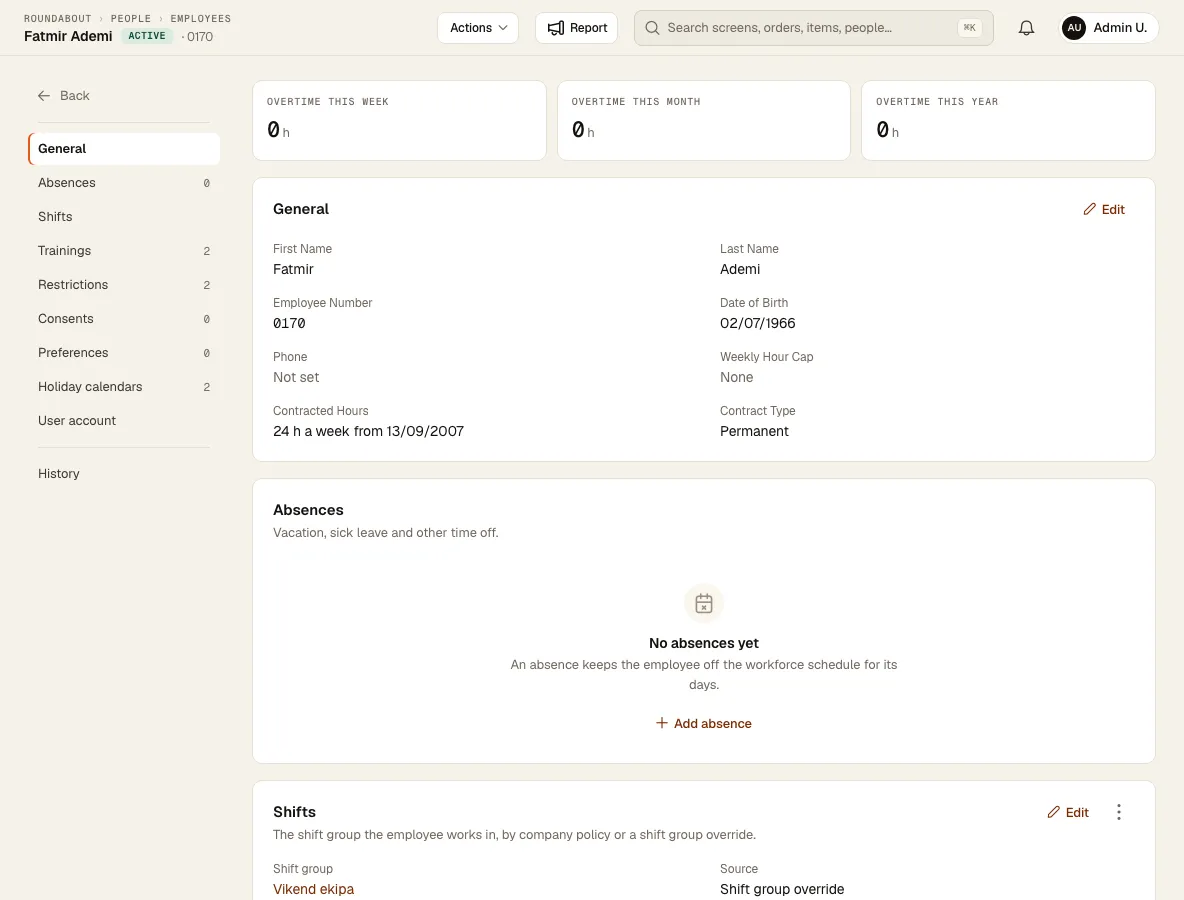
Above the panels, the page shows the employee’s Overtime this week, Overtime this month and Overtime this year.
- General: the employee’s name, Employee Number, Date of Birth, Weekly Hour Cap, Contracted Hours and Contract Type, as you entered them in New employee (see Employees). Date of Birth shows to those who can change employees, and to the employee; Phone only to those who handle personal data. Edit changes them.
- Absences: the times the employee can’t work, one-off or every week, with their Reason (below).
- Shifts: the employee’s Shift group today and its Source: the company shift policy, or a shift group override of their own. Add shift group override, or Edit while one is in force, gives them another group from a date, ongoing or for a period; the workforce solve and the shifts you place by hand then keep to its shift types.
- Trainings: what the employee holds, and until when (see Training).
- Restrictions: kinds of work the employee may not be scheduled for, such as night shifts, and Add protected status for a status such as pregnancy, which brings the restrictions your labour rules set for it. A shift a restriction bars is refused unless a workforce admin uses the emergency override, and the workforce solve plans none.
- Consents: the employee’s signed consents to work past one working-time limit, or to lift a restriction. Shown to those who read the workforce schedule.
- Preferences: the shift types the employee prefers or avoids. The workforce solve weighs them, and a preference never refuses a shift.
- Holiday calendars: the calendars whose dates are the employee’s own days off (see Holiday calendars).
- User account: the user account linked to the employee, which gets their schedule and swap notifications. Shown to those who read user accounts, and to the employee.
Actions holds Open schedule, Duplicate, Export personal data, Deactivate or Activate, Delete and Anonymise.
Absences
Section titled “Absences”Click Add absence to record a time the employee can’t work: One-off, from a Start date/time to an End date/time, or Recurring weekly, on whole Days of week. Choose a Reason: only those who handle personal data, and the employee, see it. Until further notice records an absence whose end you don’t know yet, with the Assumed end werkplan plans with.
Saving takes away every saved shift the absence touches, past ones included. Where that leaves a shift short of its coverage goals, werkplan records a coverage gap. werkplan refuses the absence when the shifts left would break a working-time limit, and lists the shifts. It passes with an overtime authorisation that covers them, or a workforce admin saves it over the limit, as an override recorded against their name. Shortening or removing an absence puts no shift back: plan them again on the workforce schedule.
Statuses
Section titled “Statuses”An employee is Active from the moment you add them. Deactivate and Activate, in Actions, move them between the two statuses; editing an employee never changes it. Both need the permission employee:write.
stateDiagram-v2
  accTitle: Employee statuses
  accDescr: An employee is added Active, or Inactive as a duplicate of an inactive employee. Deactivate makes them Inactive, and Activate makes them Active again. An anonymised employee stays Inactive.
  [*] --> Active: Added, or imported
  [*] --> Inactive: Duplicate of an inactive employee
  Active --> Inactive: Deactivate
  Inactive --> Active: Activate
| Status | How an employee gets it | How they leave it | In planning |
|---|---|---|---|
| Active | Added on the screen or by an import, duplicated from an active employee, or activated | Deactivated | Planned from the hire date to the day before the termination date |
| Inactive | Deactivated, or duplicated from an inactive employee | Activated, unless they were anonymised | Left out, and their shifts not yet started are taken away |
Active
Section titled “Active”The employee is planned. The workforce solve gives them shifts of their shift group, a rotation they follow writes theirs, and coverage goals count them. Production counts them as trained on the shifts they work, and names them on operations. An employee is planned only between their hire date and their termination date.
Inactive
Section titled “Inactive”The employee is left out of planning, and their record and their past stay.
Deactivate asks first, and says how many shifts it takes away. Then:
- Their shifts not yet started are taken away. A shift in progress, their past shifts and their rest days stay. Where taking one away leaves a shift short of its coverage goals, werkplan records a coverage gap. A published shift inside your notice period is listed among the notice period changes with the reason Employee deactivated. No working-time limit stops a deactivation.
- The workforce schedule passes them by. The workforce solve, their rotation and the coverage goals leave them out, and publishing tells them nothing. The schedule still shows a month where they hold a shift, read-only and marked inactive. You can’t place a shift, a rest day or leave for them until they are active again.
- Production leaves them out of the scenarios and re-plans made from then on: they no longer count as trained, and no operation names them. The master plan stays as it is until you promote. Meanwhile, Show changes on the Master plan screen lists the employee under Employees as No longer active, and a scenario made before goes out of date.
- What stays as it was: an operator linked to them stays linked, their rotation assignment stays, and their swap requests waiting for approval aren’t cancelled.
Activate puts the employee back into planning, from their hire date to their termination date. It puts back none of the shifts deactivating took away: plan them again on the workforce schedule.
Deactivate an employee who leaves, rather than deleting them: werkplan refuses to delete an employee whose work is on record, and offers Deactivate instead. Leave and sickness are absences, not a status.
To remove a former employee’s personal data, deactivate them, enter their Termination date, and once they have left use Anonymise, which needs the permission employee:personal-data. Anonymising renames them Former employee with a code, which also replaces their employee number, and clears their personal details, for good: an anonymised employee can’t be activated again.
Still stuck? Write to support@example.com.