Employees
- Available on
- Trialup to 25 employees
- Proup to 150 employees
- Enterprise
- Who can do this
- Open this screenRoles: Administrator, Shift supervisor, Employee
Permission: employee:read - Add, import, change, duplicate, activate or deactivate an employeeRoles: Administrator
Permission: employee:write - Delete an employeeRoles: Administrator
Permission: employee:delete
- Open this screenRoles: Administrator, Shift supervisor, Employee
The Employees screen lists the people who work your shifts. werkplan plans the workforce schedule with them, and production counts them, and names them, by the trainings they hold.
Each employee has a page with their contract, absences, shift group, trainings, restrictions and holiday calendars, and a status, Active or Inactive: see Employee.
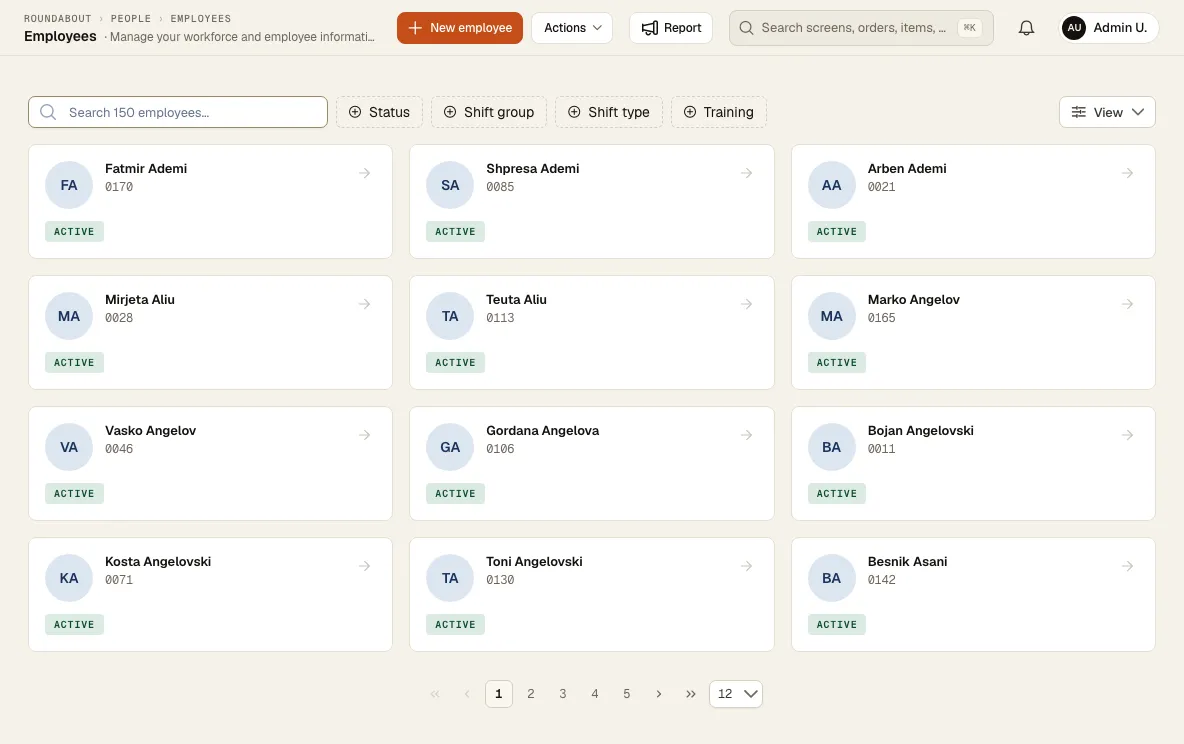
The list
Section titled “The list”Each employee shows their name, employee number and status. Show the list as Cards or as a Table: the table also shows each one’s Contract, Weekly hour cap and Created date. Filter it by Status, Shift group, Shift type and Training. The shift group and shift type filters also find the employees who work the company shift policy’s group.
Certifications expiring soon, above the list, shows the trainings that expire in the next 30 days or have expired already.
Add an employee
Section titled “Add an employee”- Click New employee.
- Enter the First name and Last name.
- Enter an Employee number that no other employee has, such as EMP-001. CSV imports find the employee by it.
- Enter the Date of birth. Before their 18th birthday, your labour rules’ young-worker limits apply.
- Choose the Contract type: Permanent, Temporary or Agency. When you fill a coverage gap, werkplan offers permanent staff first.
- If the employee has a weekly limit of their own, enter it as Weekly hour cap. Left empty, only the organisation’s limits hold.
- Under Contracted hours, click Add change for hours other than your organisation’s full time, with the date they hold From and the Weekly hours. Contracted hours are a target that overtime counts from, not a limit.
- Enter the Hire date: no shift is planned before it. If you know it, enter the Termination date, the first day they no longer work for you.
- Click Create.
The employee joins planning as Active from the hire date, on the company shift policy’s shift group until you give them one of their own. Give them their trainings next, on their page.
Your subscription tier caps how many employees you have: every employee counts, active or inactive. Past the cap, werkplan refuses New employee and Duplicate, and offers Upgrade.
Import employees, skills and absences
Section titled “Import employees, skills and absences”In Actions, Import employees…, Import skills… and Import absences… bring them in from a CSV file. Rows find their employee by the employee number:
- Import employees… adds an employee, as Active, for a row whose number it doesn’t find, and updates the one it finds. It can also give trainings, a shift group from today and holiday calendars.
- Import skills… gives employees trainings, each with the last day it is valid.
- Import absences… records whole-day absences, each as if you entered it on the employee’s page, with no override past a working-time limit.
Each file’s columns are on its page under CSV imports.
Delete or deactivate an employee
Section titled “Delete or deactivate an employee”werkplan keeps an employee whose work or working-time rights are on record: their shifts and rest days, absences, requests, consents, restrictions, a rotation, or an operation that names them. On their page, Delete is refused for them, and for an active employee offers Deactivate instead: an inactive employee leaves planning, and the record stays. An employee with nothing on record is deleted for good. See Employee.
Still stuck? Write to support@example.com.