Training
- Available on
- Trial
- Pro
- Enterprise
- Who can do this
- Open this screenRoles: Administrator, Employee
Permission: training:read - Add, change or import a trainingRoles: Administrator
Permission: training:write - Delete a trainingRoles: Administrator
Permission: training:delete - Give an employee a training, or change until when it is validRoles: Administrator
Permission: employee:write - Take a training away from an employeeRoles: Administrator
Permission: employee:delete
- Open this screenRoles: Administrator, Employee
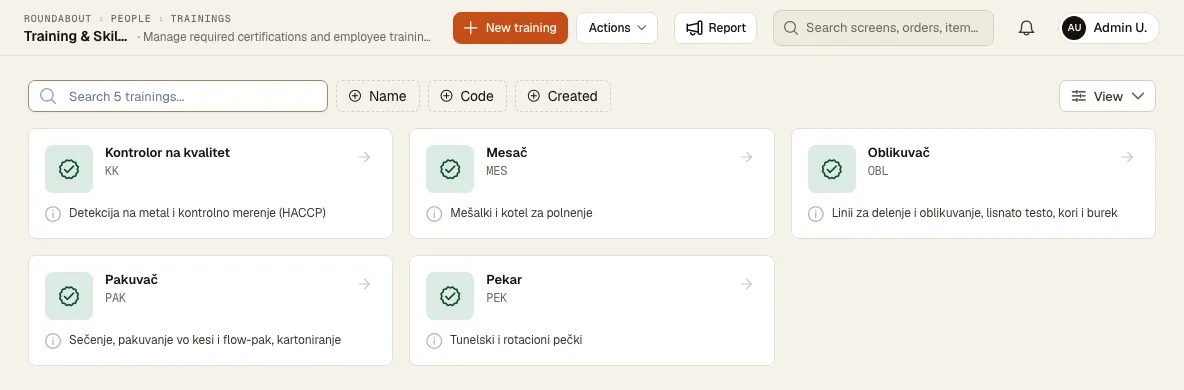
The Training screen lists the trainings and certificates your employees can hold, such as a forklift licence or a food safety certificate. Machines, routings and shift types ask for employees who hold a training, and werkplan plans only those who hold it, while it is valid.
The screen’s title reads Training & Skills. Each training shows its name, its code and its description. Show the list as Cards or as a Table: the table also shows the Created date.
Add a training
Section titled “Add a training”- Click New training.
- Enter a Name, such as Forklift licence. Pickers show it.
- Enter a Code that no other training has, such as SAF-01, at most 50 characters. Imports find the training by it.
- If you like, enter a Description: pickers show it under the name.
- Click Create.
To bring in many at once, click Import trainings… and choose a CSV file. A row whose code matches a training changes it; any other row adds one. Its columns are on Import trainings.
Click a training to open its page. General shows its Name, Code and Description, and Edit changes them. Renaming a training changes nothing that is planned.
Give an employee a training
Section titled “Give an employee a training”- Open the employee from the Employees screen.
- In the Trainings panel, click Assign training.
- Choose the Training. The list holds only those the employee doesn’t hold yet.
- Under Validity, choose Never expires, or Valid until a date and the Valid until date: the last day it is valid.
- Click Assign.
The employee counts as trained up to the end of that day. From the next day the panel shows the training as Expired, and werkplan no longer plans with it. Edit validity changes the date, for a renewed certificate. The Employees screen lists, under Certifications expiring soon, the trainings that expire in the next 30 days or have expired already.
Who asks for a training
Section titled “Who asks for a training”- A machine: on its page, a training requirement says how many employees with the training each operation on it needs at once.
- A routing: its additional employees say how many more employees with a training each of its operations needs, such as a supervisor.
- A shift type: a skill requirement says how many holders its shift needs (see Shift types).
What trainings change in planning
Section titled “What trainings change in planning”Production. An operation on a machine needs the machine’s trained employees plus the routing’s additional ones, at the same time. Up to the last day of the published workforce schedule, werkplan names on each operation employees who hold the training and work a shift then. After that, it counts the holders who can work each shift. When an order needs more trained employees at once than any shift has, werkplan leaves it out of the plan with the reason Not enough trained employees.
Workforce schedule. A skill requirement counts only holders whose training is valid on the shift’s date. The workforce solve plans holders onto it. A coverage gap for a skill takes only an employee who holds the training that day.
The master plan never changes by itself. An employee given a training, a training taken away, and a changed Valid until date are changes the master plan doesn’t hold yet, and so are the trainings a machine or a routing asks for. On the Master plan screen, Show changes lists them, and a scenario made before them goes out of date.
Delete a training
Section titled “Delete a training”On the training’s page, open Actions and click Delete. werkplan doesn’t delete a training that a machine, a routing, a staffing requirement, a coverage gap, a saved shift or a plan still uses. Deleting one that none asks for also takes it away from every employee who holds it, and from every shift type’s requirements.
Still stuck? Write to support@example.com.