Make the first master plan
- Available on
- Trial
- Pro
- Enterprise
- Who can do this
- Open the Master plan screen and its scenariosRoles: Administrator, Shift supervisor, Employee
Permission: schedule:read - Create, solve and promote a scenarioRoles: Administrator
Permission: planning:execute
- Open the Master plan screen and its scenariosRoles: Administrator, Shift supervisor, Employee
You make your first master plan by creating a scenario, solving it, checking it and promoting it. Until you promote one, werkplan has no master plan and nothing reaches the shop floor.
Who and when
Section titled “Who and when”A planner does this once, when your organisation is set up and its open production orders are in. Creating, solving and promoting a scenario need the permission planning:execute, which only the Administrator role holds by default: werkplan has no planner role, so a planner usually gets Administrator. A shift supervisor doesn’t promote.
How to work
Section titled “How to work”- Do it in one sitting: create, solve, check, promote. A first plan goes out of date as soon as the first work it planned to start is in the past.
- If you plan people in werkplan, publish the workforce schedule for the coming days first, so the plan names who does each operation.
- Let one planner promote. Others can look at the scenario first: every planner sees it.
- Fix what the check turns up in your data, not in the plan: a missing routing, a machine type with no machine, too few trained people. Then make another scenario from the corrected data.
- Once the first master plan is in force, it changes only when you promote a scenario or the re-plan. Expect nothing to move by itself.
Before you start
Section titled “Before you start”- Your products have routings, your machines and tools are in, and your employees have their trainings and shift groups. See the Tools screen and Get started.
- Your production orders are submitted: Pending orders are planned, drafts and orders on hold aren’t. See Add a production order.
- The workforce schedule is published, if you plan people in werkplan. Production plans against the published workforce schedule: up to the day it is published through, each operation runs in the published shifts of people trained for it, and the plan names them. After that day, the plan names nobody and counts the trained people of each shift group evenly over the shifts the group runs. When nothing is published, the plan still runs, and every day is planned that way: the operations name nobody until a published schedule names them. You publish it on the Schedule screen.
flowchart TB
  accTitle: Making the first master plan
  accDescr: Create a scenario, solve it and check it. If the check turns up a problem, correct your data and create another scenario. When the plan is good, promote it, and see who to tell.
  create[Create a scenario] --> solve[Solve it]
  solve --> check{Check it}
  check -- a problem in your data --> correct[Correct the data]
  correct --> create
  check -- good --> promote[Promote it]
  promote --> tell[Who to tell]
| Step | Screen | What you do | What changes |
|---|---|---|---|
| 1 | Master plan | Create the first scenario | A scenario takes a snapshot of today’s data: Draft |
| 2 | The scenario | Solve | The scenario goes Solving, then Solved |
| 3 | The scenario | Check its figures, its plan and what it left out | Nothing |
| 4 | The scenario | Promote | The scenario is Promoted and becomes the master plan, In force; its production orders are Scheduled |
| 5 | Who to tell | Read it | Nothing |
1. Create a scenario
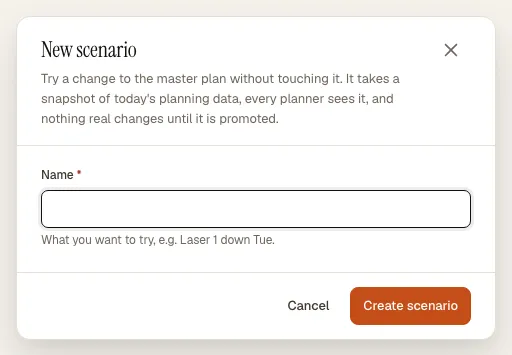
Section titled “1. Create a scenario”On the Master plan screen, which says No master plan yet, click Create the first scenario. Give it a Name, such as First plan, and click Create scenario. The scenario takes an input snapshot: your planning data as it is at that moment. Changes you make to your data afterwards don’t reach it.
2. Solve it
Section titled “2. Solve it”On the scenario’s screen, click Solve. A solve takes a few seconds; you can leave the page, and it carries on. The scenario reads Solved when its plan is ready.
3. Check it
Section titled “3. Check it”Read what the plan does before you put it in force:
- Figures: how many orders it plans on time (ON TIME), how late the late ones are (TARDINESS) and when it ends (MAKESPAN).
- The plan by Orders: the Late and Tight filters show the orders at risk. Machines shows each machine’s work.
- Unplannable orders: the orders it left out whole, each with the reason and what to do.
- Waiting for material: the orders whose purchased material holds back their start, or isn’t ordered yet.
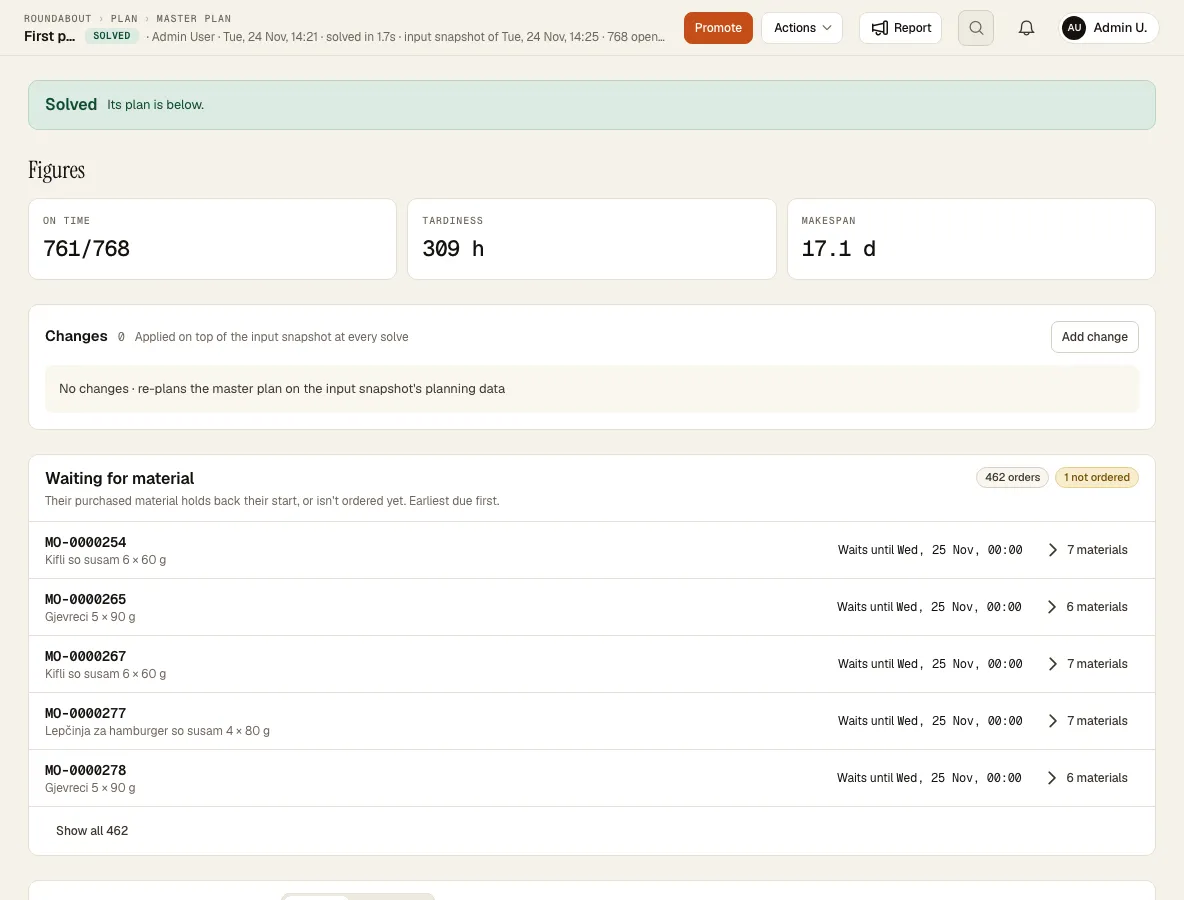
Orders left out don’t stop the rest of the plan going into force. If what you see is wrong because your data is, correct the data, then create another scenario: Solve again plans the same snapshot. See How werkplan’s planner decides for why the plan looks as it does.
4. Promote it
Section titled “4. Promote it”Click Promote. The dialog says what the plan does and what promote saves. Click Promote. Then:
- the scenario is Promoted and its plan is the master plan, In force;
- the production orders it plans are Scheduled, and their operations are on the shop floor’s task lists;
- everyone who may read shifts is told a master plan is in force.
5. Who to tell
Section titled “5. Who to tell”werkplan opens Who to tell. A first master plan replaces none, so there is nobody to tell yet. Each later master plan lists the people and customers whose work or deliveries it changed.
If something goes wrong
Section titled “If something goes wrong”- The solve fails: the scenario says why, with Show details. Click Try again.
- Orders are left out: Unplannable orders says why and what to do, such as Not enough tools. Correct the data and create another scenario, or promote and plan those orders later.
- Promote can’t be clicked: a note on the scenario’s page says why, such as Changes edited since the last solve. Solve it again.
- The scenario is out of date: Promote first plans it again on today’s data and shows you the result. Click Promote rebased result.
- Someone else promoted meanwhile: another planner put a master plan in force. Promote again to plan yours on top of theirs, or delete it.
What comes next
Section titled “What comes next”- When something happens, such as a machine down or someone away, it is reported as an exception and the re-plan takes it in: When something happens.
- To try a change before you decide, or a date before you promise it: Try a change before you decide.
- Print the plan or each machine’s dispatch list from Actions on the Master plan screen.
Still stuck? Write to support@example.com.