Pick
- Available on
- Trial
- Pro
- Enterprise
- Who can do this
- Open this screenRoles: Administrator, Warehouse terminal
Permission: shopfloor:pick - Open any terminal screen, beside the screen's own permission, and sign an operator inRoles: Administrator, Shop floor terminal, Warehouse terminal
Permission: shopfloor:operate - Start, confirm, finish or give up a pick list, beside shopfloor:operateRoles: Administrator, Warehouse terminal
Permission: shopfloor:pick
- Open this screenRoles: Administrator, Warehouse terminal
Pick is the shop-floor terminal’s screen for getting confirmed sales orders off the shelves. The warehouse starts a pick list for an order, walks the shelves it plans, confirms what it took from each, and finishes it, which takes the goods out of stock and delivers the order. It is the same pick list as the office’s, recorded with the operator’s name.
A terminal offers it when its account holds shopfloor:pick, as the Warehouse terminal role does. On a warehouse terminal, which offers Receive too, the header reads Shop floor and Pick is a tab beside it. On a terminal whose role offers picking alone, a role of your own, it is the only screen: there are no tabs, and its header reads Picking. Sign in with your PIN as on every terminal screen: see Jobs.
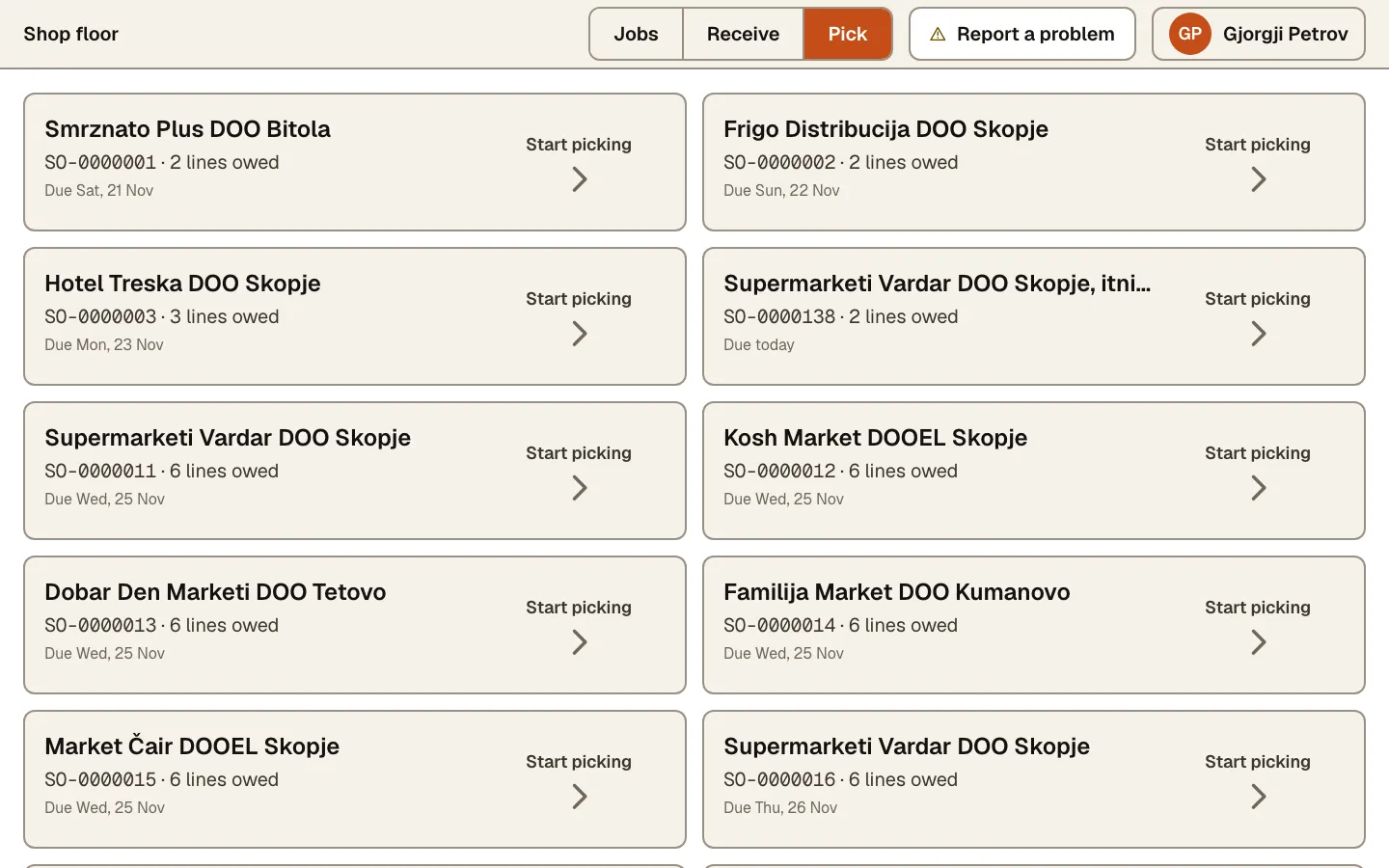
Orders to pick
Section titled “Orders to pick”The screen lists every confirmed sales order not yet delivered that still owes a line: the customer, the order number, how many lines are owed, and when the customer wants it: Due today, the day, or No date given. The soonest comes first. Nothing to pick. means no confirmed order owes goods.
Tap Start picking, or Continue on an order that has a pick list open.
Pick an order
Section titled “Pick an order”Start picking plans the walk from what is in stock: the default location first, then the others, and in each location the earliest expiry first. It moves no stock and reserves nothing. An order with nothing in stock to pick is refused.
The walk groups the lines by location, in the order you walk them. Each line shows the item and its code, where to take it from (lot, bin and expiry), and Take with the quantity planned. A line the shelves couldn’t cover says what is still owed.
- Tap a line, or scan its item, to go to it.
- Give the quantity you took, of the quantity planned. For an item with serial numbers, scan each unit’s number, or type it and tap Add, one per unit.
- Tap Confirm with the quantity. The chip turns from TO PICK to PICKED, or SHORT when you took less, or EMPTY when you took none. Change opens a confirmed line again.
- When every line is confirmed, tap Finish. The bar asks, such as Ship 12 of 15 units, 2 lines short?, and says This takes the stock off the shelf and delivers the order. Tap Finish again, or Keep picking.
Until every line is confirmed, the bar names the line still waiting. Order shipped shows the delivery’s number and what was shipped; tap Back to orders.
Give up asks Give this list up?: Give the list up closes it, and nothing has left the shelf, so the order can be picked again later.
What finishing changes
Section titled “What finishing changes”- Stock: what you picked leaves the shelves it was taken from, as one delivery of the sales order, which names the operator.
- The sales order: its lines count what was delivered. A line short of what it ordered is still owed, and the order stays on the list for another pick.
- Production: production raised for a line and not yet started shrinks, or is cancelled, by what the delivery ships of it from stock.
- The pick list is finished, and the operator who started it is named on the sales order’s pick lists.
Finish is refused when another delivery of the order went out meanwhile, or when the shelf no longer holds what you picked, such as when another pick list took it first. Then nothing moves: check the list and try again.
Still stuck? Write to support@example.com.