Operators
- Available on
- Trial
- Pro
- Enterprise
- Who can do this
- Open this screenRoles: Administrator
Permission: operator:read - Add, edit or deactivate an operator, reactivate one, or reset a PINRoles: Administrator
Permission: operator:write - Link an operator to an employee beside operator:write, or see whom they are linked to beside operator:readRoles: Administrator, Shift supervisor, Employee
Permission: employee:read
- Open this screenRoles: Administrator
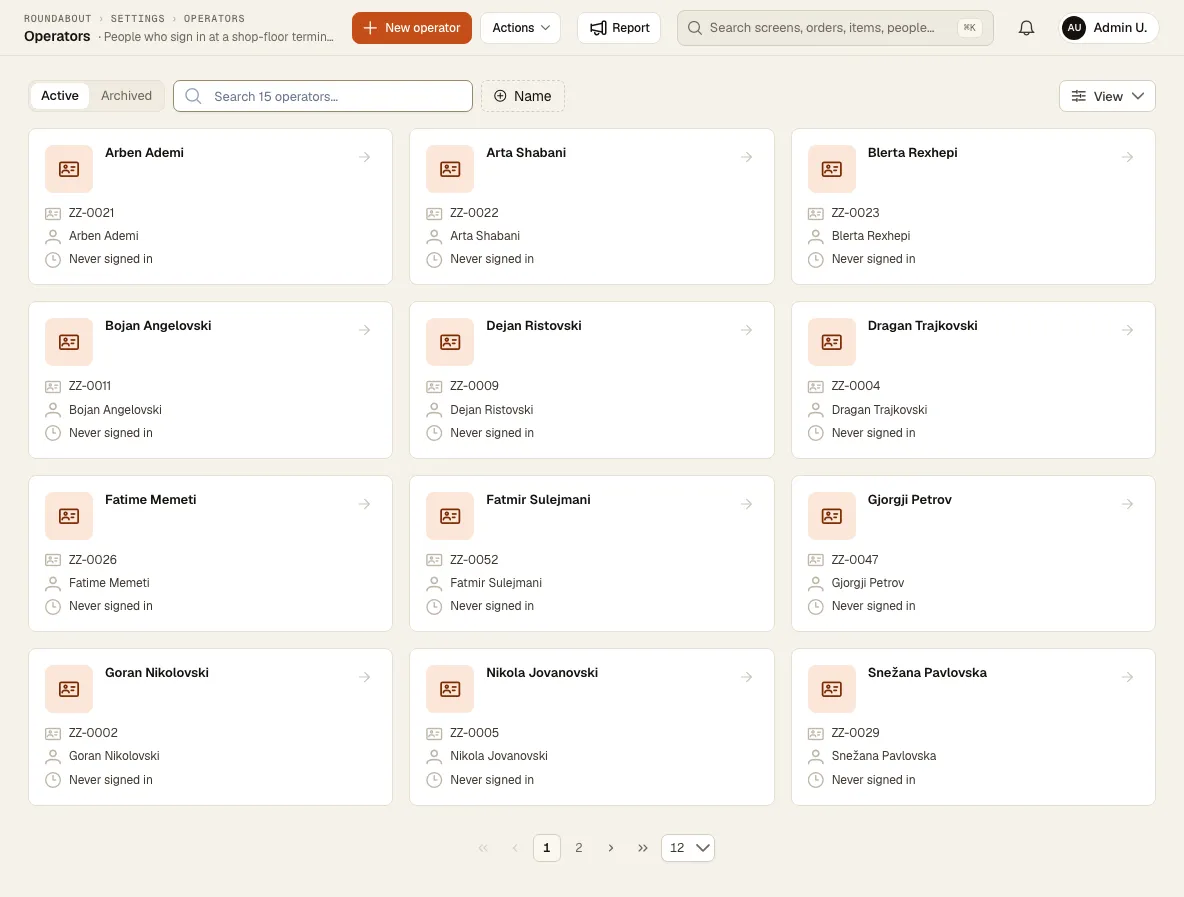
The Operators screen lists the people who sign in at a shop-floor terminal: they tap their name and type their PIN, so the work they record carries their name. You add them here, give them a PIN, link them to the employee they are, and deactivate them when they leave. An operator is not a user account: an operator signs in only at a terminal, which has signed in to werkplan with an account of its own.
You find it in Settings. Who may read it, and who may change it, is set by the permissions under Who can do this; without operator:write, the list has no actions.
What the screen shows
Section titled “What the screen shows”One card per operator, or one row in the table view:
- the Name, as the terminal’s sign-in list shows it;
- the Badge code, shown under the name on the terminal, or No badge on a card;
- the Employee they are linked to; someone without
employee:readreads Linked to an employee on a card, Linked in the table, instead of the name; - Locked on an active operator whom wrong PINs locked out (in the table, under PIN);
- when they last signed in at a terminal: Last seen …, or Never signed in on a card and Never in the table;
- Inactive on an operator who is deactivated.
The switch above the list shows Active operators or the Archived ones, who are inactive. Search finds an operator by name or badge code.
Add an operator
Section titled “Add an operator”- Click New operator.
- Give the Name the terminal shows, and a Badge code if your people carry one. Two operators can’t share a badge code.
- Type a PIN of 4 digits. Tell the operator at once: werkplan never shows it again.
- Pick the Employee they are, if you link operators: see Link an operator to an employee.
- Click Create operator.
The operator is Active and on every terminal’s sign-in list at once.
Change an operator
Section titled “Change an operator”Click the operator, or Edit operator, to change the Name, the Badge code, the Status or the Employee, and click Save.
- Reset PIN gives an active operator another PIN, in the New PIN field. The old one stops working at once, and a lockout ends with it. Use it when someone forgot their PIN or is locked out.
- Deactivate operator takes them off the terminal sign-in list and signs them out of any terminal. werkplan asks first. Their recorded work keeps their name.
- Reactivate operator puts an inactive operator back on the sign-in list, with the PIN they had.
There is no delete: someone who has left is deactivated, so the work they recorded still says who did it.
Link an operator to an employee
Section titled “Link an operator to an employee”Linking says which employee an operator is. A linked operator:
- sees Your work and Planned, may change above the job list at the terminal: the work the plan names them on. See Jobs.
- may start work the plan names someone else on, when they hold a training it needs.
- has their work recorded and shown per person.
In Germany and Austria, showing work per person needs the works council’s agreement where the plant has one; the dialog says so under the field. Without that agreement, leave operators unlinked: they sign in and work the same way.
The Employee field offers the active employees no other operator is linked to. Without employee:read the field reads Linked to an employee or Not linked, and saving leaves the link as it is.
What werkplan refuses
Section titled “What werkplan refuses”- A PIN that isn’t exactly 4 digits: the terminal’s keypad takes four.
- A badge code another operator has, whatever its capitals, and with spaces before or after it ignored.
- Linking an inactive employee, or one linked to another operator: werkplan names that operator, so you can unlink them there first.
- Changing the name, badge code or employee of an operator whose employee was anonymised.
Where to go next
Section titled “Where to go next”- How an operator signs in and works: On the shop floor.
- Setting up the device itself: Set up a shop-floor terminal.
Still stuck? Write to support@example.com.