Shift types
- Available on
- Trial
- Pro
- Enterprise
- Who can do this
- Open this screenRoles: Administrator, Shift supervisor, Employee
Permission: shift:read - Add, change or duplicate a shift type, and set how many people its shifts needRoles: Administrator
Permission: shift:write - Delete a shift type, or remove what its shifts needRoles: Administrator
Permission: shift:delete
- Open this screenRoles: Administrator, Shift supervisor, Employee
The Shift types screen lists the shifts your plant works, each with its days, its start and end, and its break. Shift types set when production runs, and they are the shifts the workforce schedule gives your employees.
A shift type is one kind of shift, such as Early, from 06:00 to 14:00 on weekdays. A shift group bundles shift types, and the Company shift policy says which group the whole plant works. Neither the workforce solve nor production plans a shift type that no shift group holds.
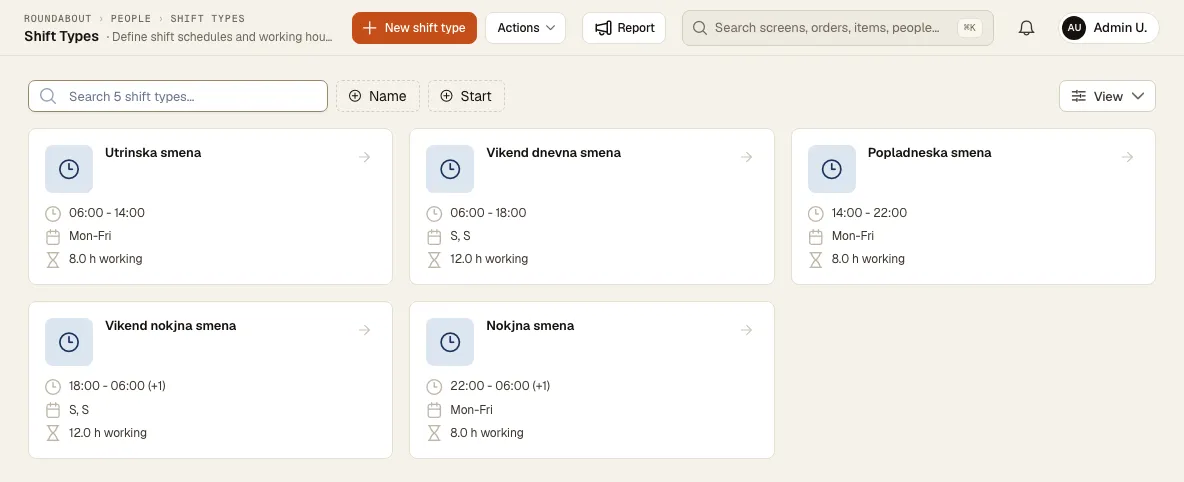
The list
Section titled “The list”Show the list as Cards or as a Table. A card shows a shift type’s times, its days, its working hours and any shortened full time; the table shows its Code, Start, End, Working hours, Break and Shortened full time. An end marked (+1) is on the next day, and Breaks rules marks a shift type that breaks one of your labour rules.
Add a shift type
Section titled “Add a shift type”- Click New shift type.
- Enter a Name that no other shift type has, such as Early.
- If you like, enter a Code of one or two letters or digits: it marks the type’s shifts on the workforce schedule. Left blank, werkplan makes one from the name.
- If you like, pick a Colour. Left unpicked, the shift type gets the colour used least.
- Choose the Days of week it runs. Coverage goals and the workforce solve plan it on these days only.
- Leave Runs on public holidays on, unless the shift never runs on a public holiday, whether your plant closes on it or works it.
- Enter the Start time and the End time, on the 24-hour clock. An end earlier than the start is on the next day.
- If the shift has a break, tick Include break time and enter the Break start and Break end, inside the shift’s times. A shift type has one break at most.
- Click Create shift type.
werkplan marks the shift type a night shift or not from its times and break, your organisation’s night, and whether breaks count as working time, which you set in the labour rules on the Company shift policy screen. You never set the mark by hand. A night shift type can also be marked Hazardous or heavy strain, which holds its nights to your labour rules’ limit for hazardous night work. Shortened full time holds every week with a shift of the type to fewer Hours a week, as some countries do for hazardous jobs.
The dialog checks the shift type against your labour rules as you type. When it breaks one, the dialog says which. You can save it, but each of its shifts then breaks that rule: refused, or passed only with an authorisation, as the rule is a floor or authorisable (see Working-time rules).
A shift type’s page
Section titled “A shift type’s page”Click a shift type to open its page.
- General shows its Name, Code, Colour and Description. Edit changes them; the code and the colour mark its shifts on the workforce schedule.
- Schedule shows its Days of Week, Time Range, Working Hours and Break. Edit opens Edit days and times.
- Requirements says how many employees each of its shifts needs (below).
Actions holds Duplicate and Delete.
Change its days and times
Section titled “Change its days and times”In Edit days and times, change when the shift type runs or its break, and click Save. Saved shifts of this type take the changed times, and werkplan marks the type a night shift or not again.
When the changed times move published shifts, the first Save only lists them. Click Save again to move them. A published shift inside your notice period moves only with a reason. One inside your shortest notice moves only through the emergency override, which needs the permission workforce:admin.
How many people a shift needs
Section titled “How many people a shift needs”The Requirements panel sets the shift type’s coverage goals: how many employees its shift wants on each day it runs. The workforce solve plans to them, and the workforce schedule shows each day’s shift as matched, underbooked or overbooked against them.
- The Headcount row counts everyone on the shift. Click Enter headcount and enter the Number of employees.
- A skill requirement counts only the employees who hold a training. Click Add skill requirement, choose the Training and enter the Number of employees.
- Each has a Default for every day the shift type runs. Add day override gives one weekday another number.
While no headcount is entered, the row reads Balanced share: werkplan spreads the employees the company shift policy can seat over its shift types, counting those who can work only some of them there first. It doesn’t spread them around a headcount you enter elsewhere, so enter a headcount on every shift type or on none.
Production planning doesn’t read these goals. It plans with the employees who hold each training (see Training).
Duplicate or delete a shift type
Section titled “Duplicate or delete a shift type”Duplicate makes a copy named with “ [duplicate]” after the name, with the same days, times, break and marks. The copy gets a code of its own, and none of the original’s requirements or shift groups.
Delete removes the shift type for good, with its requirements and its place in shift groups. werkplan doesn’t delete a shift type in use: one that saved shifts, a rotation, a coverage gap, a staffing requirement, a swap or overtime request, or a shift tried in a re-plan names. Take it out of its shift groups instead, so no one is planned on it.
What a change does to the plan
Section titled “What a change does to the plan”The master plan never changes by itself. Changing the days, the times, the break, the night mark or Runs on public holidays of a shift type a shift group holds is a change the master plan doesn’t hold yet, and so is changing the times or the break of one that published shifts use. On the Master plan screen, Show changes lists it under Shifts and calendars, and a scenario made before it goes out of date. Its name, code, colour, description, hazardous mark, shortened full time and requirements aren’t listed.
Still stuck? Write to support@example.com.