Master plan
- Available on
- Trial
- Pro
- Enterprise
- Who can do this
- Open a master planRoles: Administrator, Shift supervisor, Employee
Permission: schedule:read - Promote a scenario, which puts a master plan in forceRoles: Administrator
Permission: planning:execute
- Open a master planRoles: Administrator, Shift supervisor, Employee
A master plan is a plan that went into force when a planner promoted a scenario. One is in force at a time; the ones it replaced stay on record as they were.
You open the master plan in force on the Master plan screen, and every master plan from the Master plan history screen.
What its page shows
Section titled “What its page shows”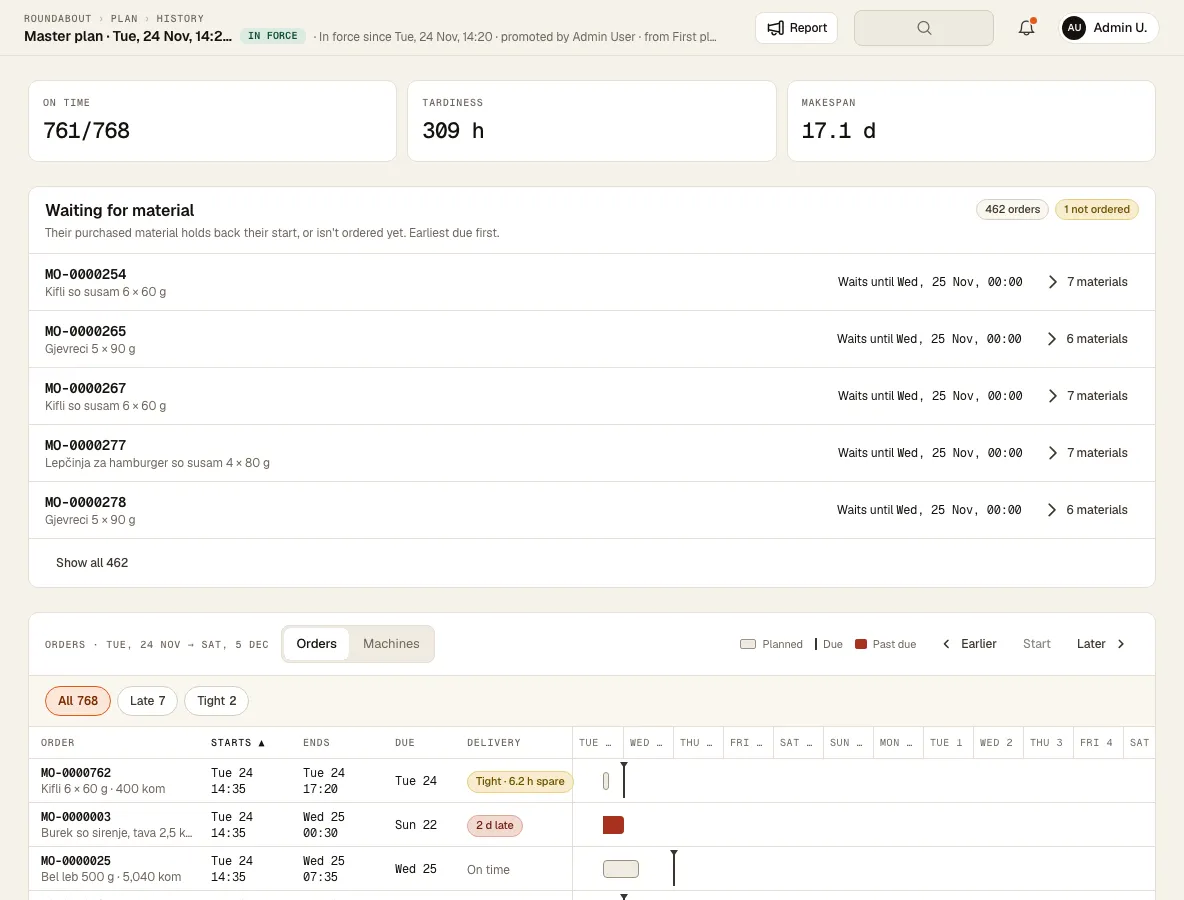
A master plan’s page from the history is titled Master plan with the day it went into force, and says how long it was in force (for the plan in force, from when), who promoted it and from which scenario. It shows its figures, which plan replaced it, its Unplannable orders, Waiting for material and the plan, as it was when it went into force. Nothing on it can be changed.
Statuses
Section titled “Statuses”stateDiagram-v2 accTitle: Master plan statuses accDescr: Promoting a scenario puts a master plan in force. Promoting the next one supersedes it. state "In force" as InForce [*] --> InForce: Promote a scenario InForce --> Superseded: Promote another scenario
| Status | How a master plan gets it | How it leaves it |
|---|---|---|
| In force | A planner promotes a scenario | A planner promotes another |
| Superseded | Another master plan is promoted | Never |
Promoting needs the permission planning:execute.
In force
Section titled “In force”This is the plan the shop floor works from: its operations are the tasks people start, and its production orders are Scheduled. It stays in force until a planner promotes another scenario, however much your data changes meanwhile.
Superseded
Section titled “Superseded”Another master plan replaced it. It stays on the Master plan history screen as it was when it went into force, with the plan that replaced it. It can’t be put back in force: to go back to a plan like it, solve a scenario and promote it.
Delivery
Section titled “Delivery”Every plan says, order by order, how the order meets its due date, in the Delivery column of Orders. The filters Late and Tight count those orders.
| Delivery | It shows | When |
|---|---|---|
| Late | how late, as … late | The plan ends the order after its due date |
| Tight | Tight · … spare | The plan ends it on time, with less than 8 working hours to spare |
| On time | On time | The plan ends it with 8 working hours or more to spare |
| No due date | — | The order has no due date, or the plan doesn’t place it |
The plan ends the order after its due date: it shows by how long, in red.
The plan ends it on time but with less than 8 working hours to spare, so a small delay makes it late.
On time
Section titled “On time”The plan ends it with at least 8 working hours to spare.
No due date
Section titled “No due date”The order has no due date, so it can’t be late, or the plan doesn’t place it.
Still stuck? Write to support@example.com.