Packaging
- Available on
- Trial
- Pro
- Enterprise
- Who can do this
- Open this screenRoles: Administrator, Employee
Permission: product:read - List the units on the Units tabRoles: Administrator
Permission: product:write - Add or change a packaging, a unit or a conversionRoles: Administrator
Permission: product:write - Delete a packaging or a unit, or remove a conversionRoles: Administrator
Permission: product:delete
- Open this screenRoles: Administrator, Employee
The Packaging screen holds the packagings your products come in and the units of measure everything is counted in. A packaging has a base unit, such as pieces, and the larger units that convert to it, such as a box of 24 pieces.
Each variant of a product has a packaging. Its base unit is what the variant’s stock, its orders and its bill of materials count in, and its larger units let an order line be entered in boxes or pallets. Materials have a unit of their own and don’t use a packaging. The screen’s heading reads Packaging & Units, and it has two tabs: Packagings, which opens first, and Units.
Packagings
Section titled “Packagings”The Packagings tab lists every packaging with its Code, Base unit, Conversions, Description and when it was Created. Show it as Cards or as a Table, and search it by code, description or conversions. Conversions shows the factors of its larger units in turn: 24/40 is a box of 24 and a pallet of 40 boxes.
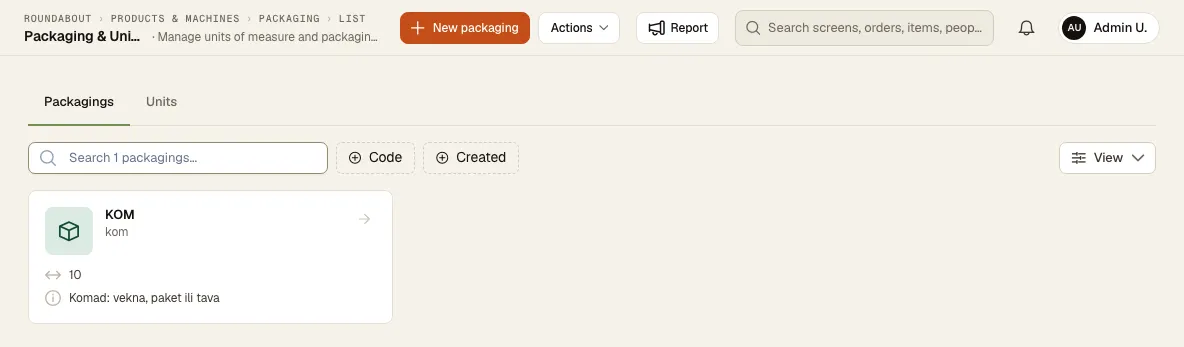
Add a packaging
Section titled “Add a packaging”- On the Packagings tab, click New packaging.
- Enter a Code that no other packaging has, such as BOTTLE_CRATE.
- Choose its Base unit: what stock and bills of materials count in.
- If you like, enter a Description. Search finds words written here.
- Click Create packaging.
Then open it and add its larger units under Conversions.
A packaging’s page
Section titled “A packaging’s page”Click a packaging to open its page. General shows its Code, Base unit, Conversions and Description, and Edit changes all but the conversions. The base unit locks once a variant uses the packaging or a conversion is defined against it.
Conversions lists the base unit and each larger unit, with what it Equals: a box equals 24 pieces, a pallet equals 40 boxes.
- Click Add conversion.
- Choose the Unit, such as box. To add a unit on the spot, click the + beside it.
- Enter the Factor: how many of the unit before it make one. A unit you add always builds on the last one in the list.
- Click Add.
Order lines for the products in this packaging can then be entered in that unit, and werkplan converts them to the base unit. Edit on a conversion’s row changes its factor, and the units built on it change with it. Remove takes a conversion away, with the ones built on it. werkplan doesn’t remove a conversion that a production order, a sales order, a quote or a purchase order uses.
The Units tab lists every unit of measure with its Code, Name and when it was Created. The code is what shows after amounts, such as kg or pcs. Units serve as a material’s unit, as a packaging’s base unit and as its larger units.
To add one, click New unit on the Units tab, enter a unique Code and, if you like, a Name that pickers show beside it, and click Create unit. You can also add a unit on the spot with the + beside a unit picker. A unit’s page shows its Code and Name; Edit changes them, and the changed code shows wherever quantities in the unit appear, on screens and on printed documents.
What packaging changes in planning
Section titled “What packaging changes in planning”werkplan plans a production order line in its packaging’s base unit: a line of 5 boxes of 24 is planned as 120 pieces. A change to a packaging isn’t listed under Show changes on the Master plan screen.
Delete a packaging or a unit
Section titled “Delete a packaging or a unit”On its page, open Actions and click Delete. werkplan doesn’t delete a packaging that a variant uses, nor a unit that is in use.
Still stuck? Write to support@example.com.