Supplier
- Available on
- Trial
- Pro
- Enterprise
- Who can do this
- Open a supplier's pageRoles: Administrator, Employee
Permission: purchasing:read - Change it, archive or restore it, or delete itRoles: Administrator
Permission: purchasing:write - Open a material from its ItemsRoles: Administrator, Employee
Permission: product:read
- Open a supplier's pageRoles: Administrator, Employee
A supplier is a company you buy materials or outsourced work from. Its status says whether you can still order from it: an Active supplier is offered on purchase orders, an Inactive one is kept for the orders it already has.
You open a supplier from the Suppliers screen, or from its name where Waiting for material on the Master plan screen lists material not ordered.
What its page shows
Section titled “What its page shows”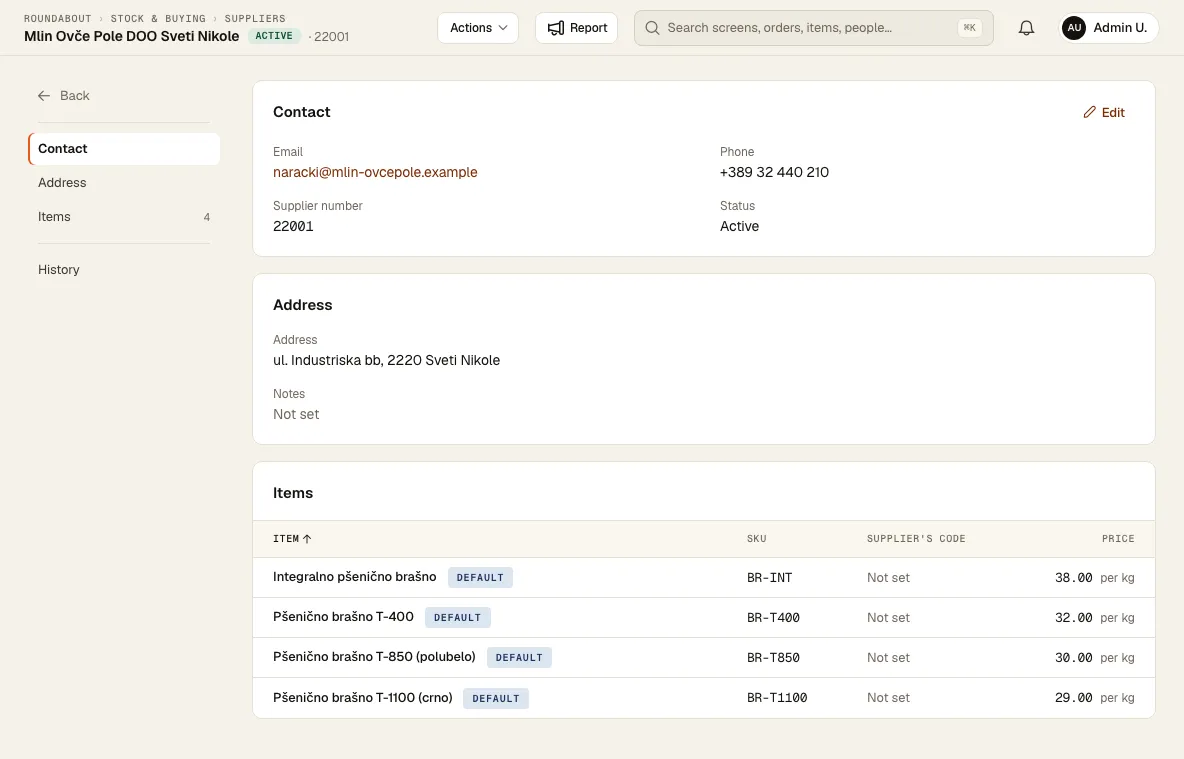
- Contact: its Email, Phone, Supplier number and Status. Edit changes them, and its name, address and notes.
- Address: its Address, which prints on the purchase orders you send it, and Notes for your team.
- Items: the materials that name it as a supplier, with their SKU, the Supplier’s code for each and its Price, in the unit it is quoted in. Default marks the materials it is the default supplier of. You add and change these on each material’s page: see Suppliers.
- History: who created it and who changed it last, and when.
Actions holds Archive or Restore, and Delete: see Delete a supplier.
Statuses
Section titled “Statuses”A supplier is Active when you add it, unless you choose otherwise. Archive makes it Inactive and Restore makes it Active again, from its page or its row on the Suppliers screen. Edit supplier and Import suppliers… can set either.
stateDiagram-v2
  accTitle: Supplier statuses
  accDescr: A supplier is added Active, or Inactive if you choose so. Archive makes it Inactive and Restore makes it Active again; Edit supplier sets either.
  [*] --> Active: Added
  [*] --> Inactive: Added
  Active --> Inactive: Archive, or Edit supplier
  Inactive --> Active: Restore, or Edit supplier
| Status | How a supplier gets it | How it leaves it | What it changes |
|---|---|---|---|
| Active | Added, restored, or saved with it | Archived, or saved as Inactive | Offered on purchase orders and as a material’s supplier |
| Inactive | Archived, or added or saved with it | Restored, or saved as Active | Not offered in the supplier pickers; Replenishment doesn’t order from it |
Changing a status needs the permission purchasing:write. The Suppliers screen lists inactive suppliers on its Archived tab.
Active
Section titled “Active”You buy from the supplier. The supplier pickers offer it: on a purchase order, among a material’s suppliers, and when you change many materials’ default supplier at once. Replenishment orders from it when it is a material’s default supplier.
Inactive
Section titled “Inactive”The supplier is archived: kept on record with its purchase orders and its materials, but not used anew. The supplier pickers don’t offer it, so you can’t raise a purchase order to it or add it to a material’s suppliers on the material’s page. A materials import that names its supplier number still makes it a material’s default supplier. Its open purchase orders go on as they are: you can still place, receive and close them.
It stays the default supplier of the materials that have it as one. Planning and What runs out next still read its lead time, but Replenishment refuses to order from it and asks you to choose another supplier. Make another supplier the default on each material’s page.
Still stuck? Write to support@example.com.