Holiday calendars
- Available on
- Trial
- Pro
- Enterprise
- Who can do this
- Open this screenRoles: Administrator, Shift supervisor, Employee
Permission: employee:read - Add a holiday calendar or a date, and give an employee calendarsRoles: Administrator
Permission: employee:write - Delete a holiday calendar, or remove a date from itRoles: Administrator
Permission: employee:delete
- Open this screenRoles: Administrator, Shift supervisor, Employee
The Holiday calendars screen keeps lists of dates, such as public holidays, shutdown days and employees’ own days off. A holiday calendar does nothing until you give it to the organisation or to employees.
- Given to the organisation, its dates are public holidays. Your plant either closes on them or works them.
- Given to an employee, its dates are their own days off.
werkplan comes with no holiday calendars: you add your own.
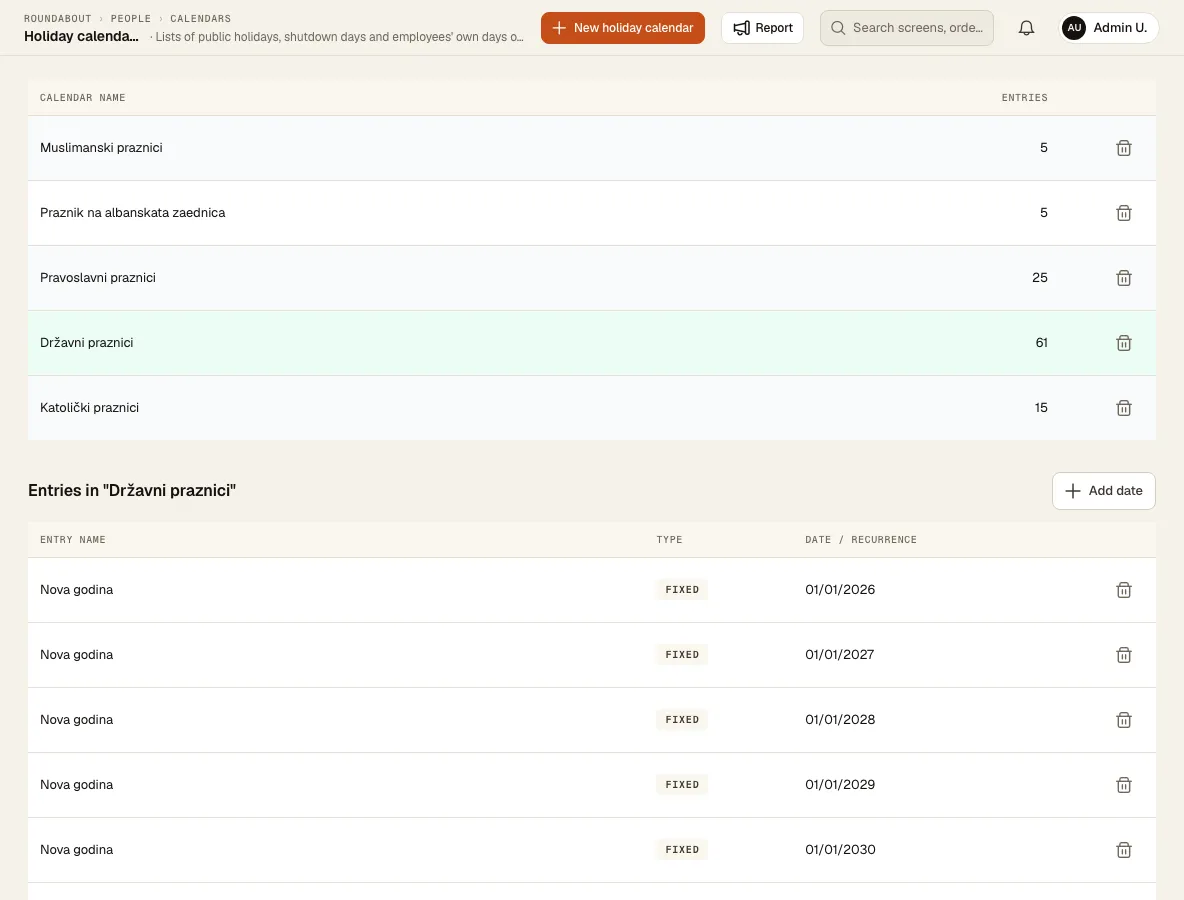
Add a holiday calendar and its dates
Section titled “Add a holiday calendar and its dates”- Click New holiday calendar.
- Enter a Calendar name that says whose days it holds, such as German public holidays, and click Create calendar.
- Click the calendar in the list. Its dates show below it.
- Click Add date, enter its Name, such as Christmas Day, and choose when it falls:
- with Every year on, a Month and a Day: the same day each year;
- with Every year off, a Date: that day only.
- Click Add date.
A holiday that moves from year to year, such as Easter, is a date of its own for each year. 29 February can’t be every year.
The bin beside a date removes it at once. The bin beside a calendar deletes it, with its dates, and takes it away from the organisation and from every employee who has it. The screen doesn’t rename a calendar.
Public holidays: your plant closes or works
Section titled “Public holidays: your plant closes or works”You give calendars to the organisation on the Organization screen, under Calendars. It needs the permission organization:write to open, and employee:write to save. Choose them under Assigned Calendars, set each one Closed or Worked, and click Save. A calendar you add starts as Closed. Closed or Worked holds for every date of the calendar, so keep the holidays your plant works in a calendar of their own.
| On a date of a Closed calendar | On a date of a Worked calendar | |
|---|---|---|
| Production | No shift starts, so no work is planned. A night shift from the evening before still runs into it. | Planned as any day, in the shift types that run on public holidays. |
| Workforce schedule | No shift starts. A shift placed by hand, by a swap or through a coverage gap is refused, even with the emergency override. | Planned as any day, for the shift types that run on public holidays. The day is marked with the holiday’s name. |
A shift type with Runs on public holidays off runs on neither kind (see Shift types). Where your labour rules turn on Holiday rest, a closed holiday’s 24 hours, from the time Sunday starts, take no work at all, the night shift from the evening before included.
Employees’ own days off
Section titled “Employees’ own days off”On an employee’s page, the Holiday calendars panel gives them calendars (see Employee). Their dates are that employee’s own days off:
- the workforce solve plans no shift starting on one, and a rotation gives them a rest day;
- a shift you place on one by hand is refused unless an overtime authorisation or an approved request covers it, or a workforce admin uses the emergency override;
- production counts them as away for the whole day, so they don’t count as trained then.
Every date of an employee’s calendars and of the organisation’s, closed or worked, counts as a holiday for short weeks, shift premiums and fairness.
What a change does to the plan
Section titled “What a change does to the plan”The master plan never changes by itself. Giving calendars to the organisation, switching one between Closed and Worked, and adding or removing a date of one the organisation has are changes the master plan doesn’t hold yet. On the Master plan screen, Show changes lists them under Shifts and calendars, and an employee’s calendars under Employees. A scenario made before them goes out of date. A date that happens once, before today, isn’t listed.
Still stuck? Write to support@example.com.