Production order
- Available on
- Trialup to 100 production orders
- Proup to 1
- Enterprise
- Who can do this
- Open a production order's pageRoles: Administrator, Employee
Permission: order:read - Add an order, change or submit a draft, put an order on hold, resume, cancel or close it short, duplicate it, or try a draft in a scenarioRoles: Administrator
Permission: order:write - Delete a draftRoles: Administrator
Permission: order:delete
- Open a production order's pageRoles: Administrator, Employee
A production order asks werkplan to make a quantity of one or more products, each a line. Its status says whether plans hold it, what it reserves in stock and what you can still change.
You open an order from the Production orders screen, the Production sequence screen, a master plan or a scenario, and from the pages that name it, such as a sales order’s or a task’s.
What its page shows
Section titled “What its page shows”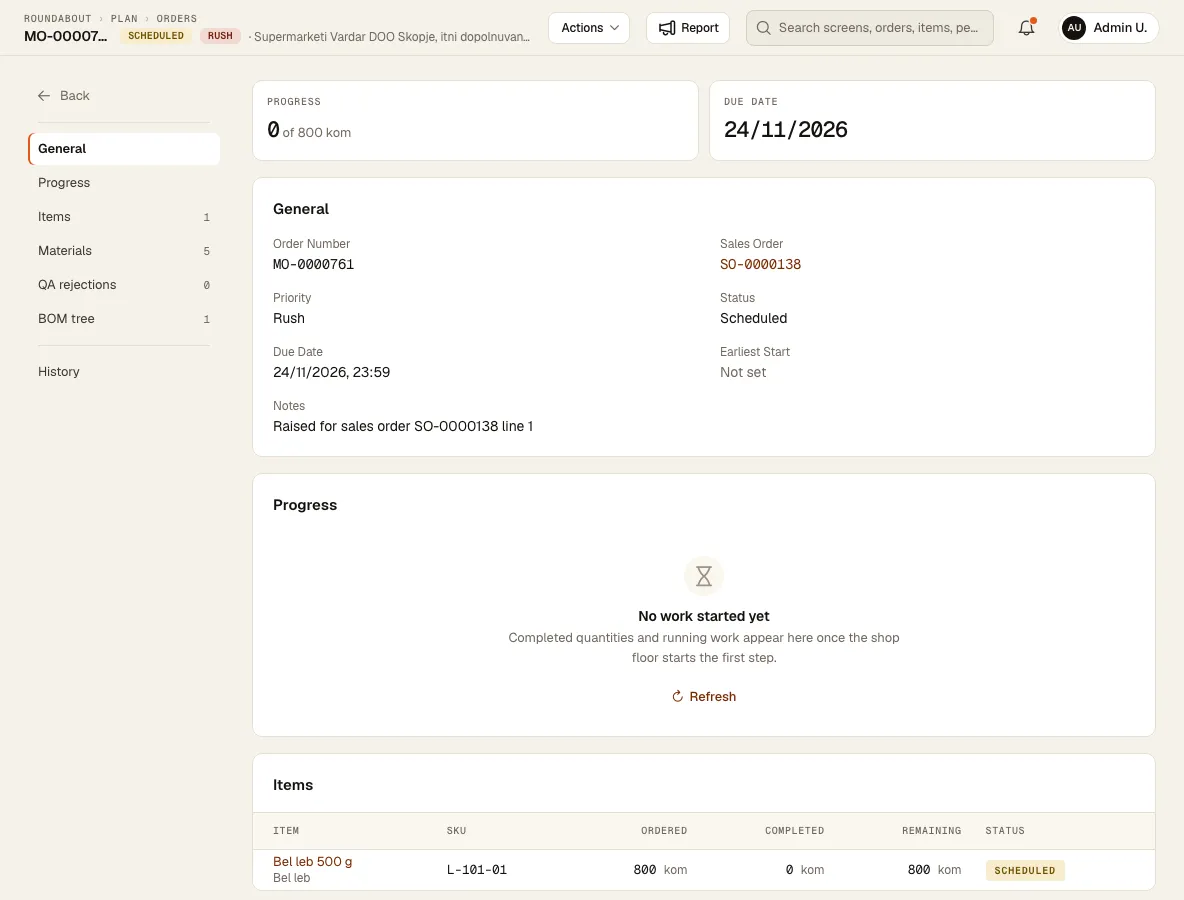
Its title is the order number, with its status, its priority, and Internal for an order raised to keep stock or make a sub-assembly. Above its panels, Progress and Due date.
- General: the Order Number, the Sales Order it was raised for, the order it was Raised to supply if it makes a sub-assembly, its Priority, Status, Due Date, Earliest Start and Notes. Edit changes them while the order is a draft.
- Progress and QA rejections: how its operations are going, and the rejected quantities. A draft has neither.
- Items: its lines, each with the Item, SKU, Ordered, Completed and Remaining quantities and the line’s Status. While the order is a draft, Edit or Add lines changes them.
- Materials: each material its bill of materials needs, with the quantity Required, Issued, Remaining and Available; open a row to see what is reserved.
- Sub-orders: its sub-assembly orders that are pending, scheduled or in progress.
- History: who created the order and who changed it, and when.
The main button is Submit for scheduling on a draft and Resume on an order on hold. Actions holds Try in a scenario, Put on hold, Close short, Open master plan, Duplicate, Print order sheet, Print pick list, Cancel order and Delete, each where the order’s status and your permissions allow it.
What each field means to planning
Section titled “What each field means to planning”- Due date: the end of that day in your organisation’s time zone. Lateness counts from it. It is optional: an order without one is never late.
- Priority: Low, Normal, High or Rush. A higher priority weighs lateness more, and a rush order is kept on time first. See How werkplan’s planner decides.
- Earliest start: no work starts before it, or before its purchased material is there, whichever is later.
Statuses
Section titled “Statuses”A production order starts as a draft. Submitting it puts it in line for the next scenario or re-plan, and promoting one that holds it schedules it. Its operations then move it on.
stateDiagram-v2
  accTitle: Production order statuses
  accDescr: A draft is submitted and becomes pending. Promoting a master plan that holds it makes it scheduled, and its first operation starting makes it in progress. Its last operation done, or closing it short, completes it. Pending, scheduled and in progress orders can be put on hold and resumed. Any order not completed can be cancelled.
  state "In progress" as Started
  state "On hold" as Held
  [*] --> Draft: Create draft
  Draft --> Pending: Submit for scheduling
  Pending --> Scheduled: A master plan holding it is promoted
  Scheduled --> Pending: A master plan without it is promoted
  Scheduled --> Started: Its first operation starts
  Pending --> Started: Its first operation starts
  Started --> Completed: Its work is done, or Close short
  Pending --> Held: Put on hold
  Scheduled --> Held: Put on hold
  Started --> Held: Put on hold
  Held --> Pending: Resume, not started
  Held --> Started: Resume, started
  Draft --> Cancelled: Cancel order
  Pending --> Cancelled: Cancel order
  Scheduled --> Cancelled: Cancel order
  Started --> Cancelled: Cancel order
  Held --> Cancelled: Cancel order
| Status | How an order gets it | How it leaves it | Planned? | Its material |
|---|---|---|---|---|
| Draft | Create draft in New production order, or Duplicate | Submit for scheduling, or Cancel order | No | Nothing reserved |
| Pending | Submitted; raised for a sales line, imported, or raised to keep stock; resumed before it started; or a promoted master plan has no work for it | A master plan holding it is promoted; its first operation starts; Put on hold; Cancel order | Yes, by the next scenario or re-plan | Reserved where in stock when you submit it; otherwise when a scenario or re-plan holding it is promoted |
| Scheduled | A master plan holding its work is promoted | Its first operation starts; a master plan without it is promoted; Put on hold; Cancel order | Yes, in the master plan | Reserved |
| In Progress | Its first operation starts, or it is resumed after it started | Its work is done, or Close short; Put on hold; Cancel order | Yes | Reserved |
| Completed | All its work is done, or Close short | A QA rejection can reopen it | No | Issued, and its products received |
| Cancelled | Cancel order | Never | No | Released |
| On Hold | Put on hold | Resume, or Cancel order | No | Stays reserved |
Moving an order by hand (submit, hold, resume, cancel, close short) needs the permission order:write. werkplan moves it to Scheduled, In Progress and Completed by itself.
The order is being typed in or waits for your decision. No plan holds it, it reserves no material, and the shop floor never sees it. Only a draft can be changed (Edit on General and on Items) or deleted, and only a draft can be tried in a scenario to see when it would finish: see Try a draft order before you promise a date.
Submit for scheduling makes it Pending: werkplan works out its material requirements from the bill of materials and reserves what is in stock. While the master plan in force has work still to do, a Rush order is also reported as an exception for the re-plan when it is created or submitted. Cancel order ends it, and Delete, with the permission order:delete, removes it.
Pending
Section titled “Pending”The order waits to be planned. Every scenario and re-plan made from then on plans it. An order you submitted has its material reserved where stock allows; one werkplan raised for a sales line or to keep stock, or one you imported, has it reserved when a scenario or re-plan holding it is promoted. It becomes Scheduled when you promote a scenario or re-plan that holds its work.
Scheduled
Section titled “Scheduled”The master plan in force holds its work: its operations are on the shop floor’s task lists. It stays scheduled until its first operation starts. When you promote a master plan that has no work for it, it goes back to Pending.
In progress
Section titled “In progress”One of its operations has started, on the shop floor or in Tasks. It becomes Completed when all its work in the master plan is done. Close short ends it before that: it cancels the open work, resolves its open QA rejections, completes the order, and cancels the sub-assembly orders it no longer needs. You give a Reason, which stays on the order.
Completed
Section titled “Completed”All its work is done. werkplan issues the material it used and receives its products into stock, and tells everyone who may read production orders that it is completed. An open QA rejection keeps an order from completing, and a QA rejection reported later puts it back to In Progress.
Cancelled
Section titled “Cancelled”The order is ended and kept on record. Cancel order works on any order not completed, except a sub-assembly order its parent still needs: cancel the parent instead. werkplan issues the material its first step used and releases the rest of its reserved material, and cancels its work in the master plan (running work too) and its open QA rejections. It cancels its sub-assembly orders that haven’t started and lie outside the frozen horizon; the others stay, flagged as no longer needed. If the master plan in force holds its work, the cancel is reported as an exception for the re-plan. It can’t be undone.
On hold
Section titled “On hold”The order is stopped for a while. Plans leave it out, its running operations are paused, and the shop floor can’t work on it. Its reserved material stays reserved, and its sub-assembly orders aren’t held. If the master plan in force holds its work, the hold is reported as an exception for the re-plan. Resume makes it In Progress if it had started, otherwise Pending. See Put an order on hold.
Line statuses
Section titled “Line statuses”Each line of an order has a status of its own, shown in Items with the same words as the order’s.
| Line status | How a line gets it | How it leaves it |
|---|---|---|
| Pending | Added to the order; its order goes back to pending or on hold before it started | A master plan holding it is promoted |
| Scheduled | A master plan holding it is promoted | Its quantity is made, or its order goes back to pending or on hold before it started |
| Completed | The last step of its routing completes its quantity | Never |
Pending
Section titled “Pending”The line isn’t in the master plan yet.
Scheduled
Section titled “Scheduled”The master plan in force holds the line’s work. It stays scheduled while its work runs.
In progress
Section titled “In progress”werkplan doesn’t give a line this status: a line whose work has started stays Scheduled until its quantity is made.
Completed
Section titled “Completed”The last step of its routing has completed the line’s whole quantity.
Cancelled
Section titled “Cancelled”werkplan doesn’t give a line this status: when an order is cancelled, its lines keep the status they had.
Still stuck? Write to support@example.com.