Company shift policy
- Available on
- Trial
- Pro
- Enterprise
- Who can do this
- Open this screenRoles: Administrator, Employee
Permission: organization:read - Schedule a company shift policy or cancel one, and edit the labour rulesRoles: Administrator
Permission: organization:write
- Open this screenRoles: Administrator, Employee
The Company shift policy screen sets the shift group the whole company works, from a date, and your organisation’s labour rules. The company shift policy sets the plant’s working hours for production, and it is the shift group of every employee without an override of their own.
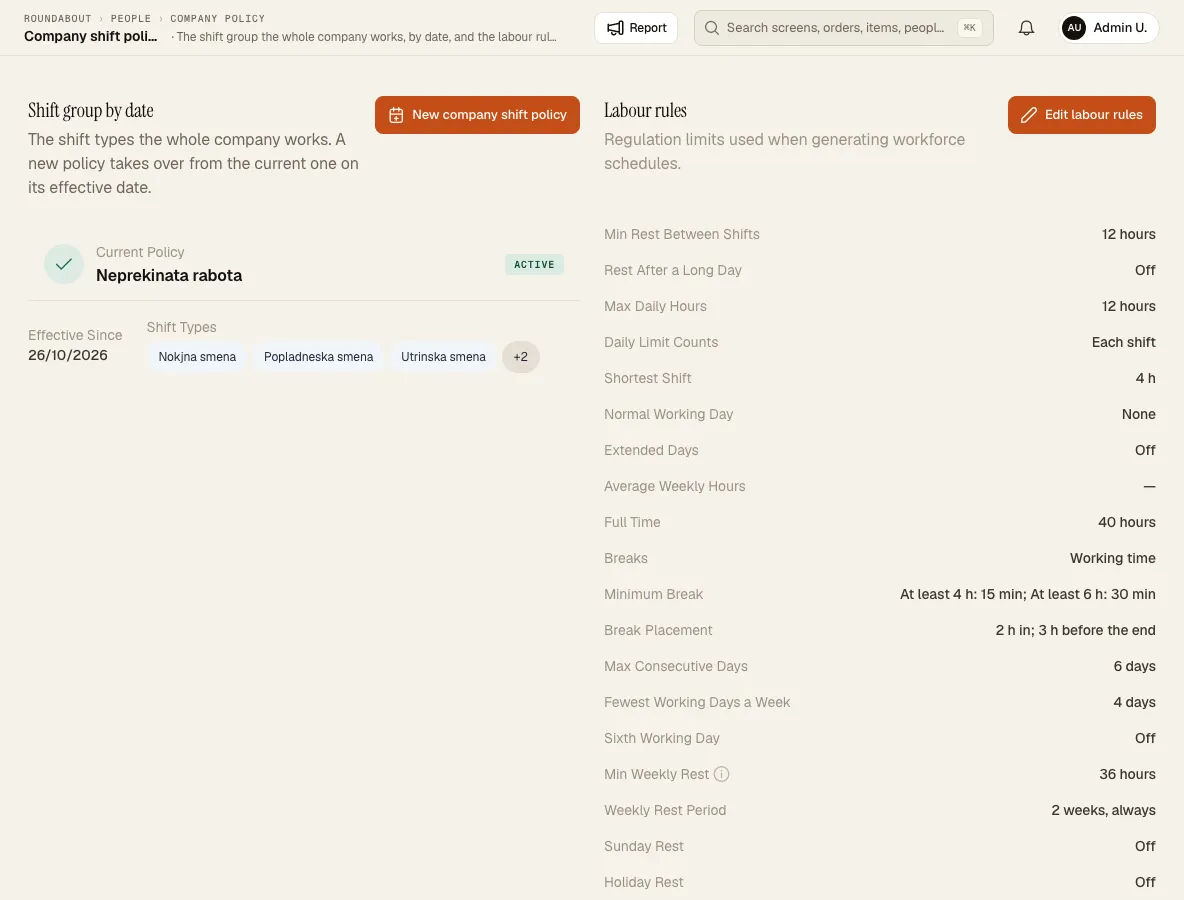
Shift group by date
Section titled “Shift group by date”The left of the screen shows the Current Policy: its shift group, the date it holds from under Effective Since, and its Shift Types. Scheduled Changes lists the policies still to come. Once there is an earlier one, Policy History lists the current policy and those before it.
The company shift policy decides:
- When production runs. werkplan plans production work in the times of the policy’s shift types, each on its days, less its break. A night shift runs on into the next day. On a day your plant closes for a public holiday, no shift starts.
- Who may work which shifts. An employee without an override of their own works the policy’s shift group.
- How many people each shift wants, where a shift type has no headcount: the balanced share spreads the employees the policy can seat over its shift types.
werkplan plans no production schedule while no company shift policy is in force today: creating a scenario, opening the re-plan or trying a draft order stops and says so.
Change the company’s shift group
Section titled “Change the company’s shift group”You never edit a company shift policy. To change the company’s shift group, schedule a policy that takes over on a later date:
- Click New company shift policy.
- Choose the Shift group. To add one on the spot, use the + beside it.
- Choose the date it is Effective from: tomorrow or later.
- Check the Preview, and click Schedule.
To cancel a scheduled change, click the bin beside it and then Cancel Change.
A workforce plan period can’t cross the day a policy changes: split it at that day.
The master plan never changes by itself. A policy scheduled or cancelled is a change the master plan doesn’t hold yet. On the Master plan screen, Show changes lists it under Shifts and calendars, and a scenario made before it goes out of date.
Labour rules
Section titled “Labour rules”The right of the screen shows your organisation’s labour rules: the working-time limits every shift is checked against, by hand and in the workforce solve. Each row shows a rule’s value. Those who can’t edit them read Labour rules are managed by your administrator.
To change them, click Edit labour rules, change the values in its sections, and click Save. Saving replaces the rules every shift is checked against, and marks each shift type a night shift or not again. werkplan refuses a save that would take the night mark off a shift type marked hazardous. Each section ends with How countries set this, examples of how some countries set its rules.
werkplan doesn’t set these rules for your country: every organisation starts with the same defaults. Working-time rules explains what werkplan checks and what it leaves to you.
Production reads one of these rules: Holiday rest, which keeps a closed public holiday’s 24 hours, from the time your labour rules say a Sunday starts, free of work. A change to it is listed in Show changes under Planning settings. A change to the night, or to whether breaks count as working time, can change which shift types are night shifts, and Show changes lists that under Shifts and calendars. The other rules shape the workforce schedule only.
Still stuck? Write to support@example.com.