Price list
- Available on
- Trial
- Pro
- Enterprise
- Who can do this
- Open a price list's pageRoles: Administrator, Employee
Permission: customer:read - Price an item, change or remove its price, and add or remove a customerRoles: Administrator
Permission: customer:write
- Open a price list's pageRoles: Administrator, Employee
A price list is a set of prices that particular customers pay for particular items, such as a trade price or a year’s contract. Its status, with its dates, says whether it prices their quote and sales order lines today.
You open a price list from the Price lists screen.
What its page shows
Section titled “What its page shows”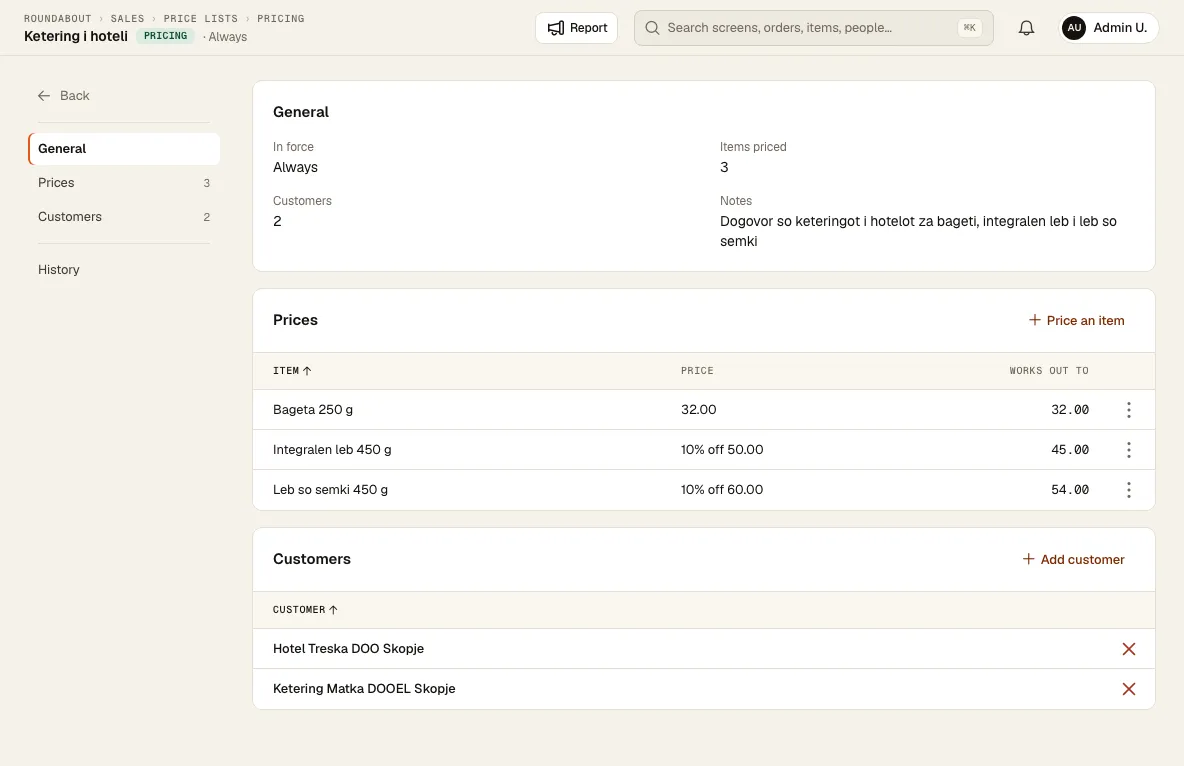
Its title is the list’s name, with when it is in force and its state: Pricing, Outside its dates or Inactive. A notice says so when the list is active but outside its dates.
- General: when it is In force, how many Items priced and Customers it has, and its Notes.
- Prices: each item the list prices, its Price and what it Works out to. See Price an item.
- Customers: the customers who get the list’s prices. Click one to open its page. See Choose its customers.
- History: who created the list and who changed it last, and when.
Price an item
Section titled “Price an item”- Under Prices, click Price an item.
- Choose the Item: any product or material you sell. An item has one price on a list.
- Choose its Pricing: Fixed price, what these customers pay for one unit, or Discount off the item price, a percentage off the item’s own sales price.
- Enter the Price or the Discount %, no more than 100.
- Click Save price.
A discount follows the item’s sales price as it changes. An item with no sales price stays unpriced under a discount: its row says the item has no price, and Works out to reads Not priced.
On a price’s row, Edit changes its pricing or its value; the item stays. Remove takes it off: the customers’ lines for the item are then priced by whatever else applies, or by the item’s own price. Lines already entered keep their prices.
Choose its customers
Section titled “Choose its customers”Under Customers, Add customer adds an active customer to the list; Remove on a customer’s row takes it off. A customer can be on several lists: for an item, the lowest price among the lists pricing today wins. A customer on no list pays the item’s own sales price, less its standing discount.
Statuses
Section titled “Statuses”A list is Active or Inactive. werkplan’s screens don’t change it: ask your werkplan contact to switch a list on or off, or to change its dates.
stateDiagram-v2
  accTitle: Price list statuses
  accDescr: A price list is made Active or Inactive and can be switched from one to the other. An active list prices its customers' lines only on the days within its dates.
  [*] --> Active: The list is made
  [*] --> Inactive: The list is made
  Active --> Inactive: Switched off
  Inactive --> Active: Switched on
| Status | Its state on the screens | What it changes |
|---|---|---|
| Active | Pricing within its dates; Outside its dates before its first day or after its last | Prices its customers’ quote and sales order lines on the days within its dates |
| Inactive | Inactive | Prices nothing |
Active
Section titled “Active”The list is switched on. On every day within its dates, both its first and its last day counting, werkplan prices its customers’ quote and sales order lines from it, and the list reads Pricing. Outside its dates it prices nothing and reads Outside its dates, such as a list for next year agreed in advance. A list with no dates prices every day.
Inactive
Section titled “Inactive”The list is switched off and prices nothing, whatever its dates. Its prices and its customers stay on it.
Neither status changes a line already entered: a price is written onto the line when the line is added, and stays.
Still stuck? Write to support@example.com.