Master plan
- Available on
- Trial
- Pro
- Enterprise
- Who can do this
- Open this screenRoles: Administrator, Shift supervisor, Employee
Permission: schedule:read - Create a scenario, open the re-plan, or see who to tellRoles: Administrator
Permission: planning:execute - Pick an employee to see their workRoles: Administrator, Shift supervisor, Employee
Permission: employee:read
- Open this screenRoles: Administrator, Shift supervisor, Employee
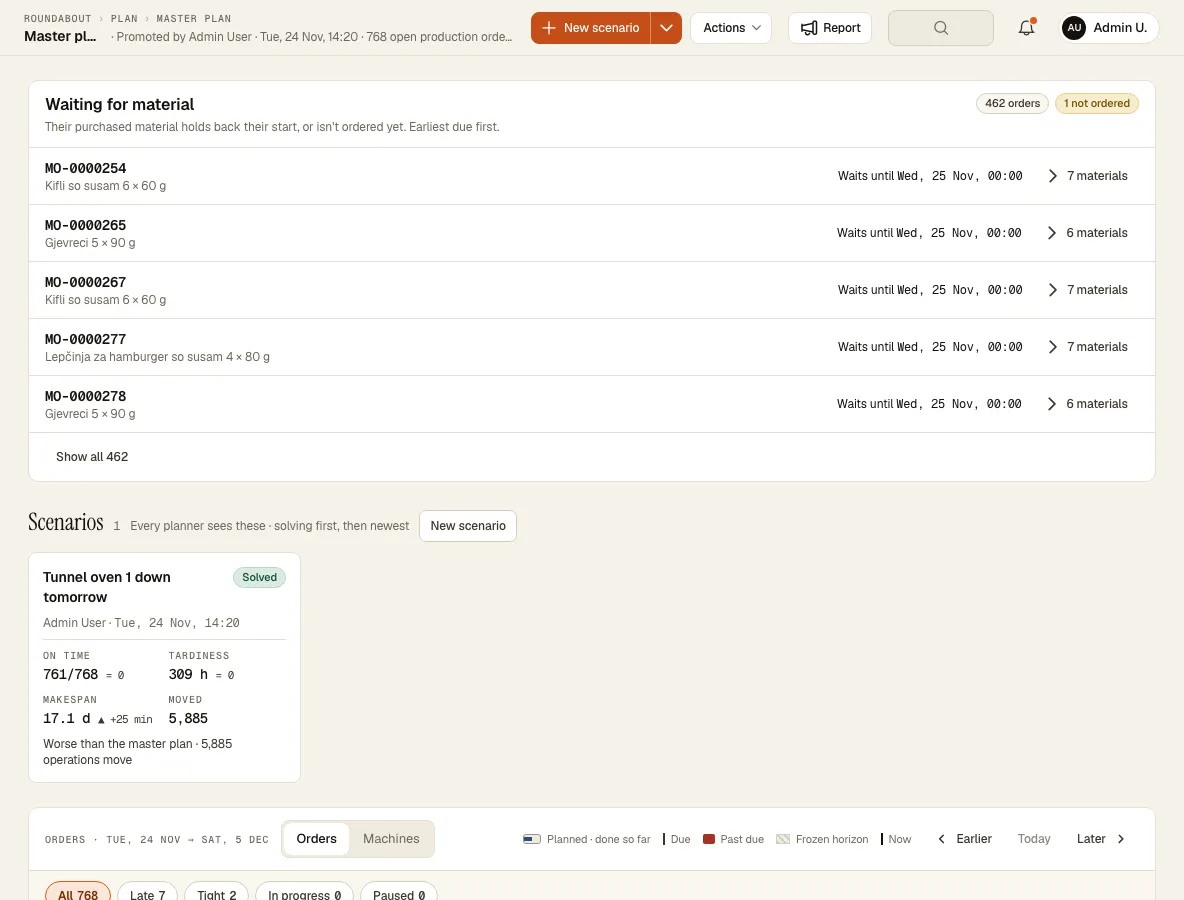
The Master plan screen shows the master plan: the one plan in force, which the shop floor works from. It also lists what changed after the plan was made and the scenarios planners are trying, and it is where you start a scenario or the re-plan.
Under the title, a line says who promoted the master plan, when, and how many open production orders you have: a scenario you create plans them all.
No master plan yet
Section titled “No master plan yet”Until the first scenario is promoted, the screen says No master plan yet and how many open production orders are waiting to be planned. Create the first scenario starts one: see Make the first master plan.
The plan
Section titled “The plan”The plan shows the master plan Orders or Machines, and the screen keeps your choice.
- Orders lists each production order with its Order, Starts, Ends, Due, Progress and Delivery, sorted by start. The bar shows its planned work and how much is done.
- Machines lists each machine, with one bar per operation: the production order and its routing step.
Earlier, Today and Later move through the days. The filters above the orders show All, Late, Tight, In progress or Paused orders, each with its count. Delivery says how each order meets its due date: see Delivery. When the plan names people and you may read employees, All employees lets you pick one person and see only their work.
The bars on the master plan can’t be moved. To change the plan, solve a scenario and promote it.
With the plan, the screen lists:
- Unplannable orders lists the orders the master plan left out, each with the reason and what to do.
- Waiting for material lists the orders whose purchased material holds back their start, or isn’t ordered yet, earliest due first.
What changed after the master plan was made
Section titled “What changed after the master plan was made”The master plan doesn’t change when your data does. A card counts the changes made after it, such as an order added or a machine’s unavailable time, by kind. Show changes lists them, grouped as Production orders, QA rejections, Routings, Machines, Tools, Employees, Shifts and calendars and Planning settings; most rows link to their record. Re-plan solves a scenario from today’s data: the master plan stays in force until you promote it.
When exceptions are open, such as a machine reported down, a band headed Open exceptions takes the card’s place for planners. It lists each exception and the state of the re-plan that takes them in, with Open re-plan or Re-plan.
Scenarios
Section titled “Scenarios”The Scenarios panel lists the scenarios not promoted yet, solving first, then newest. Every planner sees them. Each card shows its name, its status, who made it and when, and, once solved, how it compares with the master plan. A card reads Out of date when the scenario no longer matches the master plan or your data: see Scenario. Click a card to open the scenario: see Scenario.
New scenario creates one from today’s data. See Try a change before you decide.
Actions
Section titled “Actions”Once a master plan is in force, the top bar’s New scenario has a menu, More ways to start a scenario, with New scenario and Re-plan. Actions holds:
- History: the Master plan history screen;
- Who to tell: the people and customers this master plan changed things for;
- Print plan: a PDF of each order’s work over the next 7 days;
- Print dispatch list: a PDF of each machine’s work for one day.
Still stuck? Write to support@example.com.