When something happens
- Available on
- Trial
- Pro
- Enterprise
- Who can do this
- Report a machine down, a machine back or a QA rejection on the Report pageRoles: Administrator, Shift supervisor
Permission: exception:report - Report someone absent on the Report page, beside exception:reportRoles: Administrator, Shift supervisor
Permission: schedule:write - Report a rush order, a quantity changed, or an order on hold or cancelledRoles: Administrator
Permission: order:write - Report late materialRoles: Administrator
Permission: purchasing:write - Open the re-plan, add fixes, move and pin operations, promote, and see who to tell, with schedule:readRoles: Administrator
Permission: planning:execute - Promote an extra or a longer shiftRoles: Administrator, Shift supervisor
Permission: schedule:write - Promote an order's priority or hold, or a scrap decisionRoles: Administrator
Permission: order:write - Authorise overtime in a shift fixRoles: Administrator
Permission: overtime:authorise - Promote an extra shift placed with the emergency overrideRoles: Administrator
Permission: workforce:admin
- Report a machine down, a machine back or a QA rejection on the Report pageRoles: Administrator, Shift supervisor
When something happens that the master plan didn’t expect, whoever learns of it reports it where they are, and werkplan saves it at once as an exception. The re-plan takes it in; a planner reads what it does, tries fixes, promotes it and tells the people it changes things for.
Who and when
Section titled “Who and when”- A shift supervisor, or anyone on the shop floor, reports what happens as soon as they know: someone is absent, a machine is down or back, units fail inspection. The Shift supervisor role holds
exception:reportandschedule:write, which the Report page asks for these. An operator reports at the shop-floor terminal. - A planner reports what changes an order: a rush order, a quantity changed, an order on hold or cancelled. A buyer reports late material. These need
order:writeandpurchasing:write, which only the Administrator role holds by default. - A planner works the re-plan, decides and promotes: everyone with
planning:execute, by default the Administrator role. werkplan has no planner role, so a planner usually gets Administrator. A shift supervisor sees what is open, but not the re-plan, and doesn’t promote.
It happens whenever an exception comes up, at any hour: the re-plan solves around it in a few seconds, and the planner promotes when it is ready.
How to work
Section titled “How to work”- Report it where you are, as soon as you know: on your phone with Report, at the terminal, or on the record’s own page. It is saved at once and the shop floor follows it from that moment, so don’t wait for the office or write it down anywhere else.
- Look at Open now before you report, so nobody reports the same thing twice. A report made by mistake: withdraw it while it is open.
- Give the end you expect, even when you aren’t sure, such as End of this shift: the plan assumes it. When it passes, werkplan tells the planners, who extend it or report it back.
- Planners: work in the one re-plan. Every exception goes into it; don’t make a scenario of your own for something that happened.
- Read what each exception does before you fix anything. The re-plan already moves as little work as it can; fix only what it leaves late.
- Try the lightest fix first: a longer shift before an extra one, a priority before a hold. Move an operation by hand only where you know something the plan can’t, and look at the full re-plan when orders stay late.
- Promote once the re-plan answers what is open, before the work it moves is due to start: until then, the shop floor works from the master plan in force.
- Right after promote, work through Who to tell: tick each person and customer as you tell them, so no one is called twice, and print the dispatch lists again for the machines whose work changed.
Before you start
Section titled “Before you start”- A master plan is in force: with none, nothing is an exception. See Make the first master plan.
- The people who report hold the permissions for what they report: see Report.
- For fixes that place people, the workforce schedule is published for the days concerned: an extra shift goes on a published day.
flowchart TB
  accTitle: When something happens
  accDescr: Something happens and is reported where it happens. werkplan saves it and the re-plan solves around it. The planner opens the re-plan, reads what each exception does, tries fixes and moves operations by hand, solving again, then promotes it and tells the people and customers it changes things for.
  happen[Something happens] --> report[Report it]
  report --> saved[Saved at once; the re-plan solves]
  saved --> open[Open the re-plan]
  open --> read{Read what it does}
  read -- orders late --> fix[Try a fix, or move and pin]
  fix --> read
  read -- good --> promote[Promote it]
  promote --> tell[Who to tell]
| Step | Screen | What you do | What changes |
|---|---|---|---|
| 1 | Report, a terminal or the record’s page | Report what happened | Its record is saved; an exception opens: Open; planners are told |
| 2 | Nothing to do | The re-plan solves around it | The re-plan is created or solved again; the exception is In the re-plan |
| 3 | Master plan | Open re-plan | Nothing |
| 4 | The re-plan | Read what each exception does | Nothing |
| 5 | The re-plan | Add fix, or move and pin an operation | The fix is a change of the re-plan, solved with it |
| 6 | The re-plan | Promote | Its plan is the master plan, In force; its fixes are saved; its exceptions are Closed |
| 7 | Who to tell | Tell each person and customer, and tick them | Nothing |
1. Report it
Section titled “1. Report it”Report what happened where you are:
- on the Report page, from Report in the top bar: someone absent, a machine down or back, a QA rejection, a rush order, a quantity changed, an order on hold or cancelled, late material;
- at a shop-floor terminal, where an operator reports a machine down or back, a QA rejection, or scrap when finishing work;
- on the record’s own page: the machine’s unavailable time, the employee’s absence, the production order’s priority or status, the purchase order’s expected date.
Each saves the same record, and werkplan opens an exception when it touches work the master plan holds. See Exception. For someone absent, the Report page goes on to Who covers, so the shifts the absence takes away get a stand-in where someone suits.
2. The re-plan solves around it
Section titled “2. The re-plan solves around it”Every planner is told, and the open re-plan solves again on today’s data, keeping its fixes; the first exception creates it. A local re-plan moves the work the exceptions free, and pushes along the work in its way, within a few seconds of solving. The Report page says The planner’s re-plan is re-solving.
3. Open the re-plan
Section titled “3. Open the re-plan”On the Master plan screen, the band Open exceptions lists what is open and says where the re-plan is, such as Re-plan ready with how many operations moved and orders became late. The top bar counts the open exceptions on every page. Click Open re-plan.

4. Read what it does
Section titled “4. Read what it does”The re-plan sets each exception beside what it alone does: the operations it frees, the orders it makes late, the customers to call. Pick an exception to see only its share. Its notice says whether it stayed local, and the strip beside it how the full re-plan compares. See Re-plan.
When no order becomes late, you can promote it as it is.
5. Try fixes, or move by hand
Section titled “5. Try fixes, or move by hand”Under Fixes, Add fix tries what you would do about it. Each fix solves the re-plan again:
| When | Fix |
|---|---|
| Orders are late for want of people on a day | Call someone in for an extra shift, or keep someone on after their shift |
| One order must stay on time, or can wait | Change its priority in the re-plan |
| An order should wait altogether | Hold it in the re-plan |
| Units were scrapped | Make them again, or deliver short |
| You know where an operation belongs | Move and pin it, then re-plan around your changes |
When orders stay late, compare the full re-plan: Use full re-plan shows it, and promote puts the one shown in force. A fix that doesn’t help comes off with its bin; a pin with Unpin.
6. Promote it
Section titled “6. Promote it”Click Promote. The dialog says what the plan does against the master plan, lists what promote saves as real data, and asks you to confirm any soft conflict of an operation you moved. Then:
- the re-plan’s plan is the master plan, In force, and the one it replaces moves to the history;
- each fix is saved: an extra or a longer shift on the workforce schedule, an order’s priority or hold on the order, a scrap’s decision;
- the exceptions it took in are Closed, apart from a scrap nobody decided;
- everyone who reads shifts is told a master plan is in force.
See Promote a plan.
7. Who to tell
Section titled “7. Who to tell”werkplan opens Who to tell: the people whose shift or named work the plan changed, each with what changed, the customers whose orders it makes late, and the machines whose dispatch lists to print again. Tick each person once told and each customer once called; every planner sees the same ticks. People with a werkplan account are told of their own change in werkplan, and their row reads Told in werkplan. werkplan sends customers nothing: call them yourself.
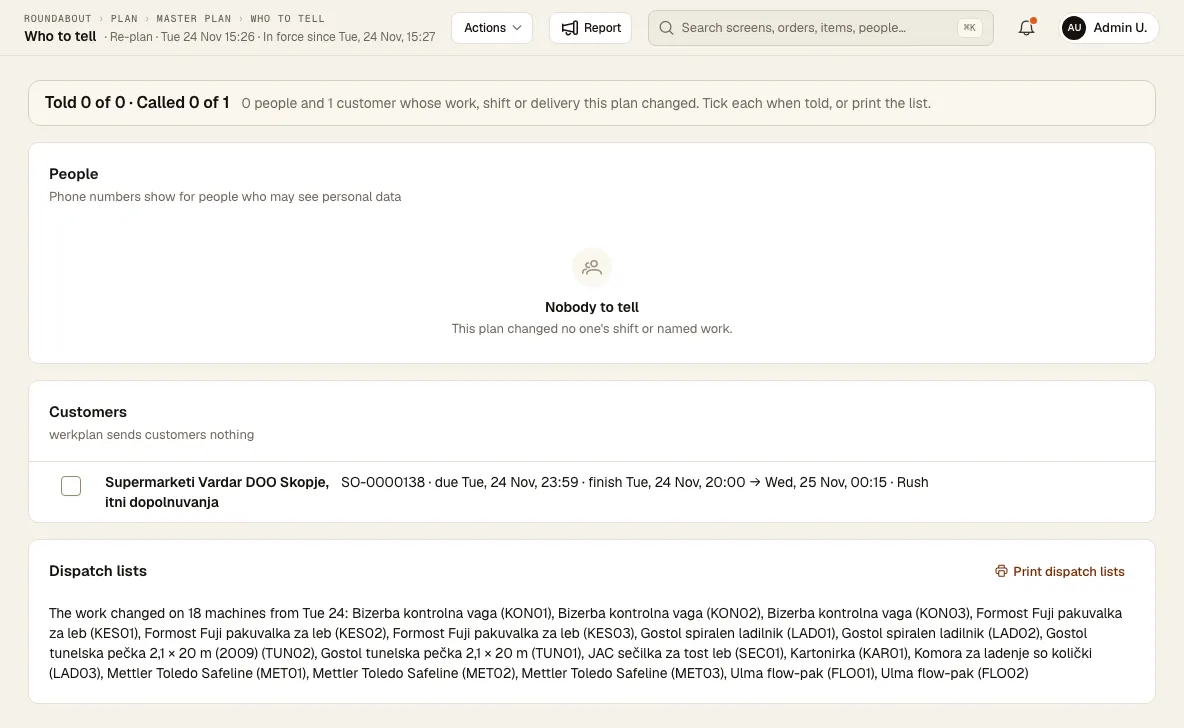
Actions › Print list prints the list to tick off on paper, and Print dispatch lists prints the changed machines’ work. You find the list again under Actions › Who to tell on the master plan while it is in force.
If something goes wrong
Section titled “If something goes wrong”- A report was a mistake: Withdraw it while it is open; werkplan puts back what it took away. See Exception.
- The machine is back or the person returns before the assumed end: report Machine back, or shorten the absence on the employee’s page. The re-plan solves again.
- The assumed end passed: werkplan tells the planners. Extend the end, or report it back.
- The re-plan failed: the band reads Re-plan failed. Open it to see why: a fix that broke the solve can be removed, and opening it solves it again.
- It widened to a full re-plan: the freed work found no room locally, or the local plan broke a hard rule, so werkplan solved the whole plan, keeping your pins. Read what moved before you promote.
- Promote is off: a line on the re-plan says why, such as a fix you may not save, or changes edited after the solve: solve it again. An operation you moved with a hard conflict keeps it from going into force: move or unpin it.
- Another exception arrives while you work: the re-plan solves again with it, keeping your fixes and pins. Read it again before you promote.
- Another planner promoted meanwhile: if they promoted the re-plan, its plan is in force, and the next exception creates another re-plan. If they promoted another scenario, the re-plan is out of date: Promote first plans it again on what is in force and shows you the result.
What comes next
Section titled “What comes next”- The plan in force is the master plan: see Master plan.
- Exceptions reported after the re-plan read its data stay open, and the next re-plan takes them in.
- To try something that hasn’t happened, use a scenario of your own: Try a change before you decide.
Still stuck? Write to support@example.com.