Materials
- Available on
- Trial
- Pro
- Enterprise
- Who can do this
- Open this screenRoles: Administrator, Employee
Permission: product:read - Add, change, archive or restore a material, edit a field of many, or import materialsRoles: Administrator
Permission: product:write - Delete a materialRoles: Administrator
Permission: product:delete
- Open this screenRoles: Administrator, Employee
The Materials screen lists what you buy to make your products: raw materials, components, consumables and packaging. A product’s bill of materials names them, and werkplan works out from them when the material for a production order is there.
Each material has a unit that its stock and the bills of materials count it in, such as kg, and a type that groups it in lists. Where you buy it, and on what terms, is on its page, under Suppliers. Materials don’t count toward any cap of your subscription tier.
The list
Section titled “The list”The list opens on Active, the materials in use; Archived shows the inactive and discontinued ones. It shows each material’s Name, Type, Status, UoM (its unit), whether it is Lot tracked, and when it was Created. Show it as Cards or as a Table, search it by name or description, and filter it by Name, Type and Created.
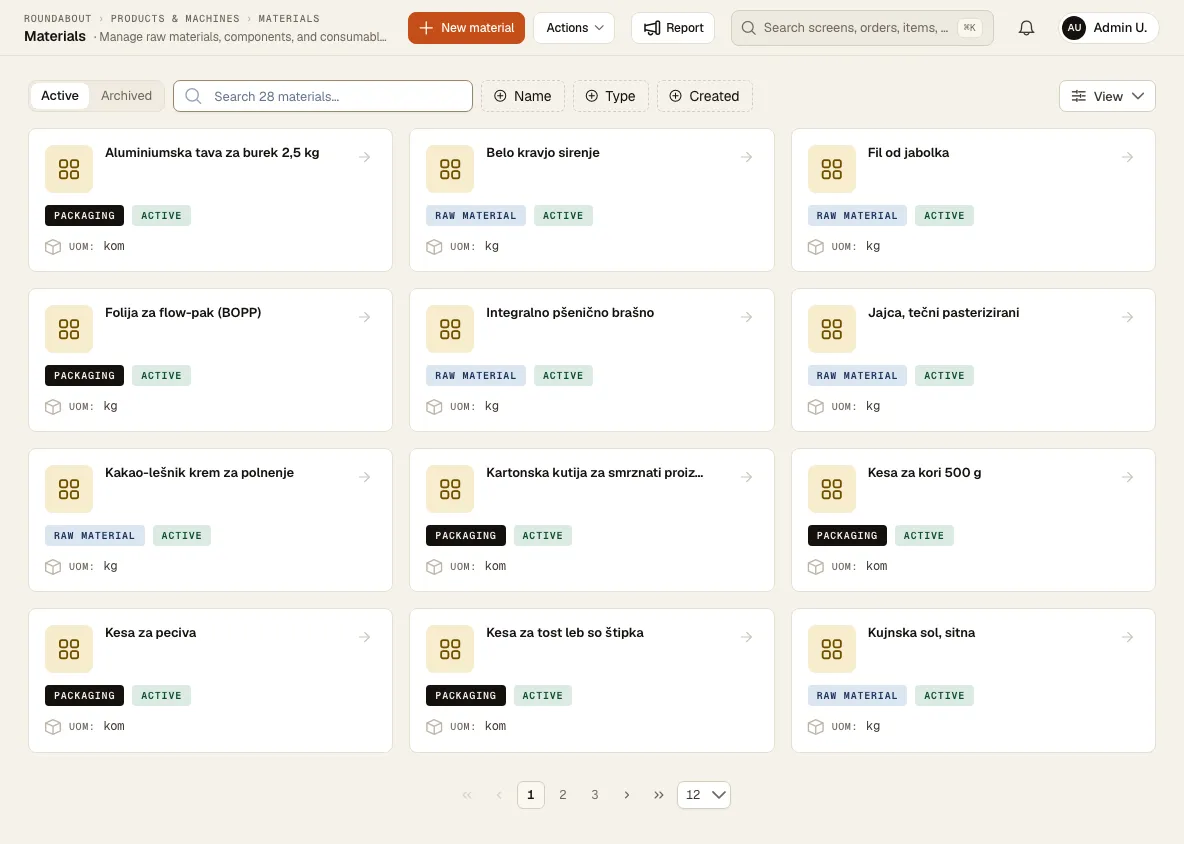
Type is one of Raw material, Component, Consumable and Packaging. It groups materials in lists and filters; planning doesn’t read it.
Click a material to open its page: see Material.
Work on many materials at once
Section titled “Work on many materials at once”Select materials on their cards, and the bar above the list offers:
- Archive selected, on Active: makes them inactive. They stay in every bill of materials that uses them.
- Restore selected, on Archived: makes them active again.
- Edit a field…: sets one field to one value on every selected material. You choose Type, Default supplier, Lead time (days), Minimum order quantity, Reorder level or Safety stock. A Default supplier becomes the default of every selected material, and is added to its suppliers where it is missing. Lead time and minimum order go on each material’s default supplier, so werkplan skips a material without one.
- Delete selected: deletes those that nothing uses, and keeps and reports the rest.
Actions exports the list as a CSV file, and Import materials… adds or updates materials from a CSV file you check first. A row whose SKU matches a material updates it.
Add a material
Section titled “Add a material”- Click New material.
- Enter a Name, such as Rye flour. Purchase orders, bills of materials and stock screens show it.
- Choose its Unit: stock and bills of materials count it in this, such as kg. To add a unit on the spot, click the + beside it. The unit can’t change once anything counts the material in it.
- Choose its Type.
- If you like, fill in the rest:
- Description: search finds words written here.
- Lot-tracked material: every receipt of it then needs a lot number, for tracing.
- Reorder level: below it, the material is listed for reordering on the Replenishment screen.
- Safety stock: at or below it, the material is marked critical there.
- Sales price: per unit, if you sell it too. Price lists can override it.
- SKU: your code for it, unique among all your items. Orders sent in from another system find the material by it, and Import materials… updates the material with the same SKU.
- Barcode: the code on the box. Scanning it finds the material.
- Click Create material.
The material is active at once, so purchase orders, sales orders and bills of materials can use it. Then open its page and add its suppliers: the lead time of its default supplier is what planning reads.
What materials change in planning
Section titled “What materials change in planning”Each time a scenario or a re-plan is made, werkplan works out every open production order’s material-ready time: when all the purchased material it still needs is there. The order’s work doesn’t start before it. werkplan reads, for each material an order’s bill of materials needs:
- the free stock in your own active locations, less what is reserved for other orders;
- the open purchases of it, in the order they are expected;
- for what neither covers, the Lead time (days) of its default supplier: the material is there from the start of the day after today plus that many calendar days. The order is then flagged as waiting for material that isn’t ordered.
A material whose default supplier has no lead time sets no wait for what isn’t covered, but the order is still flagged. The material’s status, reorder level, safety stock, minimum order and price don’t change when an order can start.
The master plan doesn’t change by itself. When a change to stock, a purchase or a lead time moves an order’s material-ready time, Show changes on the Master plan screen lists it under Production orders as Material ready, with the old and the changed time, and a scenario made before reads Out of date · planning data changed since it was made. A re-plan takes such a move in without a full re-plan.
Still stuck? Write to support@example.com.