Rotations
- Available on
- Trial
- Pro
- Enterprise
- Who can do this
- Open this screenRoles: Administrator, Shift supervisor, Employee
Permission: shift:read - Add a rotation, change it, activate it or duplicate itRoles: Administrator
Permission: shift:write - Archive a rotationRoles: Administrator
Permission: shift:delete - Put an employee on a rotationRoles: Administrator
Permission: employee:write - Take an employee off a rotationRoles: Administrator
Permission: employee:delete
- Open this screenRoles: Administrator, Shift supervisor, Employee
The Rotations screen lists your rotations: cycles of weeks of shifts that employees follow, such as a week of mornings, a week of afternoons and a week of nights. The workforce schedule gives each employee on a rotation its shifts, and plans everyone else around them.
A rotation is a grid: for each week of its cycle, a row per position, and a column per weekday, each cell a shift type or a rest day. An employee is put on one position and follows its row. See Rotation for a rotation’s page and its statuses.
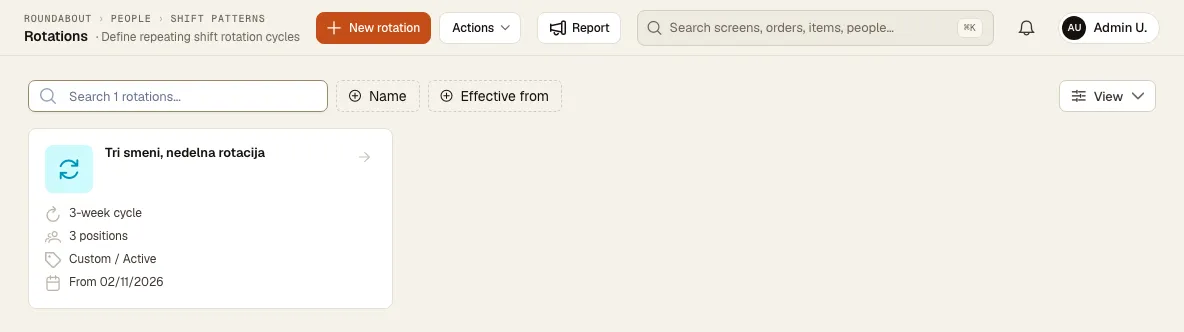
The list
Section titled “The list”Each rotation shows its cycle in weeks, its positions, its source, its status (Draft, Active or Archived) and the date it starts. Breaks rules marks a draft or an active rotation that breaks one of your labour rules. Show the list as Cards or as a Table. A card shows Duplicate and Archive when you point at it: archiving from the list doesn’t ask first.
Set up a rotation
Section titled “Set up a rotation”- Click New rotation, or open Actions and click From library to start from a common rotation: Continental, DuPont, Panama, Pitman or Southern Swing.
- Enter a Name that no other rotation has, such as Continental, and if you like a Description.
- Enter the Cycle weeks, the weeks before the rotation repeats, and the Positions, its rows.
- Choose the date it is Effective from. Week 1 starts on the Monday on or before it.
- Click Create. A template that names shift types you don’t have, by their names or their times, lists them with their times, and werkplan adds them when you click Create.
The rotation is saved as a draft, and its page opens. Fill in its grid there: for each week, position and weekday, choose a shift type, or leave REST, and click Save. Then click Activate. werkplan activates the rotation as you saved it, and only when it meets every working-time rule.
Once it is active, put employees on it with Assign employee on its page: see Put an employee on a rotation. The shift types of a rotation must be in the shift group of each employee you put on it.
Putting employees on a rotation writes no shift by itself: the next period you plan of the workforce schedule takes it in. Archiving a rotation, or taking an employee off it, takes its shifts that aren’t published yet away at once. See What a rotation does to the plan.
Still stuck? Write to support@example.com.