Tools
- Available on
- Trial
- Pro
- Enterprise
- Who can do this
- Open this screenRoles: Administrator, Employee
Permission: equipment:read - Add or change a tool unit or a tool type, and add or change a unit's unavailable timeRoles: Administrator
Permission: equipment:write - Delete a tool unit or a tool type, and remove a unit's unavailable timeRoles: Administrator
Permission: equipment:delete
- Open this screenRoles: Administrator, Employee
The Tools screen lists your tools, such as dies, moulds and fixtures, and the tool types they belong to. werkplan places an operation only when as many units of each tool type are free as its routing step needs.
A tool type is a kind of tool, such as a mould or a die set. A tool unit is one physical tool of a type, such as Die 3. Routing steps ask for a tool type and a number of units, and werkplan plans with the units of each type. A plan never names the unit an operation uses.
The screen has two tabs: Units, which opens first, and Types. You add tools by hand: there is no CSV import for tools. Tools don’t count toward your subscription tier’s cap on machines.
The Units tab lists every tool unit with its Name, Identifier, Status, Type and Created date. Show the list as Cards or as a Table, search it by name or identifier code, and filter it by Name, Status, Created and Type.
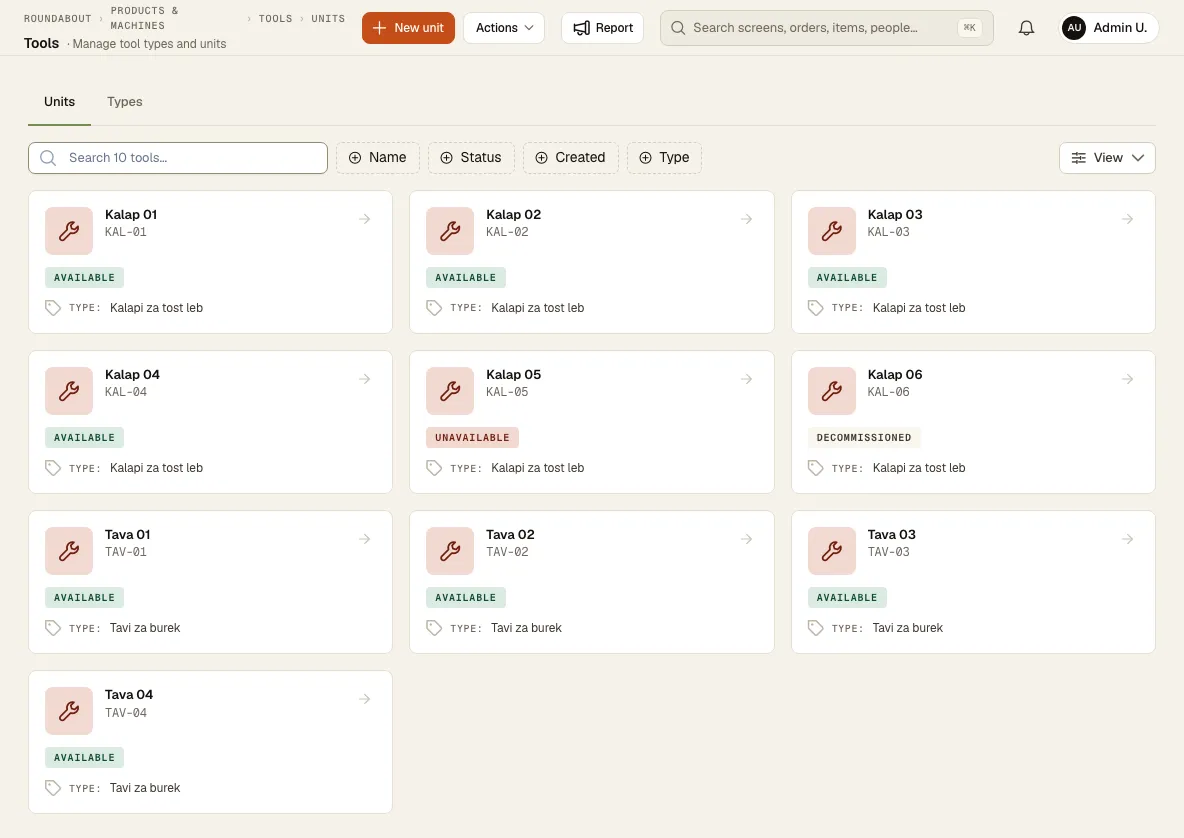
The Status filter offers Available and Decommissioned, the two statuses a unit is saved with. A unit that is out of use for a while shows Unavailable, but the filter finds it under Available.
Click a unit to open its page: see Tool unit.
Add a tool unit
Section titled “Add a tool unit”- On the Units tab, click New unit.
- Enter a Name: how people on the floor know the tool, such as Die 3.
- If you like, enter an Identifier code, such as a serial or tag number. No two units can have the same one.
- Choose its Tool type. To add a type on the spot, click the + beside it.
- Leave Status at Available. Choose Decommissioned only for a tool you keep on record but don’t plan with.
- Click Create tool unit.
Scenarios and re-plans made from then on plan with the unit. The master plan stays as it is until you promote one of them. Meanwhile, Show changes on the Master plan screen lists the unit under Tools.
The Types tab lists every tool type with its Name, Description, Units, Available and Created date, and you search it by name or description. Available counts the units that aren’t decommissioned, including a unit that is out of use for a while.
Add a tool type
Section titled “Add a tool type”- On the Types tab, click New type.
- Enter a Name that no other type has, such as Mould or Die set. Routing steps pick the type by this name.
- If you like, enter a Description for your team. Planning doesn’t read it.
- Click Create.
A tool type’s page
Section titled “A tool type’s page”Click a type to open its page. General shows its Name, Description, Total Units and Available Units. Edit renames the type or changes its description; its units and the routing steps that need it stay linked, so nothing is planned differently. Units lists the units of the type, and Add unit adds one.
How routing steps use tools
Section titled “How routing steps use tools”On a product’s page, a routing step’s Tool requirements names the tool types its operations hold and how many units of each. Adding a requirement needs the permission product:write, and removing one needs product:delete. werkplan places an operation only when that many units of each type are free. When a step needs more units of a type than you have, werkplan leaves the order out of the plan with the reason Not enough tools, and asks you to add tool units.
Delete a tool unit or a tool type
Section titled “Delete a tool unit or a tool type”On the unit’s or the type’s page, open Actions and click Delete. Deleting can’t be undone: a unit goes with its unavailable time. werkplan doesn’t delete a tool type that a routing step still needs. Take the type out of the step’s Tool requirements first.
Still stuck? Write to support@example.com.