Organization
- Available on
- Trial
- Pro
- Enterprise
- Who can do this
- Open this screenRoles: Administrator
Permission: organization:write - Change the identity, the planning settings and the documents, and upload or remove the logoRoles: Administrator
Permission: organization:write - See the organisation's calendarsRoles: Administrator, Shift supervisor, Employee
Permission: employee:read - Assign calendars, or make one closed or workedRoles: Administrator
Permission: employee:write
- Open this screenRoles: Administrator
The Organization screen holds the settings that apply to your whole organisation: its name, time zone and locale, the calendars that close the plant, what workforce planning follows, and what your printed documents carry. Set it up first: werkplan plans in its time zone and on its calendars.
The screen has three parts, Identity, Planning and Documents. Each part saves on its own, with its own save button, and its Reset puts back what is saved.
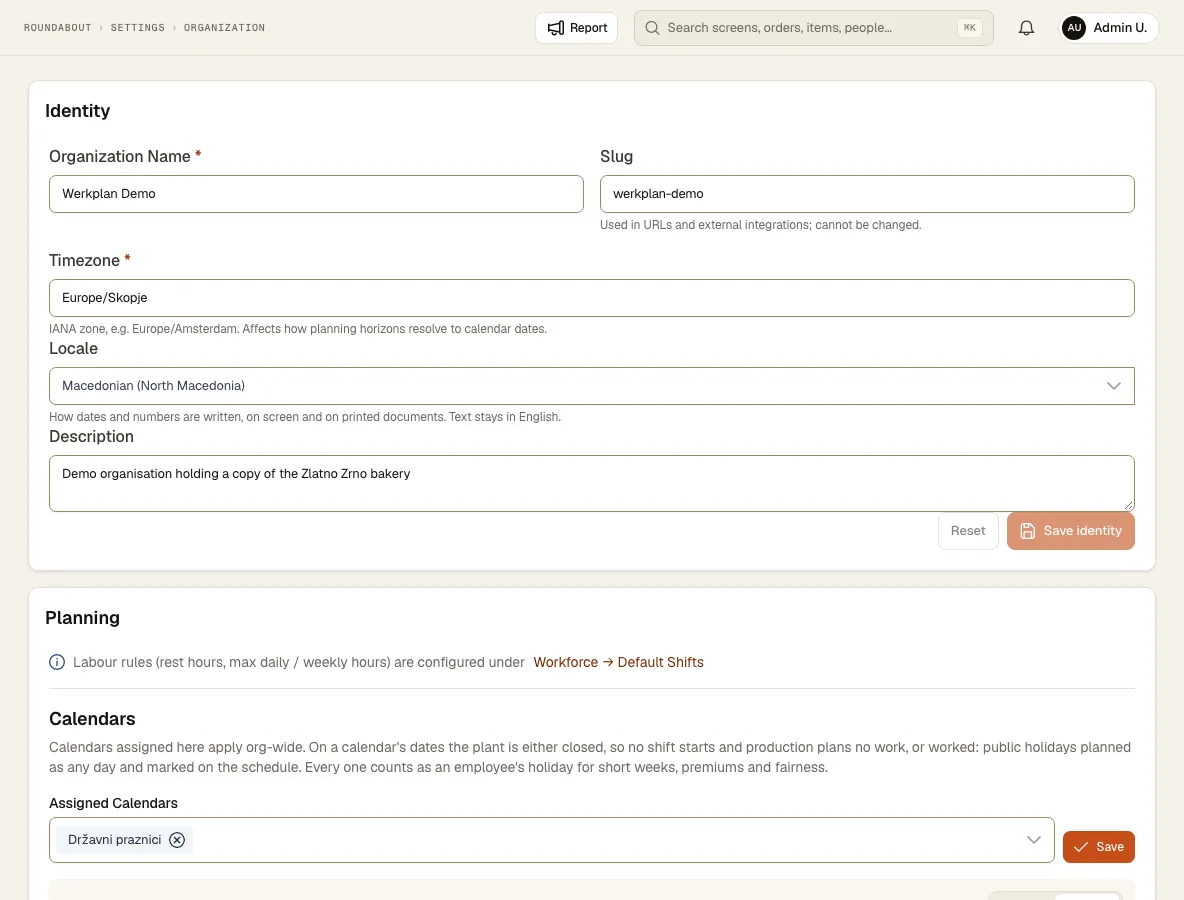
Identity
Section titled “Identity”- Organization Name: printed on every document werkplan makes, such as a purchase order or a delivery note.
- Slug: your organisation’s short name in werkplan’s addresses. It can’t be changed.
- Timezone: where your plant is, as a zone name such as Europe/Amsterdam. See The time zone.
- Locale: how dates and numbers are written, on screen and on printed documents, such as 24.11.2026 or 11/24/2026. The words stay in English. A CSV import reads a date written in it, or as 2026-11-24.
- Description: for your team. Nothing else reads it.
Click Save identity.
The time zone
Section titled “The time zone”werkplan plans in the organisation’s time zone: when today starts and ends, when a shift starts, when a machine is out of use, and when a day turns for material that arrives tomorrow. A due date is the end of its day, 23:59 in this zone. Printed documents use it to say which day something happens on.
Screens show times in your browser’s time zone. When it differs from the organisation’s, a note at the top says so, naming both.
A changed time zone is a change the master plan doesn’t hold yet. Show changes on the Master plan screen lists it under Planning settings as Time zone, old → changed, a scenario made before goes out of date, and the re-plan that takes it in is solved in full.
Planning
Section titled “Planning”The labour rules werkplan plans people by, such as rest between shifts and the longest working day, aren’t set here but on the Company shift policy screen.
Calendars
Section titled “Calendars”The calendars assigned here apply to the whole organisation. Each is a holiday calendar from the Holiday calendars screen, and each is either closed or worked:
- Closed: on its dates the plant is closed. No shift starts, and production plans no work.
- Worked: its dates are public holidays the plant works. They are planned as any day, except that a shift type set not to run on public holidays has no shift on them, and they are marked on the workforce schedule.
Either way, every date counts as each employee’s holiday, for short weeks, premiums and fairness.
- Choose the calendars under Assigned Calendars. A calendar you add starts as closed.
- Switch a calendar between closed and worked on its row.
- Click Save beside Assigned Calendars.
Assigning a calendar, removing it or switching it is a change the master plan doesn’t hold yet. Show changes lists it under Shifts and calendars, with the calendar’s name, a scenario made before goes out of date, and the re-plan that takes it in is solved in full.
What workforce planning follows
Section titled “What workforce planning follows”Under Workforce planning also follows:, two switches decide which staffing requirements replace a shift type’s coverage goals when werkplan plans the workforce schedule:
- the master plan’s needs, on to begin with: on its date, a staffing requirement worked out from the master plan replaces its shift type’s coverage goal for its training, or its headcount goal.
- needs typed or imported on People → Demand, off to begin with: a staffing requirement typed or imported on the Demand screen replaces the goal the same way. Where several fall on one date, the largest holds. Switched off, they only show on the Demand screen.
Click Save planning. Production planning doesn’t read these switches.
Documents
Section titled “Documents”What werkplan prints on every document it makes, such as purchase orders, delivery notes, pick lists, the master plan and the workforce schedule:
- Logo: a PNG or JPEG under 1 MB, printed at the top. It is saved as soon as you choose it; Remove takes it away.
- Letterhead address: printed under your organisation’s name, one line per line.
- Footer line: along the bottom of every page, such as a registration number, terms or a contact.
- Currency: the three-letter code of the currency every amount is in, such as EUR. Documents name it beside the figures.
Leave a field blank to print nothing there. Your organisation’s name is printed on every document either way. Click Save documents.
Changing the currency converts nothing: item prices, price lists and draft orders keep their figures, in the changed currency. A quote already sent keeps its currency and can’t become an order in another. Without a currency, werkplan refuses to send a quote, confirm a sales order or place a purchase order.
Still stuck? Write to support@example.com.