Run your account
- Available on
- Trial
- Pro
- Enterprise
- Who can do this
- Invite users, give them roles, and suspend or activate themRoles: Administrator
Permission: user:write - Delete a user, beside user:writeRoles: Administrator
Permission: user:delete - Make and change roles of your ownRoles: Administrator
Permission: role:write - Add operators and give them PINsRoles: Administrator
Permission: operator:write - Make and revoke API keysRoles: Administrator
Permission: organization:write - See the subscription and its usageRoles: Administrator, Employee
Permission: organization:read - Change your own name and passwordRoles: Everyone who signs in
- Invite users, give them roles, and suspend or activate themRoles: Administrator
You run your organisation’s account in werkplan: who signs in and what each of them may do, the terminals and source systems that connect to it, and your subscription. This page is the routine for it.
Who and when
Section titled “Who and when”An administrator does it. The person who signed your organisation up holds the Administrator role, the one default role with every permission this needs (Who can do this above). werkplan has no separate role for running the account.
It comes up whenever someone joins, changes job or leaves, when a terminal or a source system is added or retired, and when your trial nears its end. Read through who has access a few times a year.
How to work
Section titled “How to work”- Give everyone an account of their own. Never share a sign-in: werkplan records who created and changed each record, and names them in the history.
- Give each job the least it needs. Start from the job’s page: Planner, Shift supervisor, Operator, Warehouse clerk or Administrator. Leave someone who only looks things up on Employee. When none of the five roles fits a job, make a role of your own for it rather than giving everyone Administrator.
- Keep two administrators. werkplan never lets the last active administrator go, but one alone leaves nobody to manage access while they are away.
- Give each terminal an account of its own. A device gets a terminal role and nothing else. The people at it are operators with a PIN, not users: add them on Operators.
- Give each source system a key of its own. Then you can stop one without stopping the others; revoke a key the day its system is retired or the key leaks.
- Suspend on the day someone leaves. Suspend someone who may come back, such as a seasonal worker; delete only someone who won’t, as werkplan then writes Deleted user where it recorded them.
- Watch the subscription before you bring in a lot. Check Usage on the Subscription screen before a large import. On a trial, talk to your werkplan contact before its 14 days from your first sign-in end, so nobody is locked out.
- Pair each write permission with its read. A role of your own that changes something also needs the read permission of the same kind, such as
user:readbesideuser:write: its screens read with it, and stay empty without it.
Before you start
Section titled “Before you start”- You can sign in as an administrator.
- You know who needs access, with their email, and which job each of them does.
- For a terminal: an email someone at the plant reads, for the device’s account.
- If your people sign in through your company’s own sign-in, you invite nobody and don’t suspend anyone here: each person is added at their first sign-in, and you give roles as in step 3. See Access.
| Step | Screen | What you do | What changes |
|---|---|---|---|
| 1 | Subscription | Check your tier, its status and its usage | Nothing: werkplan changes your tier |
| 2 | Access, Users | Invite user for each person | Each is an Active user with the default role |
| 3 | Access, the user’s page | Manage their roles, or Assign roles | They may do what their roles allow, from their next action |
| 4 | Access, Roles | New role for a job none of the five fits | A role of your own, of the type Organization |
| 5 | Access, then Operators | Invite each terminal’s account and give it a terminal role; add the operators | Operators sign in at the terminal with their name and PIN |
| 6 | API keys | Make a key for each source system | The system can send sales orders |
| 7 | Access, the user’s page | Suspend someone who leaves, or Delete user | Suspended: they can’t sign in |
1. Your subscription
Section titled “1. Your subscription”On the Subscription screen, check the tier and its status, and under Usage how many employees, production orders, machines and products you hold against the tier’s caps. A trial shows the days left. To move to another tier, ask your werkplan contact: Contact us to upgrade writes them an email. What each tier caps is on the subscription’s page.
2. Invite your people
Section titled “2. Invite your people”- On the Access screen, on the Users tab, click Invite user.
- Enter their Email, and their First name and Last name.
- Click Send invite.
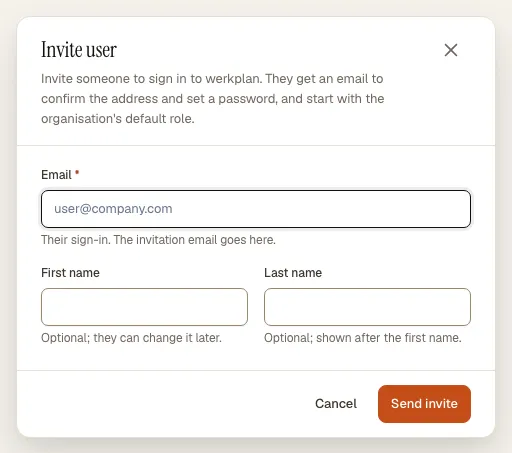
werkplan emails them an invitation to confirm the address and set a password. They are Active at once, with your organisation’s default role, Employee: they see most screens and change nothing until you give them more.
3. Give each the role their job needs
Section titled “3. Give each the role their job needs”- Click the user on the Users tab.
- Under Roles, click Manage, or Assign roles while they hold none, choose their roles, and click Save.
Their permissions add up across their roles, from their next action in werkplan; the menu shows the screens they gained once they reload the page. Take Employee away when another role covers what they read. See Give someone the role their job needs.
4. Make a role for a job none of the five fits
Section titled “4. Make a role for a job none of the five fits”- On the Roles tab, click New role.
- Enter a Role name and a Description, tick the Permissions the job needs, and click Create role.
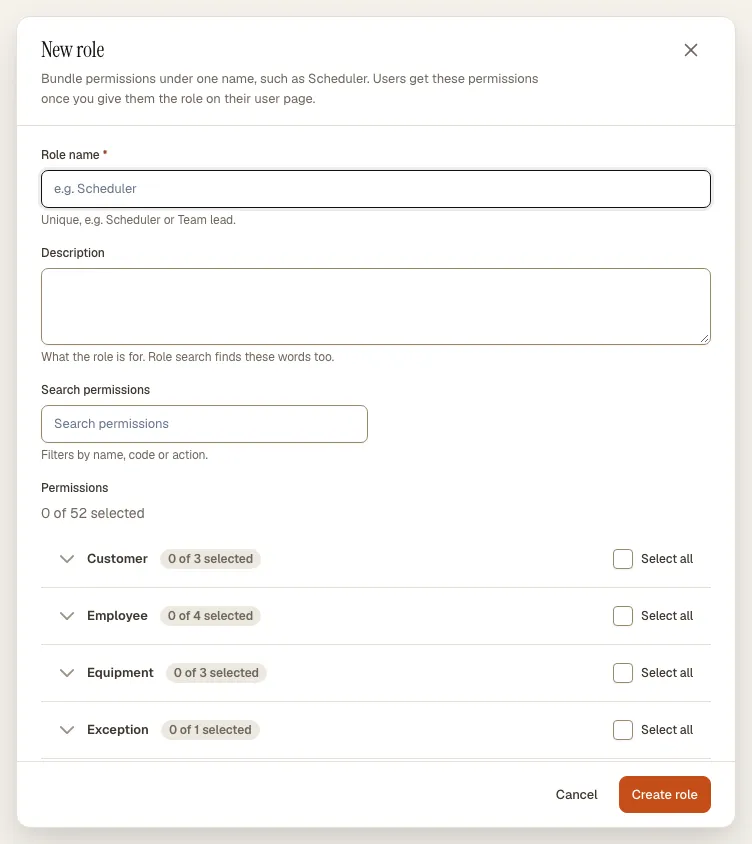
Then give it to the people who do that job, as in step 3. Each page of this guide names under Who can do this the permission each task needs. See Make a role of your own.
5. Terminals and operators
Section titled “5. Terminals and operators”For each shop-floor or warehouse terminal, invite an account for the device and give it the Shop floor terminal or Warehouse terminal role in place of Employee. For a shop-floor terminal, choose the machines it serves under Terminal machines on its page. Then add the people who work at it, each with a PIN, on the Operators screen. Set up a shop-floor terminal walks through it.
6. Keys for your source systems
Section titled “6. Keys for your source systems”On the API keys screen, make one key for each system that sends you sales orders, such as your webshop, and put it into that system. werkplan shows the key once. The sales-order intake API says what the system sends.
7. When someone leaves
Section titled “7. When someone leaves”Open their page and choose Suspend in its actions: from then on nothing they try in werkplan is let through, and Activate lets them back. Delete them with Delete user only when they won’t come back. See Suspend or delete a user.
Everyone changes their own name, and has a password-reset email sent to them, on Your profile. Nobody else can see a password: Reset password on a user’s page sends them a link to choose another.
If something goes wrong
Section titled “If something goes wrong”- The invitation didn’t arrive. Check the email on their page, then click Resend invite. An email can’t be changed: for a wrong one, delete the user and invite the right address.
- Someone can’t open a screen they need, or it stays empty. Their roles lack its permission, or the read permission beside it. The screen’s page in this guide names it under Who can do this; give them a role that holds it. They see the screen in the menu once they reload the page.
- Someone sees Your account is suspended. They are suspended: Activate them on their page.
- werkplan refuses to suspend, delete or take the Administrator role from someone. You can’t suspend or delete yourself, and one active administrator must remain. Give another user the Administrator role first.
- A role can’t be renamed, changed or deleted. It is a system role. Make a role of your own instead.
- werkplan refuses to add an employee, a production order, a machine or a product. Your tier’s cap is reached: werkplan refuses to add one more on its screen, or to duplicate one. Delete records you no longer need, or ask your werkplan contact for a higher tier.
- A screen says Your free trial has ended. Your trial is over. Nothing is deleted until the day the screen names; ask your werkplan contact to move to a paid tier before then.
- A screen says Your organization is disabled. werkplan has suspended your organisation: ask your werkplan contact.
- werkplan says terminal sign-in isn’t set up. Ask your werkplan contact.
What comes next
Section titled “What comes next”- Set up the rest of werkplan in order: Set up werkplan.
- Bring in your data from your other systems: Bring in your data.
- Hand each person the page of their job: Planner, Shift supervisor, Operator, Warehouse clerk and Administrator.
Still stuck? Write to support@example.com.