Try a change before you decide
- Available on
- Trial
- Pro
- Enterprise
- Who can do this
- Open the Master plan screen and its scenariosRoles: Administrator, Shift supervisor, Employee
Permission: schedule:read - Create, change, solve, promote or delete a scenarioRoles: Administrator
Permission: planning:execute - Promote a scenario with a machine failureRoles: Administrator
Permission: equipment:write - Promote a scenario with an absenceRoles: Administrator
Permission: employee:write - Open a production orderRoles: Administrator, Employee
Permission: order:read - Try a draft orderRoles: Administrator
Permission: order:write
- Open the Master plan screen and its scenariosRoles: Administrator, Shift supervisor, Employee
A scenario lets you try a change before you decide: a machine failure, an absence, or an order you haven’t promised yet. You compare its plan with the master plan, then promote it or drop it; nothing real changes until you promote.
Who and when
Section titled “Who and when”A planner tries a scenario whenever a question comes up that the plan should answer: “what if the mixer is down on Tuesday?”, “what if two bakers are away next week?”. A salesperson or planner who may change production orders tries a draft order whenever a customer asks for a date. Scenarios need the permission planning:execute; trying a draft order needs order:write. Both are in the Administrator role by default.
How to work
Section titled “How to work”- Name each scenario after its question, such as Oven 1 down Tue, so every planner knows what it tries.
- Try one question in each scenario, so its figures answer that question.
- Promote a scenario only when you want its plan in force and its changes saved as real data. Delete it once it has answered the question.
- Keep the Scenarios panel short: every planner sees it, and each scenario goes out of date when another master plan is promoted or the data changes.
- For something that has really happened, report it as an exception and work in the re-plan instead: it moves as little work as it can around the exception.
- Never promise a date for an order you haven’t tried: try the draft first, and submit it once the customer confirms.
Before you start
Section titled “Before you start”- A master plan is in force, to compare against: see Make the first master plan.
- For a draft order: the order is typed in as a draft, with the due date the customer asks for. See Add a production order.
flowchart TB
  accTitle: Trying a change before you decide
  accDescr: Create a scenario, add the change and solve it, then compare it with the master plan. Promote it if you want its plan in force, or delete it. A draft order is tried from its page, and the try is closed.
  create[Create a scenario] --> change[Add the change]
  change --> solve[Solve it]
  solve --> compare{Compare with the master plan}
  compare -- keep it --> promote[Promote it]
  compare -- drop it --> delete[Delete it]
  draft[A draft order] --> try[Try in a scenario]
  try --> close[Read when it finishes, and close the try]
| Step | Screen | What you do | What changes |
|---|---|---|---|
| 1 | Master plan | New scenario, then Create scenario | A scenario takes a snapshot of today’s data: Draft |
| 2 | The scenario | Add change, then Solve | Its changes apply to the snapshot; it goes Solving, then Solved |
| 3 | The scenario | Read Against the master plan | Nothing |
| 4 | The scenario | Promote, or Actions › Delete | Promoted: it becomes the master plan and its changes are saved. Deleted: it is gone |
| 5 | A draft order’s page | Actions › Try in a scenario, then Close | Nothing: the order stays a draft |
1. Create a scenario
Section titled “1. Create a scenario”On the Master plan screen, click New scenario, name it after your question and click Create scenario. It takes a snapshot of today’s planning data.
2. Add the change and solve
Section titled “2. Add the change and solve”Under Changes, Add change adds a Machine failure or an Employee absence with its From and Until. Then click Solve. See Try a machine failure or an absence.
The pickers offer the machines and employees of the scenario’s snapshot: one added later needs another scenario. A change ends after the moment the snapshot was taken, and may start before it, such as a machine down from this morning. Two changes of the same machine or employee can’t overlap. Changing them after the solve keeps the plan until you solve again.
3. Compare it with the master plan
Section titled “3. Compare it with the master plan”Against the master plan sets the scenario’s figures beside the master plan’s: orders on time, how late the late ones are, when the plan ends, and how many operations move. The line above them says whether it is Better than the master plan, Worse than the master plan or Ranks the same as the master plan, and how many orders become late. Now late shows those orders, and Moved only the work that moved. By Orders, each order says how it changed against the master plan, such as ▲ Ends 1 d later, Added since the master plan or Cancelled.
4. Promote it or delete it
Section titled “4. Promote it or delete it”If you want its plan in force, click Promote: it becomes the master plan, its production orders are scheduled, and its machine failures and absences are saved as real data. Otherwise, Actions › Delete removes it, with a few seconds to Undo. See Scenario.
5. Try a draft order
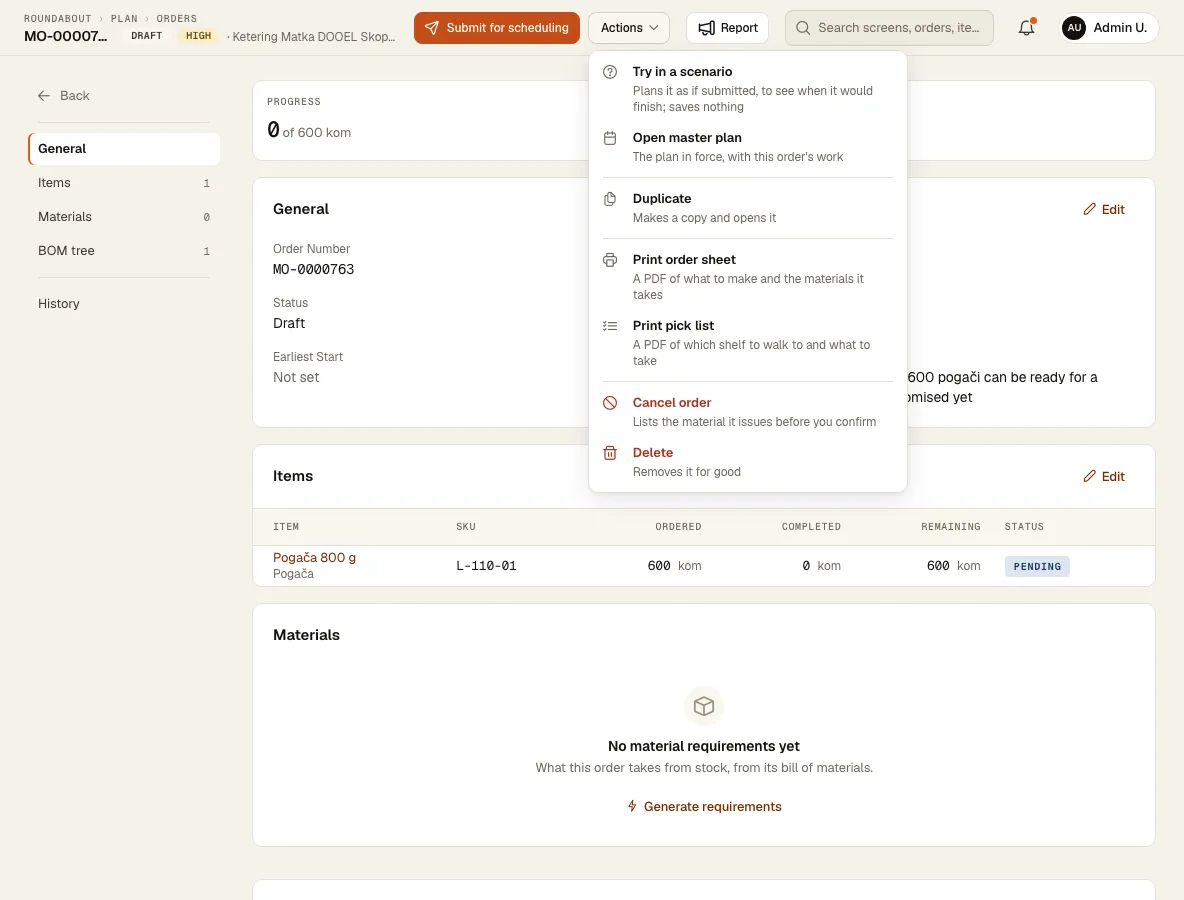
Section titled “5. Try a draft order”On the draft order’s page, open Actions and click Try in a scenario. werkplan plans the order as if it were submitted and says when it Finishes against its due date. Close removes the try. If the date works, submit the order once the customer confirms. See Try a draft order before you promise a date.
If something goes wrong
Section titled “If something goes wrong”- The scenario reads Out of date: the master plan or your data changed after you made it. Promote plans it again on today’s data first; to compare it afresh, create another scenario with the same change.
- Promote doesn’t work: a change was made after the solve (solve it again), or you may not save its changes as real data: a machine failure needs
equipment:writeand an absenceemployee:write. - The solve fails: the scenario says why. Click Try again.
- The try says Not planned: the draft can’t be planned. A planner sees why under Unplannable orders, such as a product without a routing.
What comes next
Section titled “What comes next”- A scenario you promoted is the master plan: see Master plan.
- A draft that works is submitted, and the next plan a planner promotes schedules it.
- Something that really happened goes through the re-plan: When something happens.
Still stuck? Write to support@example.com.