Task
- Available on
- Trial
- Pro
- Enterprise
- Who can do this
- Open a task's pageRoles: Administrator, Shift supervisor, Employee
Permission: schedule:read - Start, pause, resume, mark delayed or complete it, and record a QA rejectionRoles: Administrator, Shift supervisor
Permission: schedule:write - Start, pause, resume or finish it at a shop-floor terminal, beside shopfloor:operateRoles: Administrator, Shop floor terminal
Permission: shopfloor:jobs - Add, change or delete an ad-hoc taskRoles: Administrator, Shift supervisor
Permission: schedule:write
- Open a task's pageRoles: Administrator, Shift supervisor, Employee
A task is one operation of the master plan in force: one routing step of one batch of a production order, on its machine, at its planned time, with the people it names. Its status says whether the work waits, runs, is paused or is done, and working it records the order’s progress.
You open a task from the Tasks screen. The shop floor works the same tasks at its terminals, on Jobs.
What its page shows
Section titled “What its page shows”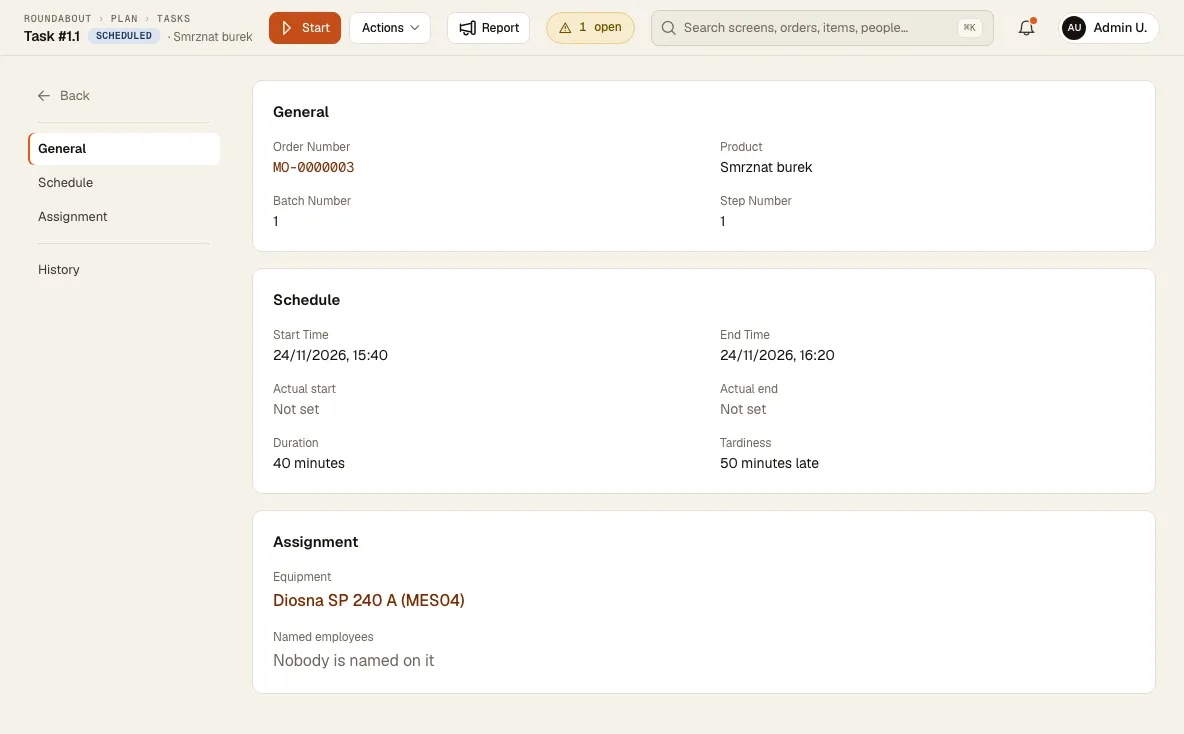
The title is Task # with the batch and step numbers, under it the product, and its status. A task that redoes units shows Rework, Replacement or Made again.
- General: the Order Number, which opens the production order for someone with
order:read, the Product, the Batch Number and the Step Number. - Schedule: the planned Start Time and End Time, its Duration and Tardiness, and once it is worked, the Actual start and Actual end.
- Assignment: the Equipment it runs on and the Named employees, the people the plan names on it for each stretch, or Nobody is named on it. When someone else runs it, a note says who ran it and who it was planned for.
- Notes: the reasons it was marked delayed, with their times.
A task of a master plan that a later promote replaced says it is kept as history. It can’t be worked: its work is in the master plan in force.
Work a task
Section titled “Work a task”The top bar holds the next step for its status, and Actions the others:
| Status | Top bar | In Actions |
|---|---|---|
| Scheduled | Start | |
| In Progress | Complete | Pause, Mark delayed, Record a QA rejection |
| Paused | Resume | Mark delayed |
| Delayed | Resume | |
| Completed | Record a QA rejection |
Actions also holds Open order and Open master plan.
Complete it
Section titled “Complete it”Complete asks the Quantity made: the good units only, starting at the quantity reported so far, or at what the step expects to make. When you give fewer, it asks How many were scrapped? and Why: Material, Machine, Operator, Setup or Other, which asks What it was. Click Complete task. More than twice the planned quantity asks you to check the count, and the button reads Complete anyway.
On the order’s last step, the good units go into stock when the order completes. Scrap is an exception: the open re-plan decides whether the scrapped units are made again or the order is delivered short. See Decide what happens to scrap.
Record a QA rejection
Section titled “Record a QA rejection”Record a QA rejection records that part of the task’s units failed inspection: see QA rejection.
What werkplan refuses
Section titled “What werkplan refuses”- Working a task whose production order is cancelled or on hold.
- Starting or resuming work on a machine that is down, that is decommissioned, or that runs other work: complete or pause that work first.
- Completing a paused task: resume it first.
- Working a task of a master plan that a later promote replaced.
Statuses
Section titled “Statuses”stateDiagram-v2 accTitle: Task statuses accDescr: Promote makes a task scheduled, or in progress or paused when its work runs or is paused. Start puts it in progress; pause and resume move it between in progress and paused; mark delayed records why it is behind; complete ends it. A task is cancelled when its work is no longer needed. state "In progress" as InProgress [*] --> Scheduled: Promote [*] --> InProgress: Promote, its work running [*] --> Paused: Promote, its work paused Scheduled --> InProgress: Start InProgress --> Paused: Pause Paused --> InProgress: Resume InProgress --> Delayed: Mark delayed Paused --> Delayed: Mark delayed Delayed --> InProgress: Resume InProgress --> Completed: Complete Scheduled --> Cancelled: Its work is no longer needed InProgress --> Cancelled: Its work is no longer needed Paused --> Cancelled: Its work is no longer needed Delayed --> Cancelled: Its work is no longer needed
| Status | How a task gets it | How it leaves it | Elsewhere |
|---|---|---|---|
| Scheduled | Promote puts its master plan in force | Start, or it is cancelled | Waits on the shop floor’s task lists |
| In progress | Start or Resume, or promote while its work runs | Complete, Pause or Mark delayed, or it is cancelled | Holds its machine; its order is In Progress |
| Paused | Pause, its order put on hold, or promote while its work is paused | Resume or Mark delayed, or it is cancelled | Its work keeps what it has done |
| Delayed | Mark delayed, with a reason | Resume, or it is cancelled | The reason goes to its notes |
| Completed | Complete | Never | Its quantity is the step’s progress |
| Cancelled | Its work is no longer needed | Never | Left out of every plan |
Working a task needs the permission schedule:write in the office, or a terminal operator’s sign-in on the shop floor.
Scheduled
Section titled “Scheduled”The task is planned and waits for its start. Promote makes the operations of the plan it puts in force scheduled, apart from work running or paused on the shop floor, which keeps its status. A later promote puts another master plan in force, with tasks of its own: this one then stays as history and can’t be worked.
In progress
Section titled “In progress”The work runs on its machine. Start records the actual start, once, and makes its production order In Progress when it was Scheduled or Pending. While it runs, no other work can start on its machine. A re-plan plans around it: running work stays where it runs.
Paused
Section titled “Paused”The work stopped part-way and keeps what it has done. Resume carries on. Putting the production order on hold pauses its running tasks.
Delayed
Section titled “Delayed”The task runs late, and Mark delayed recorded why: the Reason is added to its notes with the time. It stays in the plan, and nobody is told. Resume puts it back in progress and keeps its first actual start.
Completed
Section titled “Completed”The work is done. Its quantity is the step’s progress, which the next plan reads, so only what is left is planned again. On the order line’s last step it counts the units made. When every task of the order is done, the order completes: its reserved material is taken from stock and its output goes into stock. An order doesn’t complete while a QA rejection of it is open or a scrap of it is undecided.
Cancelled
Section titled “Cancelled”The task’s work is no longer needed, and no plan holds it. werkplan cancels it, never you: when its production order is cancelled or closed short, when its QA rejection is cancelled or resolved before its extra work ran, when scrap left its batch nothing to make at later steps, or when promote finds its work finished on the shop floor after the plan was made.
Ad-hoc task statuses
Section titled “Ad-hoc task statuses”An ad-hoc task is a to-do you write down on the Tasks screen, such as inspecting a kiln. Plans and shifts never read it, and nobody is told about it.
stateDiagram-v2
  accTitle: Ad-hoc task statuses
  accDescr: An ad-hoc task is created open. The screen has no field to change its status, so it stays open until it is deleted.
  [*] --> Open: Create task
  Open --> [*]: Delete
| Status | How a task gets it | How it leaves it |
|---|---|---|
| Open | Create task | Deleted |
| In progress | The screen doesn’t set it | |
| Completed | The screen doesn’t set it | |
| Cancelled | The screen doesn’t set it |
Every ad-hoc task is open when you create it, and the screen keeps it so: Edit task has no status field. Delete it once it is done.
In progress
Section titled “In progress”The task is being done. The screen offers no way to set it.
Completed
Section titled “Completed”The task is done. The screen offers no way to set it; once a task has it, it can’t change.
Cancelled
Section titled “Cancelled”The task won’t be done. The screen offers no way to set it; once a task has it, it can’t change.
Still stuck? Write to support@example.com.