Locations
- Available on
- Trial
- Pro
- Enterprise
- Who can do this
- Open this screenRoles: Administrator, Employee
Permission: order:read - Add a location, or change one, its status and the defaultRoles: Administrator
Permission: order:write - Delete a locationRoles: Administrator
Permission: order:delete - See a location's binsRoles: Administrator, Employee
Permission: inventory:read - Add, rename, deactivate or activate a binRoles: Administrator
Permission: inventory:write
- Open this screenRoles: Administrator, Employee
The Locations screen lists the places your stock is kept, such as a warehouse, a cold room or a silo. Every stock movement in werkplan, a receipt, an issue, a transfer or a count, happens at one of them, and one of them is normally the default.
The screen’s heading reads Stock Locations. Every organisation starts with one location, MAIN (Main Warehouse), as its default. Add a location for each place you keep stock apart, and give a location bins when you put stock away by shelf. Locations don’t count toward any cap of your subscription tier.
The list
Section titled “The list”The list shows every location, active and inactive, with its Name, Code, Status, Type, Default and Description, and when it was Created. Show it as Cards or as a Table, search it by code, name or description, and filter it by Name, Code, Status, Type and Created. Actions exports the list as a CSV file.
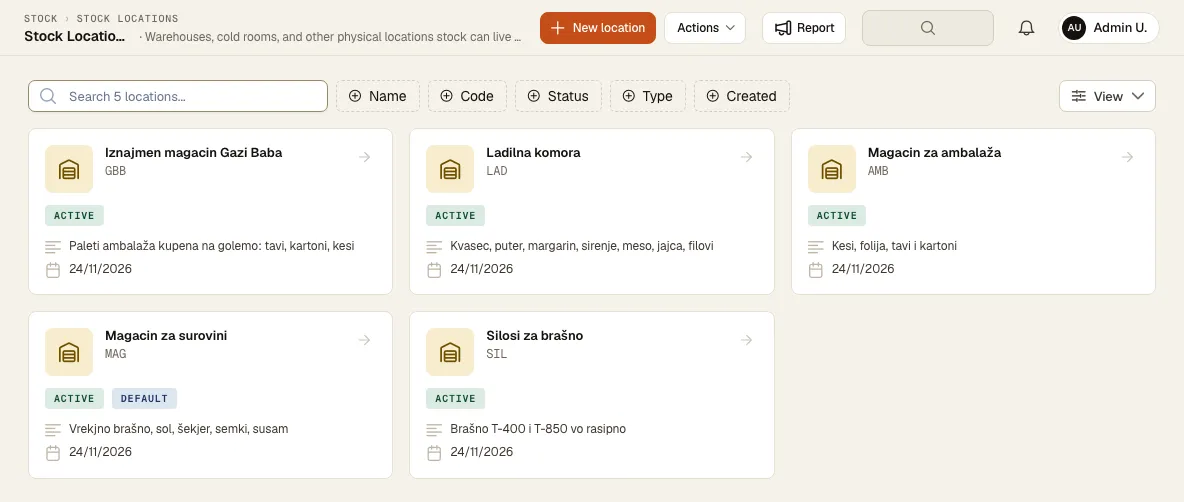
- Status is Active or Inactive. An inactive location takes no stock in or out: see Location.
- Type is Ours for your own places, or Subcontractor for a subcontractor’s premises. werkplan adds a subcontractor’s location by itself, the first time you draft a subcontract purchase order to them. The stock you send them sits there: it is still yours, but your own production can’t use it.
- Default marks the default location, the place finished production lands. See The default location.
Click a location to open its page: see Location.
Add a location
Section titled “Add a location”- Click New location.
- Enter a Code: short, such as MAIN or COLD-1. No two locations can have the same code, and you can’t change it later. IN-TRANSIT is kept for stock on its way between your locations.
- Enter a Name, such as Main Warehouse. Location pickers show it.
- If you like, enter a Description. The list shows it.
- Tick Set as default location for new stock to make it the default. The location that was the default stops being it.
- Click Create location.
The location is active at once, so stock can be received into it and moved to it. You can also add a location on the spot from a location picker in a stock dialog, with the + beside it.
Delete a location
Section titled “Delete a location”On the location’s row, or in Actions on its page, click Delete and confirm. werkplan doesn’t delete:
- the default location: make another location the default first;
- a location that holds stock, or held it once: werkplan keeps its stock balances there, even at zero;
- a location a transfer order moves stock from or to, whatever its status.
Deleting a location deletes its bins too. To stop using a location you can’t delete, make it inactive instead.
What locations change in planning
Section titled “What locations change in planning”Planning doesn’t plan locations, but it counts the stock in them. When werkplan works out an order’s material-ready time, it counts the free stock of each material in your own active locations only. Stock in an inactive location, or at a subcontractor’s, doesn’t count, so an order that needs it can wait for material.
Still stuck? Write to support@example.com.