Report
- Available on
- Trial
- Pro
- Enterprise
- Who can do this
- Open this screenRoles: Administrator, Shift supervisor
Permission: exception:report or planning:execute - Report a machine down, a machine back or a QA rejection, and see what is openRoles: Administrator, Shift supervisor
Permission: exception:report - Report someone absent, beside exception:reportRoles: Administrator, Shift supervisor
Permission: schedule:write - Report a rush order, a quantity changed, or an order on hold or cancelledRoles: Administrator
Permission: order:write - Report late materialRoles: Administrator
Permission: purchasing:write - Record Sick as the reason someone is awayRoles: Administrator
Permission: employee:personal-data
- Open this screenRoles: Administrator, Shift supervisor
The Report page is where you say what happened when the master plan didn’t expect it: someone is absent, a machine is down, units fail inspection, an order changes or material comes late. werkplan saves it as real data the moment you report it, and the re-plan takes it in.
You open it with Report in the top bar, on every page. It is built for a phone, for the shift supervisor who learns first that something went wrong, and planners use it too. What you report is an exception when it touches work of the master plan in force.
What you can report
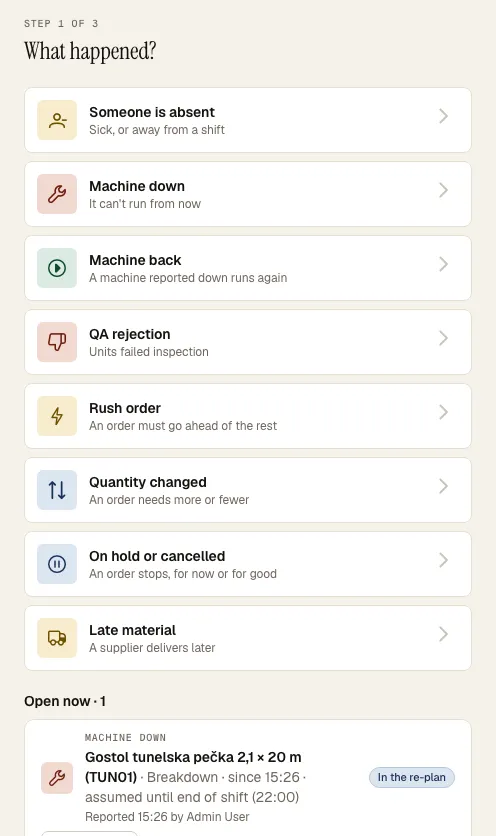
Section titled “What you can report”Step 1, What happened?, offers each kind your permissions let you save:
| Kind | What happened | Needs |
|---|---|---|
| Someone is absent | Someone is sick, or away from a shift | exception:report and schedule:write |
| Machine down | A machine can’t run | exception:report |
| Machine back | A machine reported down runs again | exception:report |
| QA rejection | Units failed inspection | exception:report |
| Rush order | An order must go ahead of the rest | order:write |
| Quantity changed | An order needs more or fewer | order:write |
| On hold or cancelled | An order stops, for a while or for good | order:write |
| Late material | A supplier delivers later | purchasing:write |
A shift supervisor reports the first four. A rush, an order’s change and late material are a planner’s to report. The page itself opens only for people with exception:report or planning:execute; someone who may open it but report none of the kinds is told so.
Under the kinds, Open now lists what is reported and still open, oldest first, so nobody reports it twice. Each row says what happened, to what, who reported it and where, and where the re-plan has got to with it. Withdraw takes back a report made by mistake: see Exception.
Report each kind
Section titled “Report each kind”Step 2 asks the details of the kind you picked. Back goes to step 1.
Someone is absent
Section titled “Someone is absent”- Who: the employee, of the active ones. Someone already reported absent shows who reported it and when, with Open it, which marks that report under Open now.
- From when: Now, or Change to give the moment, from a day back to a week ahead.
- Until: how long the plan assumes they are away, as nobody knows yet: End of this shift, End of tomorrow, 3 days, or A date up to 14 days after the start. Record a longer absence on the employee’s page.
- The reason: Sick or Absent. Only people with the permission
employee:personal-datarecord or see Sick; everyone else records Absent. - Read which shifts saving takes away. When a published shift starts inside the notice period, say why whoever covers it is placed at short notice: Unforeseen, which it starts on, Urgent need or Other.
- Click Save absence.
The absence is saved as on the employee’s page: it takes away the shifts it touches. When that leaves no coverage gap, the page goes straight to Saved. When it leaves gaps, step 3, Who covers, offers the people who can take every one of those shifts, trained, free, rested and within their limits, each with their hours that week before and after:
- Place on N shifts places one person on all of them. A shift that starts within the shortest notice is left for a planner, so the button reads Place on 2 of 3 shifts.
- None suits? Pick per day instead gives each shift its own choice.
- Nobody · leave the gaps for the planner leaves the gaps open.
A planner fills a shift inside the shortest notice on the Schedule screen.
Machine down
Section titled “Machine down”- Machine: every machine not decommissioned. A machine already reported down shows who reported it and when, with Open it.
- Since: Now, or Change to give an earlier moment, up to a day back. Ask the office to record one that went down earlier.
- Until: End of this shift, End of tomorrow, 3 days or A date. The page says when the plan assumes the machine runs again.
- Why: Breakdown, Maintenance, No power or Other.
- Click Report machine down.
It is saved as the machine’s unavailable time, ending at the assumed end. Starting or resuming work on the machine is refused on the shop floor and in Tasks while it is down. See Machine.
Machine back
Section titled “Machine back”Pick the machine, of those down at the moment, and click Report machine back. Its unavailable time ends then. Withdraw can’t undo a machine back: if the machine stops again, report Machine down.
QA rejection
Section titled “QA rejection”- Machine, then the work on it that failed inspection: the master plan’s work running on it or finished in the last day.
- In Record a QA rejection, give the Rejected quantity and the Action: Rework redoes the units, Replace makes the units again from the first step. For rework, choose a Rework routing or the step to Start rework from step, if not the failed step. Say what failed under Reason.
- Click Record rejection.
Work of another kind is rejected on its task’s page. See QA rejection.
Rush order
Section titled “Rush order”Pick the Order, of the open orders that aren’t rush yet, the most recent first, and click Make rush. Its priority becomes Rush, as on the order’s page, and the re-plan decides where it goes.
Quantity changed
Section titled “Quantity changed”Pick the Order: one pending or scheduled that hasn’t started, and not a sub-assembly order, whose quantity follows its parent’s. Pick its line when it has several, give the New quantity of … in the line’s unit, and click Save new quantity.
On hold or cancelled
Section titled “On hold or cancelled”Pick the Order, then:
- Put on hold: its running work pauses, and plans leave it out until you resume it on the order’s page.
- Cancel order: it won’t be made. Its planned work is cancelled and what it reserved is handed back. werkplan asks first, as Withdraw can’t undo a cancel.
Late material
Section titled “Late material”Pick the Delivery, a line of a placed purchase order with something still to come, give its New expected date, later than the one it has, and click Save new date. werkplan names each production order whose material is ready later as a result.
When it is saved
Section titled “When it is saved”Saved says what was saved. The planner’s re-plan is re-solving says it touches work of the master plan, which the re-plan solves around: the planner decides the next plan. Otherwise the page says no planned work is affected, so the plan stays as it is.
Your reports today lists what you reported today that touched the master plan, in any state, the most recent first. Report another goes back to step 1.
What a report changes
Section titled “What a report changes”- The record: a report is saved at once as the record it names: the absence, the machine’s unavailable time, the QA rejection, the order’s priority, quantity or status, or the purchase order line’s expected date. It is the same record its own page saves, and the shop floor follows it from that moment.
- An exception: when it touches work, a shift or an order the master plan in force holds, werkplan opens an exception and tells every planner, everyone with
planning:execute. The open re-plan solves again around it, and is created if none is open. - The master plan doesn’t change until a planner promotes the re-plan. See When something happens.
A shift supervisor sees what is open, but not the re-plan or what it changes.
Still stuck? Write to support@example.com.