Shift groups
- Available on
- Trial
- Pro
- Enterprise
- Who can do this
- Open this screenRoles: Administrator, Shift supervisor, Employee
Permission: shift:read - Add a shift group, rename it or change its shift typesRoles: Administrator
Permission: shift:write - Delete a shift groupRoles: Administrator
Permission: shift:delete
- Open this screenRoles: Administrator, Shift supervisor, Employee
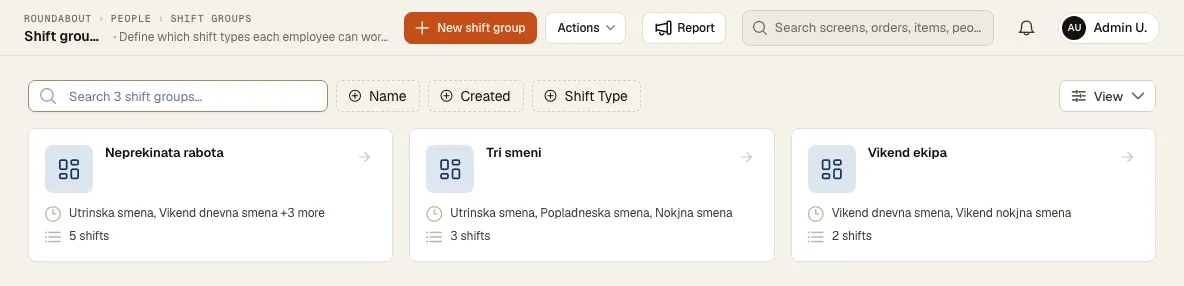
The Shift groups screen lists the sets of shift types your employees may work, such as Three shifts: Early, Late and Night. The company shift policy puts the whole company on one group, and an employee’s own override puts them on another.
On a date, an employee’s shift group is their own override in force that day, set on their employee page, or else the group of the Company shift policy in force. An employee with neither has no shift group that day and works no shift.
What a shift group decides
Section titled “What a shift group decides”- The workforce schedule: the workforce solve gives an employee only shifts of their group’s types, on the days each type runs. A shift you place by hand, a coverage gap you fill and a swap keep to those types too.
- Production: the company shift policy’s group sets the plant’s working hours. Production plans work in its shift types’ times, less their breaks.
- Who counts as trained on a shift: where the workforce schedule isn’t published yet, production counts each employee who holds a training on the shifts of their own group that day.
Show the list as Cards or as a Table. A card shows up to three of a group’s shift types and how many it holds; the table shows its Description, how many Shifts and its Created date. Filter it by Shift Type to find the groups that hold a shift type.
Add a shift group
Section titled “Add a shift group”- Click New shift group.
- Enter a Name that no other group has, such as Three shifts.
- If you like, enter a Description for other planners.
- Choose its Shift types: at least one. To add a shift type on the spot, click the + beside the list.
- Click Create.
A group does nothing until the company shift policy or an employee’s override puts people on it.
A shift group’s page
Section titled “A shift group’s page”Click a group to open its page. General shows its Name and Description: Edit renames it or changes its description, and its shift types and employees stay as they are. The Shift types panel lists its shift types with their Days, Time and Hours, and the Total coverage they give a day. Edit chooses its shift types.
Taking a shift type out of a group changes no saved shift. A shift saved before that is no longer of the group’s types stays, marked on the workforce schedule.
Delete a shift group
Section titled “Delete a shift group”On the group’s page, open Actions and click Delete. werkplan doesn’t delete a group that a company shift policy, an employee’s override or a saved shift uses.
What a change does to the plan
Section titled “What a change does to the plan”The master plan never changes by itself. Adding or deleting a shift group, and adding a shift type to a group or taking one out, are changes the master plan doesn’t hold yet. On the Master plan screen, Show changes lists them under Shifts and calendars, and a scenario made before them goes out of date. Renaming a group changes nothing that is planned, and isn’t listed.
Still stuck? Write to support@example.com.