User
- Available on
- Trial
- Pro
- Enterprise
- Who can do this
- Open a user's pageRoles: Administrator
Permission: user:write - Change their name, give them roles, resend their invitation, reset their password, suspend or activate them, and choose a terminal's machinesRoles: Administrator
Permission: user:write - Delete a user, beside user:writeRoles: Administrator
Permission: user:delete - Open a role from the user's pageRoles: Administrator
Permission: role:write
- Open a user's pageRoles: Administrator
A user is a person, or a terminal device, that signs in to your organisation with an email and a password. Their roles decide what they may see and do, and their status whether they may sign in at all.
You open a user from the Users tab of the Access screen. A user is not an employee, whom werkplan plans on shifts, nor an operator, who signs in at a terminal with a PIN: a person can be all three, and each is kept on its own.
What its page shows
Section titled “What its page shows”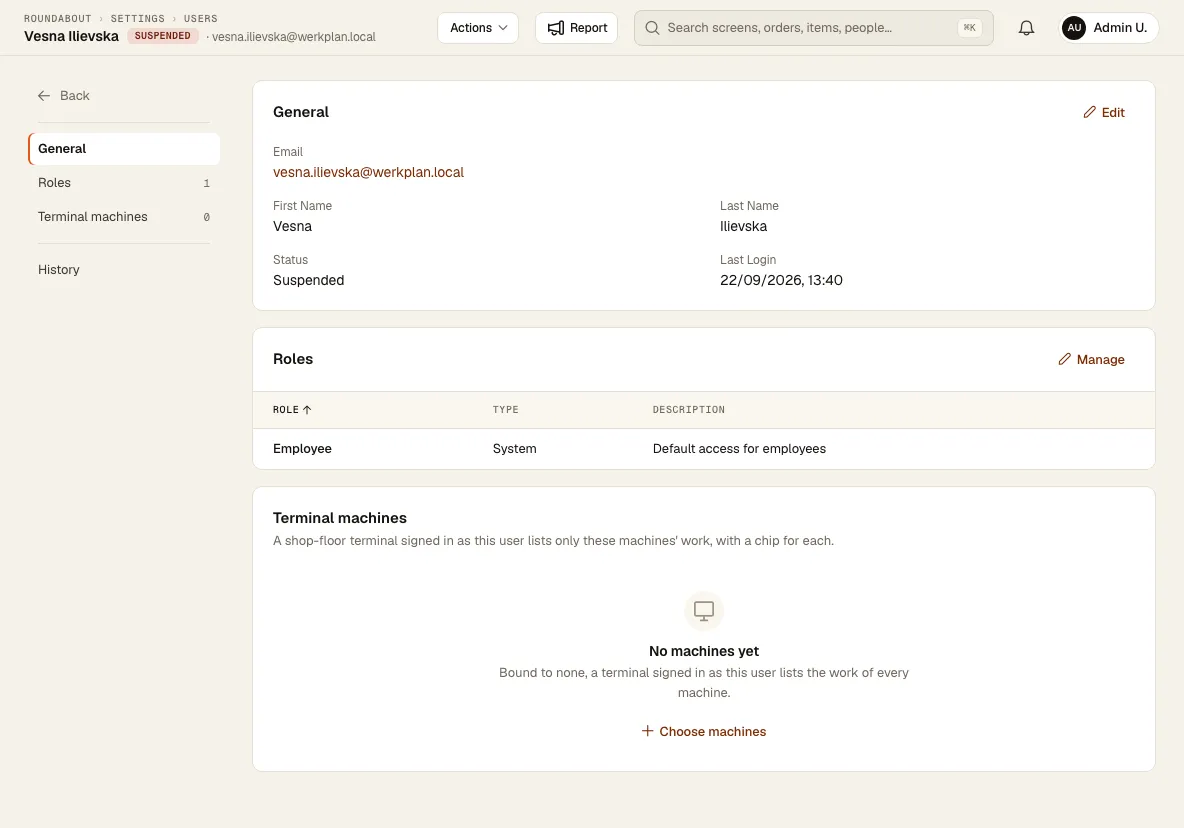
- General: the user’s Email, First Name, Last Name, Status and Last Login. Edit changes the first and last name; the email can’t be changed, as it is their sign-in.
- Roles: the roles they hold, each with its Type and Description. Manage chooses them, or Assign roles while they hold none. They may do what any of their roles allows from their next action in werkplan; the menu shows the screens they gained once they reload the page.
- Terminal machines: for a shop-floor terminal’s account, the machines whose work its Jobs list holds; with none chosen, it lists every machine’s work. See Set up a shop-floor terminal.
- History: when the user was created and last updated, and by whom.
The page’s actions:
- Resend invite emails the invitation again, to confirm the address and set a password. Use it when the first one didn’t arrive.
- Reset password emails them a link to choose another password. werkplan keeps no password, so nobody can tell you theirs.
- Suspend or Activate: see the statuses below.
- Delete user removes the account and its sign-in for good. werkplan asks first.
Where your people sign in through your company’s own sign-in, the page offers none of these actions, nor the Edit of General: see Access.
Statuses
Section titled “Statuses”stateDiagram-v2 accTitle: User statuses accDescr: A user is created Active, by an invitation or by a first sign-in through the company's own sign-in. Suspend makes them Suspended, and Activate makes a Suspended or Inactive user Active again. [*] --> Active: Invite user Active --> Suspended: Suspend Suspended --> Active: Activate Inactive --> Active: Activate
| Status | How a user gets it | How they leave it | Elsewhere |
|---|---|---|---|
| Active | Invite user, a first sign-in through your company’s own sign-in, or Activate | Suspend | Signs in, and does what their roles allow |
| Inactive | werkplan never sets it itself | Activate | Turned away, as a suspended user is |
| Suspended | Suspend | Activate | Can’t sign in; werkplan says the account is suspended |
Moving a user between them needs user:write.
Active
Section titled “Active”The user signs in and does what their roles allow. Everyone you invite is active at once, before they have even set their password, and so is the person who signed your organisation up. werkplan sends an active user the notifications meant for everyone who may act on something, such as a swap request to decide.
Inactive
Section titled “Inactive”werkplan never makes a user inactive itself. A user who is inactive is turned away as a suspended one is, and Activate makes them active.
Suspended
Section titled “Suspended”The user can’t sign in, and nothing they try in werkplan is let through, even in a browser where they are still signed in: werkplan shows them only a screen that says Your account is suspended and tells them to ask an administrator. They keep their roles, and the records they made keep their name. werkplan leaves them out of the notifications it sends to everyone who may act on something.
Suspend is in the page’s actions for an active user, and Activate for any other. You can’t suspend yourself, nor the last active user with the Administrator role. Suspend someone who leaves for a while, such as a seasonal worker; delete them only when they won’t come back.
Deleting a user
Section titled “Deleting a user”Delete user needs user:delete beside user:write. It removes the account, its roles and its sign-in for good, with the user’s notifications and the machines a terminal account served. Wherever werkplan recorded who created or changed something by their email, it writes Deleted user instead. You can’t delete yourself, nor the last active user with the Administrator role.
Still stuck? Write to support@example.com.