From quote to delivery
- Available on
- Trial
- Pro
- Enterprise
- Who can do this
- Open the Quotes and Sales orders screensRoles: Administrator, Employee
Permission: order:read - Make, send and accept a quote, confirm, change or cancel a sales order, and record a returnRoles: Administrator
Permission: order:write - Pack and deliver a sales order, start a pick list, and restock a returnRoles: Administrator
Permission: inventory:write - Add a customer and price items on a price listRoles: Administrator
Permission: customer:write
- Open the Quotes and Sales orders screensRoles: Administrator, Employee
You take a customer’s order from a quote through the sales order and its production to delivery. Confirming the sales order is the step that matters: until then werkplan plans nothing for it, and from then on it keeps the sales order’s production in line with every change.
Who and when
Section titled “Who and when”A salesperson or sales office does this every day: a quote when a customer asks for prices, a sales order when the customer orders, a delivery when the goods are ready. A warehouse clerk packs and delivers, from the sales order’s page or by walking a pick list on the warehouse terminal.
werkplan has no sales role. Making quotes and sales orders needs the permission order:write, and adding customers and pricing items customer:write; packing and delivering need inventory:write. By default only the Administrator role holds them; the Employee role can read quotes, sales orders and customers. Give salespeople a role of your own with these permissions on the Access screen. The Warehouse terminal role picks at the terminal.
How to work
Section titled “How to work”- Quote prices, not dates. A quote plans nothing. When a customer asks whether a date is possible, try it first: see Try a draft order before you promise a date.
- Confirm a sales order as soon as the customer agrees. A draft raises no production and isn’t counted as demand, so the planner can’t see it.
- Read a date for the customer from the line’s Planned finish, and only once it shows a day and time. Not planned yet means the next re-plan plans it: ask the planner rather than guessing.
- Change the sales order, not its production orders. A change to a line resizes or moves its production by itself; a hand edit on a production order lasts only until its line changes next.
- Let one system own your production orders. If your ERP makes them and you import them, don’t also confirm sales orders for the same goods in werkplan: the goods would be made twice.
- Each morning, open the sales orders due and deliver what is ready. Look for the notice that lines cannot be filled: the shelf and the supply on its way don’t cover them.
- When stock the sales orders depend on moves by hand, such as a delivery voided, click Re-check fulfilment on the sales order: werkplan doesn’t decide production again on stock movements alone.
- Restock a return only once someone has judged the goods saleable.
Before you start
Section titled “Before you start”- Your customers are in, on the Customers screen, with their priority and their default shipping address.
- Your products have a sales price, or your customers are on a price list: see Price lists. An unpriced line isn’t free; it adds nothing to the totals.
- Your organisation has a currency, on the Organization screen: werkplan sends no quote and confirms no sales order without one.
- The products you make have routings, so their production orders can be planned: see Get started.
flowchart TB
  accTitle: From quote to delivery
  accDescr: Make a quote and send it. When the customer accepts, accept the quote, which makes a draft sales order, and confirm it, which raises production. The next promoted master plan gives each line its planned finish. Pack, pick and deliver. Record a return if goods come back, and restock them.
  quote[Make a quote] --> send[Send it]
  send --> accept[Accept it: a draft sales order]
  entered[Or enter a sales order] --> confirm
  accept --> confirm[Confirm the sales order]
  confirm --> plan[The next master plan plans its production]
  plan --> deliver[Pack, pick and deliver]
  deliver --> back{Goods sent back?}
  back -- yes --> ret[Record the return and restock it]
| Step | Screen | What you do | What changes |
|---|---|---|---|
| 1 | Quotes | New quote, then Add line | A quote, Draft, its lines priced from the customer’s price lists or standing discount |
| 2 | The quote | Send | The quote is Sent; its lines are fixed |
| 3 | The quote | Accept | The quote is Accepted; a sales order opens, Draft |
| 4 | The sales order | Confirm | The sales order is Confirmed; production orders are raised, Pending, for what stock doesn’t cover |
| 5 | Master plan | A planner promotes the next re-plan | The production orders are Scheduled; the lines show their Planned finish |
| 6 | The sales order | Pack, Create pick list | Delivery status Partly packed or Packed; a pick list, Open |
| 7 | The sales order, or the warehouse terminal | Deliver, or finish the pick list | Stock leaves; delivery status Partly delivered or Delivered; the pick list is Finished |
| 8 | The sales order | Record return, then Restock | A return, Returned, then Restocked and back on hand |
1. Make a quote
Section titled “1. Make a quote”On the Quotes screen, click New quote, choose the Customer and, if the offer has an end, the day it is Valid until, and click Create quote. On the quote, click Add line for each item: leave Unit price and Discount % empty to have werkplan price it from the customer’s price lists or standing discount. A line can’t be changed once added. See Quote.
2. Send it
Section titled “2. Send it”Click Send. The quote is Sent and its lines are fixed. werkplan doesn’t send it to the customer: send it yourself.
3. Accept it
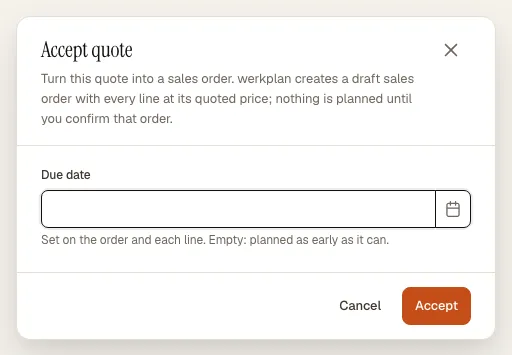
Section titled “3. Accept it”When the customer accepts, click Accept, choose the Due date the customer wants, and click Accept. werkplan makes a Draft sales order with the quote’s lines at their quoted prices and opens it. If the customer orders without a quote, enter the sales order on the Sales orders screen instead.
4. Confirm the sales order
Section titled “4. Confirm the sales order”Check the draft’s lines, then click Confirm. The sales order is Confirmed, and werkplan decides each line: what the shelf and the supply on its way don’t cover of a manufactured item gets a production order, Pending, at the customer’s priority and due at the end of the line’s due date. Each line’s Availability then reads In stock, Expected or Not available. See Sales order.
5. Read the planned finish
Section titled “5. Read the planned finish”The production orders are planned by the next scenario or re-plan, and once a planner promotes it, each line’s Planned finish shows the day and time the master plan finishes it. Until then it reads Not planned yet. A line covered from the shelf reads From stock.
If a planned finish is later than the customer wants, tell the planner, who can raise the production order’s priority in the re-plan: see Change an order’s priority in the re-plan.
6. Pack and pick
Section titled “6. Pack and pick”When the goods are ready, a warehouse clerk packs them with Pack, in Actions, or starts a pick list with Create pick list to walk the shelves on the warehouse terminal. Both are optional, and neither moves stock. See Pick list.
7. Deliver
Section titled “7. Deliver”Click Deliver, check where each line is taken from, and click Deliver; or finish the pick list on the warehouse terminal. The goods leave stock at once, the lines’ Delivered goes up, and production not yet started for those lines shrinks to what they still owe. Delivery note on the Deliveries panel prints the note for the driver. See Deliver a sales order.
8. Record a return
Section titled “8. Record a return”If the customer sends goods back, click Record return under Returns, and once they are judged saleable, Restock them into a location. See Record and restock a return.
If something goes wrong
Section titled “If something goes wrong”- The customer changes the quantity or the date. Change the line on the confirmed sales order: its production follows. See Change a confirmed sales order.
- The customer cancels. Cancel the line or the whole sales order: production not yet started is cancelled, and production under way is kept and flagged for the planner. See Cancel a sales order or a line.
- Confirm or Send is refused for the currency. Set the currency on the Organization screen. A sales order made from a quote in another currency can’t be confirmed: cancel it and make another quote.
- Accept isn’t offered. The quote reads Sent — lapsed: its Valid until day has passed. Make another quote.
- A line can’t be filled. The shelf and the supply on its way don’t cover it, usually a purchased item: order it, and the line reads Expected once its purchase order is on its way.
- Cancel order or Cancel line is refused. A pick list is open: cancel it under Pick lists first. A line that delivered anything can’t be cancelled: cut its quantity to what it delivered.
- werkplan refuses to raise production at your tier’s cap. Your subscription tier caps how many production orders you can have; Upgrade opens your subscription. The sales order stays confirmed: once there is room, click Re-check fulfilment on it.
- Goods were delivered by mistake. Void the delivery on the Transactions screen, then click Re-check fulfilment. See Delivery.
What comes next
Section titled “What comes next”- When an exception moves a sales order’s production, the planner handles it in the re-plan: When something happens.
- To check a date before you promise it: Try a change before you decide.
- Buying the materials and keeping stock up is the work of buying and stock, on the Purchase orders and Replenishment screens.
Still stuck? Write to support@example.com.