Location
- Available on
- Trial
- Pro
- Enterprise
- Who can do this
- Open a location's pageRoles: Administrator, Employee
Permission: order:read - Change its name, description, status or whether it is the defaultRoles: Administrator
Permission: order:write - Delete itRoles: Administrator
Permission: order:delete - See its binsRoles: Administrator, Employee
Permission: inventory:read - Add, rename, deactivate or activate a binRoles: Administrator
Permission: inventory:write
- Open a location's pageRoles: Administrator, Employee
A location is a place your stock is kept, such as a warehouse, a cold room or a silo. Its status says whether stock may move in or out of it: an Active location takes stock in and gives it out, an Inactive one does neither.
You open a location from the Locations screen.
What its page shows
Section titled “What its page shows”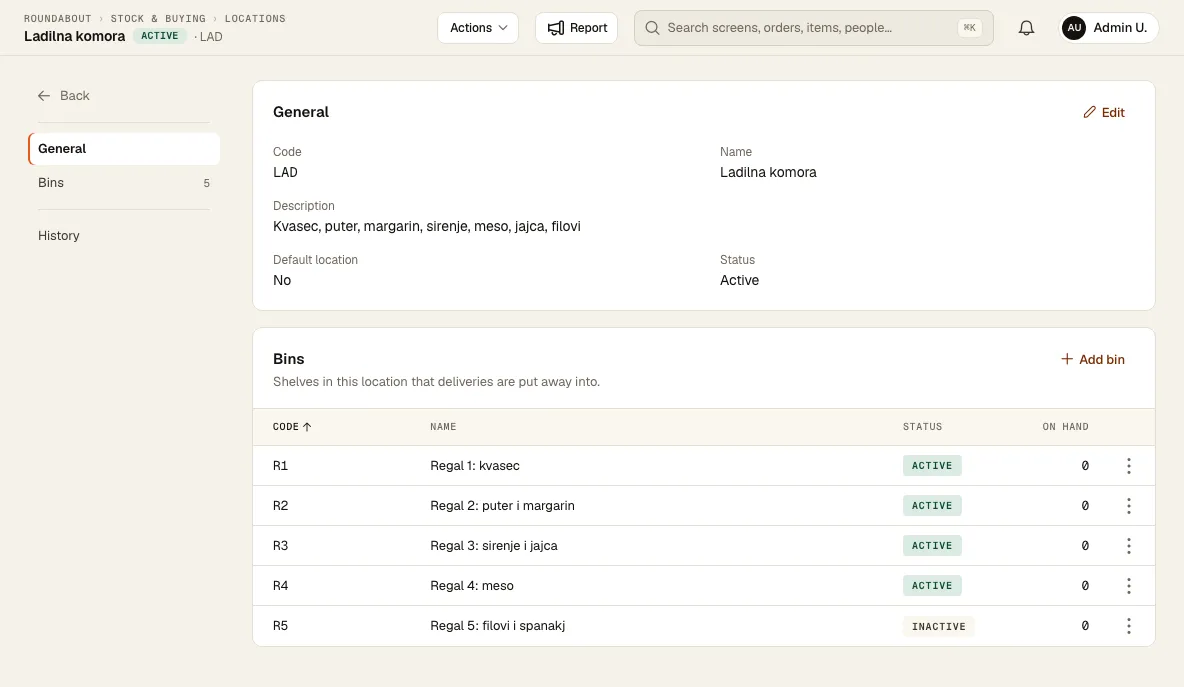
- General: the location’s Code, Name, Description, whether it is the Default location, and its Status. Edit changes all of them but the code.
- Bins: the shelves in this location that deliveries are put away into, each with its Code, Name, Status and what it holds On hand. See Bins.
- History: who created the location and who changed it last, and when.
Actions holds Delete. What werkplan doesn’t delete is on the Locations page.
The default location
Section titled “The default location”One location is normally the default; every organisation starts with MAIN (Main Warehouse) as its default. werkplan uses it where nobody names a location:
- a production order’s finished units are received into it when the order completes;
- a sales delivery takes its stock from it when no location is named;
- the stock dialogs, such as receiving stock or a purchase order’s delivery, choose it to begin with.
To make another location the default, tick Set as default location for new stock in its Edit dialog. The old default stops being it. Unticking it on the default leaves no default; werkplan then uses the oldest active location of your own. A location can’t be the default and inactive at once, and the default can’t be deleted.
Statuses
Section titled “Statuses”You choose a location’s status in its Edit dialog. A location is Active when you add it.
stateDiagram-v2
  accTitle: Location statuses
  accDescr: A location is added Active. Edit location makes it Inactive, unless it is the default or a transfer is on the road to or from it, and makes it Active again.
  [*] --> Active: Create location
  Active --> Inactive: Edit location
  Inactive --> Active: Edit location
| Status | How a location gets it | How it leaves it | What it changes |
|---|---|---|---|
| Active | Added, or saved as Active in Edit location | Saved as Inactive | Takes stock in and gives it out; its free stock counts for planning |
| Inactive | Saved as Inactive in Edit location | Saved as Active | No stock moves in or out; its stock doesn’t count for planning |
Saving a status needs the permission order:write.
Active
Section titled “Active”Stock can be received into the location, issued from it, adjusted, counted and moved to or from it. Its free stock counts when werkplan works out when the material for an order is there.
Inactive
Section titled “Inactive”The location is kept on record, with its stock, but no stock moves in or out of it. Location pickers in the stock dialogs don’t offer it, and werkplan refuses a receipt, an issue, an adjustment, completing a stocktake that corrects its stock, or a transfer from or to it, with the message that the location is inactive.
werkplan doesn’t make a location inactive while a transfer is on the road to it or from it: receive or cancel the transfer first. Nor can a location be the default and inactive at once: untick Set as default location for new stock, or make another location the default. A location that holds stock can be made inactive. Its stock then stops counting as available, for planning too: an order that needs it can wait for material until you make the location active again.
A bin is a shelf, a rack or an area inside a location, such as A1 or Shelf 3. Stock can sit in a location without a bin, as stock not yet put away. Bins are optional: add them where you put deliveries away by shelf, and the stock dialogs offer them for that location.
Add or change a bin
Section titled “Add or change a bin”- On the location’s page, under Bins, click Add bin.
- Enter a Code, such as A1. No two bins of the location can have the same code. Bin pickers list bins by it.
- If you like, enter a Name, such as Cold shelf 3. It shows beside the code.
- Click Create bin.
Edit on a bin’s row renames it: its stock stays in it. A bin can’t be deleted; deactivate one you no longer use.
Bin statuses
Section titled “Bin statuses”A bin is Active when you add it. Deactivate and Activate on its row change its status, and need the permission inventory:write.
stateDiagram-v2
  accTitle: Bin statuses
  accDescr: A bin is added Active. Deactivate makes it Inactive once it holds no stock, and Activate makes it Active again.
  [*] --> Active: Add bin
  Active --> Inactive: Deactivate, when it holds no stock
  Inactive --> Active: Activate
| Status | How a bin gets it | How it leaves it | What it changes |
|---|---|---|---|
| Active | Added, or activated | Deactivated, once it holds no stock | Takes stock in and gives it out |
| Inactive | Deactivated | Activated | Takes no stock in |
Active
Section titled “Active”The bin takes stock in, from a receipt, an adjustment upward or a move between bins, and gives it out. Bin pickers offer it.
Inactive
Section titled “Inactive”The bin takes no stock in: bin pickers don’t offer it, and werkplan refuses to receive or move stock into it, or to make it an item’s default bin. werkplan doesn’t deactivate a bin that holds stock: move it or write it off first.
Still stuck? Write to support@example.com.