Sales orders
- Available on
- Trial
- Pro
- Enterprise
- Who can do this
- Open this screenRoles: Administrator, Employee
Permission: order:read - Enter a sales order, change it, confirm or cancel it, re-check its fulfilment, and record a returnRoles: Administrator
Permission: order:write - Pack and deliver a sales order, start or cancel a pick list, and restock a returnRoles: Administrator
Permission: inventory:write
- Open this screenRoles: Administrator, Employee
The Sales orders screen lists what your customers have ordered and how much of it has left the building. Here you enter a sales order, and from its page confirm it, deliver it and record returns.
A sales order is the demand werkplan plans for. Confirming it raises a production order for each line of a manufactured item that the shelf and the supply on its way don’t cover. A sales order comes in three ways: you enter it here, you accept a quote on the Quotes screen, or a source system sends it through the sales-order intake API. Each arrives as a draft, which someone confirms.
The list
Section titled “The list”The list shows each sales order’s Order #, Customer, Status, Delivery status, Value, Due date and Created date, the newest first. Show it as Cards or as a Table, search it, and filter it by Order #, Customer, Status, Delivery, Due date and Created.
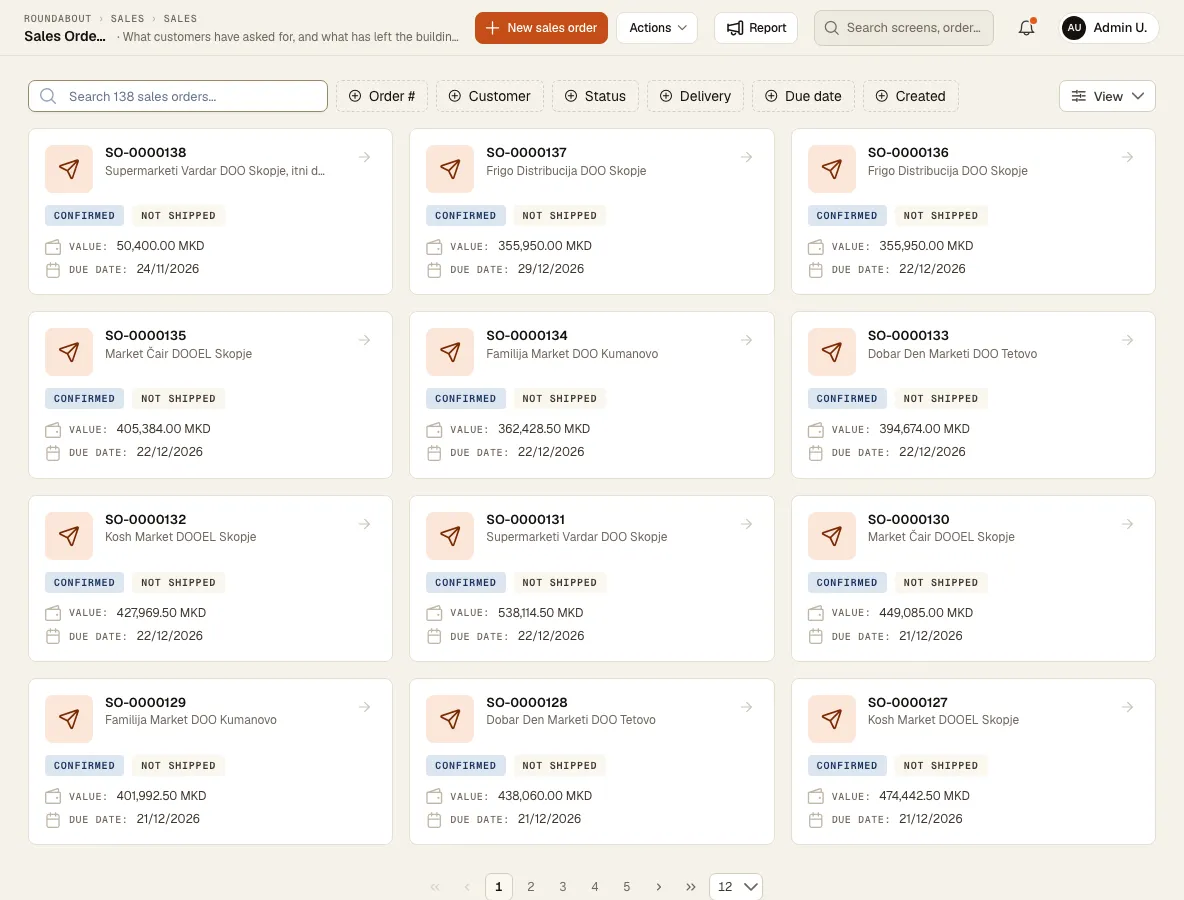
- Status says where the sales order stands: Draft, Confirmed or Cancelled. See Sales order.
- Delivery says how much of it is packed and delivered: Not shipped, Partly packed, Packed, Partly delivered or Delivered. See Delivery.
- Value is its total with tax, in your organisation’s currency. A draft’s value shows without a currency until it is confirmed. A line nobody priced adds nothing.
Click a sales order to open its page: see Sales order.
Enter a sales order
Section titled “Enter a sales order”- Click New sales order.
- Choose the Customer. Only active customers are listed; the + beside the picker adds one.
- If you like, choose a Due date: the day the customer wants the goods. Lines without a date of their own, and their production, follow it.
- If you like, enter Their reference, the customer’s order number. It is printed on the packing list and the delivery note.
- If you like, add Notes. They are printed on the packing list.
- Click Create draft.
werkplan opens the draft. Add its lines with Add line, then click Confirm. Nothing is planned or made until you confirm it: see Sales order.
What a sales order changes elsewhere
Section titled “What a sales order changes elsewhere”- Production: confirming raises production orders for what the shelf and the supply on its way don’t cover. A changed line quantity, a line added or cancelled, a delivery and cancelling the sales order decide them again, and a changed due date moves theirs. See What a change does to production.
- Stock: a confirmed sales order’s undelivered quantities count as demand in the item’s stock figures on the Stock screen. Only a delivery takes goods out of stock; nothing is reserved for a sales order. See Delivery.
- The master plan: production orders raised for a sales order are planned by the next scenario or re-plan, and the sales order’s lines show their planned finish once a promoted master plan holds them.
Each production order werkplan raises counts toward your subscription tier’s cap on production orders: up to 100 on Trial and 1,000 on Pro, counting every production order you have, whatever raised it. At the cap, werkplan refuses to raise one and offers Upgrade. A sales order you confirm at the cap is confirmed all the same, without its production orders: once there is room, click Re-check fulfilment on it.
Still stuck? Write to support@example.com.