Rotation
- Available on
- Trial
- Pro
- Enterprise
- Who can do this
- Open a rotation's pageRoles: Administrator, Shift supervisor, Employee
Permission: shift:read - Change a rotation, activate it or duplicate itRoles: Administrator
Permission: shift:write - Archive a rotationRoles: Administrator
Permission: shift:delete - Put an employee on a rotationRoles: Administrator
Permission: employee:write - Take an employee off a rotationRoles: Administrator
Permission: employee:delete
- Open a rotation's pageRoles: Administrator, Shift supervisor, Employee
A rotation is a cycle of weeks with one row per position: each day of a row is a shift type or a rest day. An employee put on a position follows its row, week by week, and the cycle repeats after its last week. Its status says whether it takes employees: a Draft doesn’t, an Active rotation does, and an Archived one gives no more shifts.
You open a rotation from the Rotations screen.
What its page shows
Section titled “What its page shows”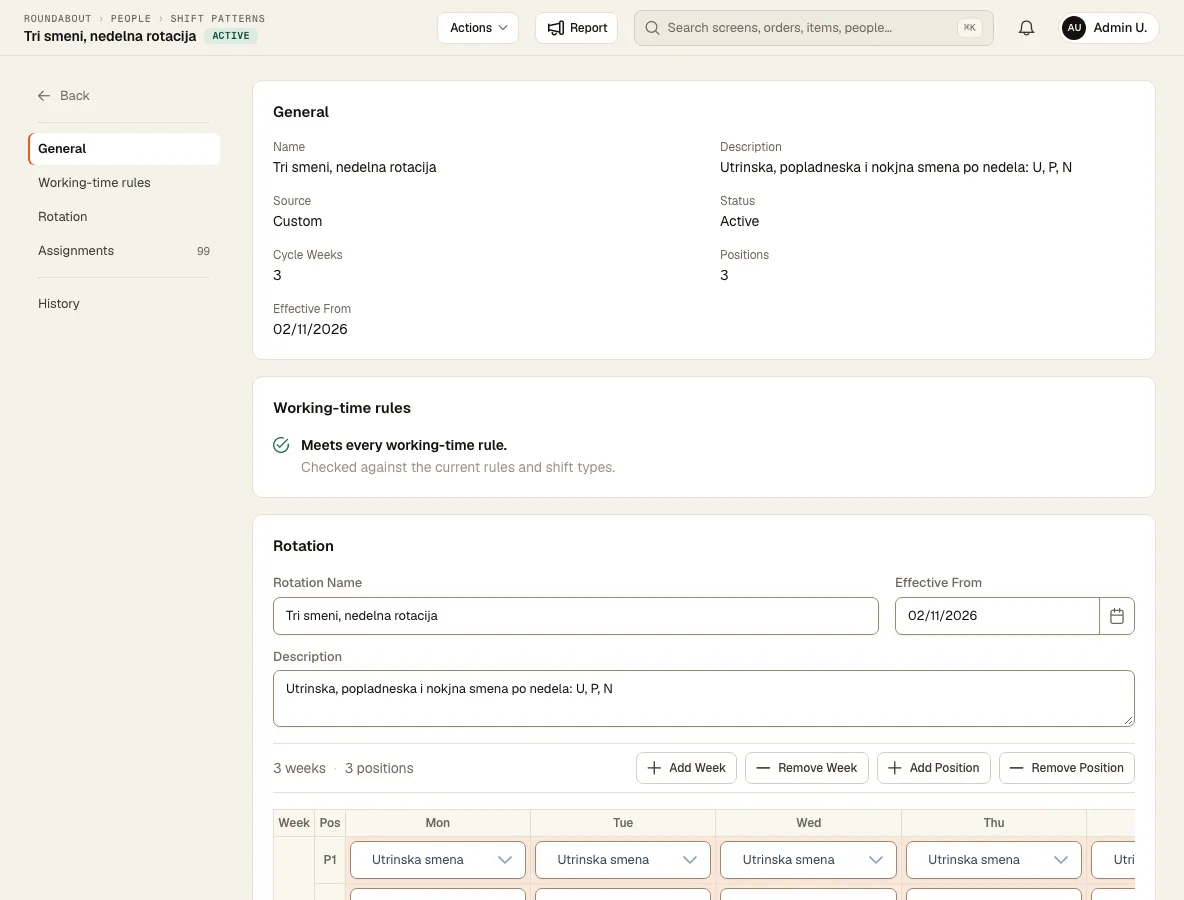
- General: the rotation’s Name, Description, Source, Status, Cycle Weeks, Positions and Effective From. Week 1 starts on the Monday on or before the effective date.
- Working-time rules: whether the rotation meets your labour rules, as they stand, or which rules it breaks, each with the first place it breaks it: the position, the week and the day.
- Rotation: the grid, week by week, a row per position and a column per weekday. Each cell is a shift type or REST. Add Week, Remove Week, Add Position and Remove Position change its size; Save keeps your changes.
- Assignments: who follows the rotation, at which Position, From and To. It shows on every rotation but a draft.
Actions holds Duplicate and Archive.
Put an employee on a rotation
Section titled “Put an employee on a rotation”- On an active rotation’s page, click Assign employee.
- Choose the Employee. Only active employees are listed.
- Choose the Position: the row whose shifts they work.
- Enter the date it is Effective from, and the date it is Effective to, or leave that empty to keep it going.
- Click Assign.
werkplan refuses the assignment when the employee has no shift group on the start date, or when their shift group doesn’t hold every shift type of the rotation. When the employee already follows a rotation with no end, the assignment must start after that one did, and that one ends the day before.
Remove from rotation deletes the employee’s assignment in force today, and takes away its shifts that aren’t published yet (see Archived).
Statuses
Section titled “Statuses”A rotation is made as a Draft. Activate makes it Active, and Archive makes either Archived. No rotation goes back: to change an archived rotation, duplicate it.
stateDiagram-v2
  accTitle: Rotation statuses
  accDescr: A rotation is made as a Draft. Activate makes it Active, if it meets every working-time rule. Archive makes a Draft or an Active rotation Archived. Duplicate makes another Draft from any rotation.
  [*] --> Draft: Made, or duplicated
  Draft --> Active: Activate
  Draft --> Archived: Archive
  Active --> Archived: Archive
| Status | How a rotation gets it | How it leaves it | Takes employees | Gives shifts |
|---|---|---|---|---|
| Draft | Made with New rotation, from the library, or by Duplicate | Activate, or Archive | No | No |
| Active | Activate, when it meets every working-time rule | Archive | Yes | Yes |
| Archived | Archive | Never | No | No |
Activate needs the permission shift:write, and Archive shift:delete.
The rotation is being set up. Fill in its grid on its page, as often as you like. A draft takes no employees and gives no shifts.
Activate checks the rotation against your labour rules first, and refuses it while it breaks one: the Working-time rules panel says which, and where. Change the grid until it meets them.
Active
Section titled “Active”The rotation takes employees, and the workforce schedule gives each of them its shifts (see What a rotation does to the plan).
You can still change an active rotation. A change to its grid, its weeks or its effective date is checked against your labour rules again, and refused while it breaks one. When your labour rules change so that an active rotation breaks them, it stays active, so its shifts carry on: the Working-time rules panel says what it breaks.
Archived
Section titled “Archived”The rotation gives no more shifts. Its assignments stay on its page, and it can’t be changed or activated again.
Archiving takes away the shifts the rotation wrote that aren’t published yet, after the last published day or today, whichever is later. Published shifts stay, and so do shifts you changed by hand. werkplan keeps a shift whose removal would break a working-time limit, and lists the days it kept. Taking an employee off a rotation does the same for their shifts.
To start again from an archived rotation, use Duplicate: it makes a draft named with “ [duplicate]” after the name, with the same grid and no employees.
What a rotation does to the plan
Section titled “What a rotation does to the plan”When you plan a period of the workforce schedule, werkplan takes the assignments to active rotations in force on the first day it plans. An assignment that starts later in the period is taken in from the next period you plan. For each day, it writes the shift of the employee’s row in that week of the cycle, unless you changed that day by hand. It writes a rest day instead where the cell is empty, on a day your plant is closed, on the employee’s own holiday, and where the shift type isn’t in the employee’s shift group that day or doesn’t run on that day. It skips an absence, and a shift that would break a working-time rule.
An employee on a rotation for the whole period works only its shifts: the workforce solve plans no other shift for them, and counts them toward each shift’s coverage goals. One whose assignment ends inside the period gets the rotation’s shifts up to its end, and the workforce solve plans their days after it.
Changing an assignment or a rotation writes no shift by itself: the next period you plan takes it in.
Production doesn’t read rotations. Their shifts reach production once you publish the workforce schedule, as published shifts. A change to a rotation is never listed in Show changes on the Master plan screen, and puts no scenario out of date.
Still stuck? Write to support@example.com.