Demand
- Available on
- Trial
- Pro
- Enterprise
- Who can do this
- Open this screenRoles: Administrator, Shift supervisor, Employee
Permission: schedule:read - Add, import or delete a staffing requirement, and place someone on an understaffed shiftRoles: Administrator, Shift supervisor
Permission: schedule:write - Choose which requirements workforce planning follows, on the Organization screenRoles: Administrator
Permission: organization:write
- Open this screenRoles: Administrator, Shift supervisor, Employee
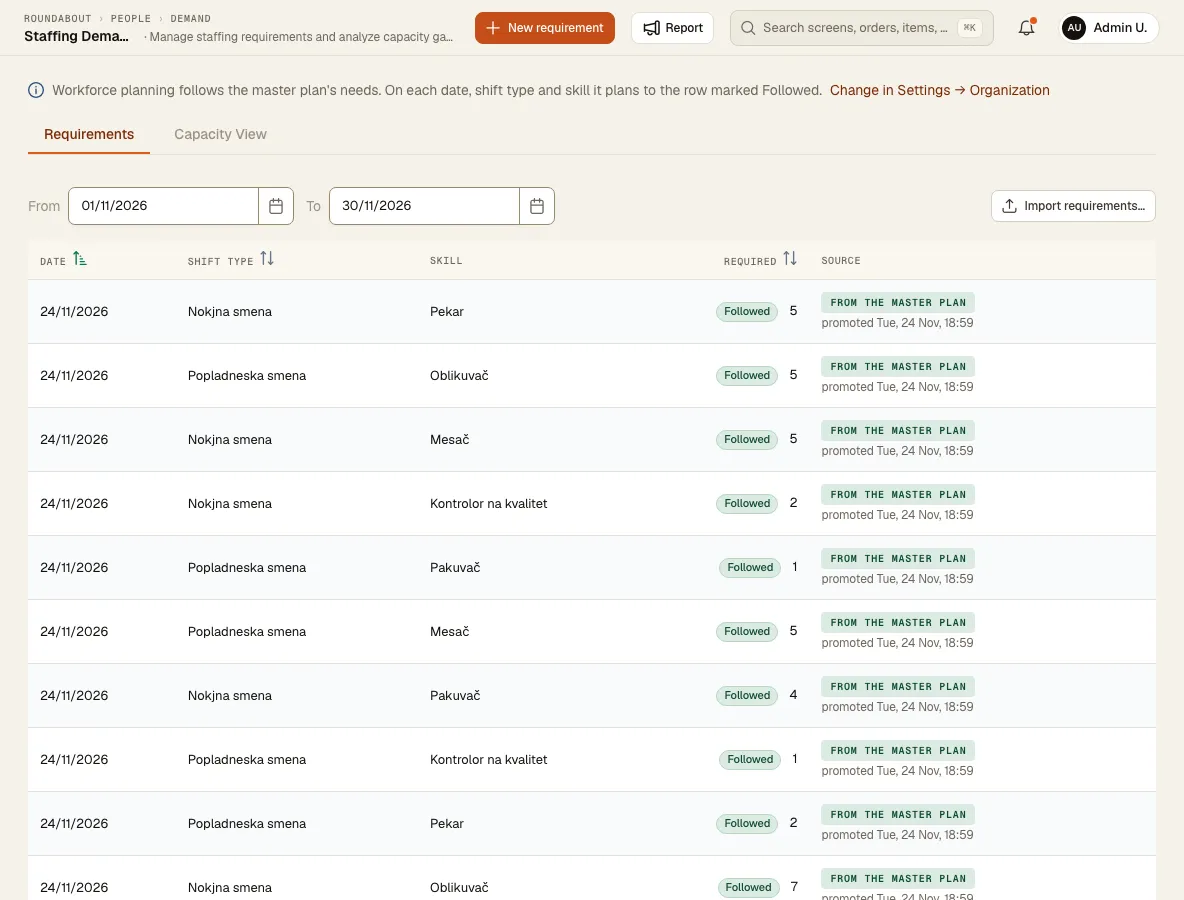
The Demand screen, headed Staffing Demand, lists the staffing requirements: how many employees one shift type needs on one date, holding a training or in all. It compares each with the shifts planned on the workforce schedule, so you see where people are short.
Where requirements come from
Section titled “Where requirements come from”A requirement has one of three sources, shown in its Source column:
- From the master plan, with when it was promoted: every time a plan is promoted, werkplan works out from the master plan how many trained employees each shift needs at its busiest, from today on, and writes these again. Requirements of earlier days stay as they were, the record of what an earlier master plan needed. You can’t change or delete them.
- Typed: added here with New requirement.
- Imported: from a CSV file with Import requirements…: see Staffing requirements.
A date, shift type and training can hold one requirement of each source.
Which ones workforce planning follows
Section titled “Which ones workforce planning follows”The line above the tabs says which requirements workforce planning follows. Two switches under Workforce planning also follows: on the Organization screen decide it: the master plan’s needs, on to begin with, and needs typed or imported on People → Demand, off to begin with. Change in Settings → Organization takes you there, if you may change them.
A requirement workforce planning follows replaces, on its date, the coverage goal of its shift type for its training, or the shift type’s headcount when it names no training. Where several fall on one date, shift type and training, the largest holds, and its row carries the Followed pill beside its Required count. One it doesn’t follow only shows here. One on a weekday its shift type doesn’t run makes no goal. A requirement changes the workforce schedule only when it is next planned: see Plan the workforce schedule.
Requirements
Section titled “Requirements”The Requirements tab lists the requirements from From to To, this month to begin with: each with its Date, Shift Type, Skill, Required count and Source.
To add one:
- Click New requirement.
- Choose the Date the shift starts, the Shift type, and a Training, or leave it empty to count everyone on the shift.
- Enter the Required count, 1 or more.
- Click Add requirement.
The bin on a typed or imported row deletes it, after you confirm.
Capacity View
Section titled “Capacity View”The Capacity View tab lists the same requirements from From to To, each beside the shifts planned:
| Column | What it shows |
|---|---|
| Required | The requirement’s count, with Followed on the one workforce planning follows |
| Scheduled | The employees with a shift of that type that day, in the workforce schedule, published or not; for a training, those holding it that day |
| Gap | Required less Scheduled |
| Status | Covered when nobody is missing, Tight when one is, Understaffed when two or more are |
| Source | Where the requirement comes from, as on Requirements |
On an Understaffed row, the people button opens Cover an understaffed shift: who could work it, with their fair-share fit, preference and contract. Assign gives that person the shift on that day in the workforce schedule, with every check a shift set by hand passes.
Still stuck? Write to support@example.com.